Select Test Scripts:
- Select the test scripts you want to create test runs for in the appropriate Test Cycle column.
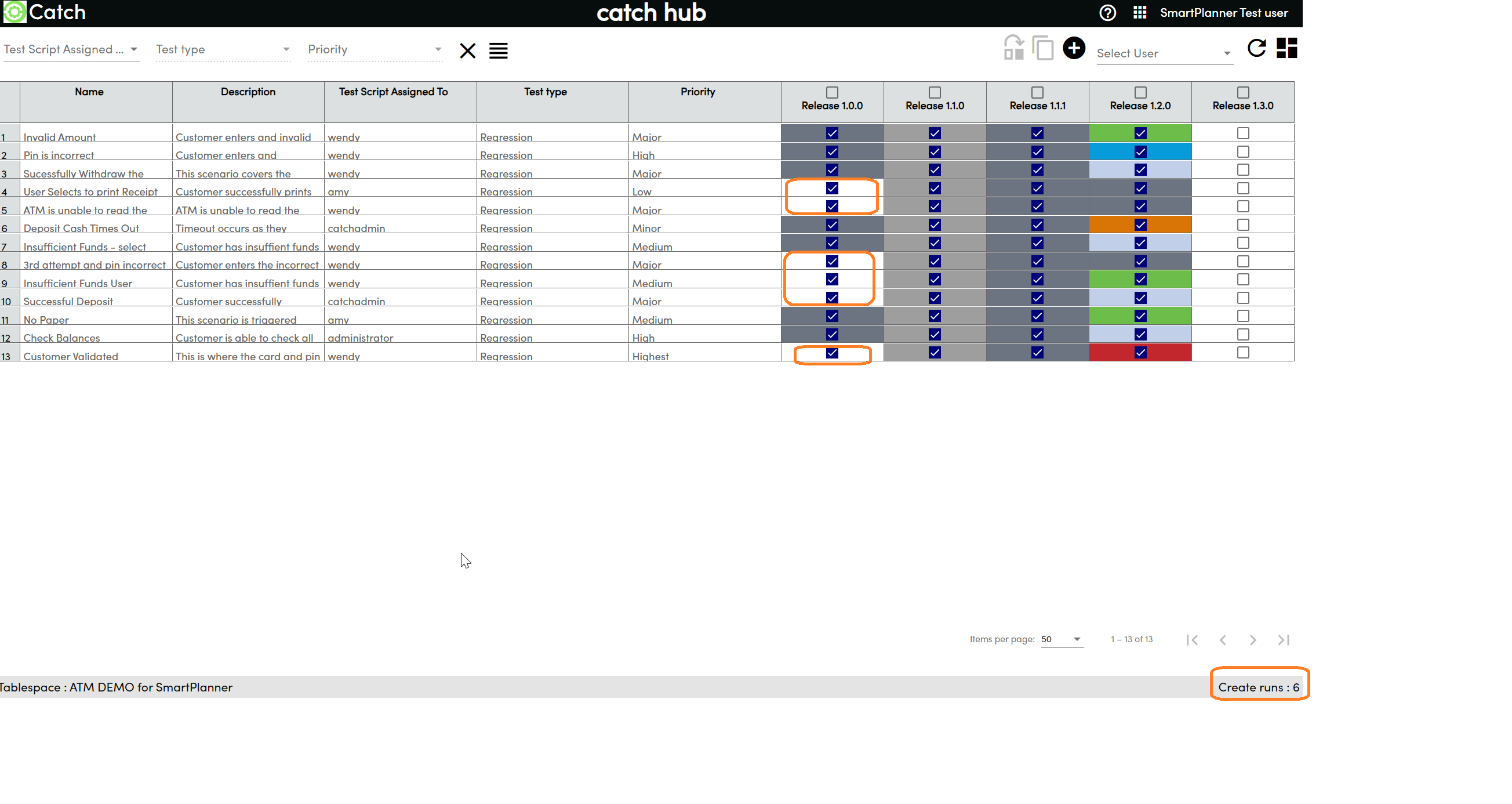
- Select the test scripts you want to create test runs for in the appropriate Test Cycle column.
Open Assignee Dropdown:
- Click on the dropdown menu next to the Create Run button

- Click on the dropdown menu next to the Create Run button
Select User:
- Choose a user from the dropdown to assign the test runs to.
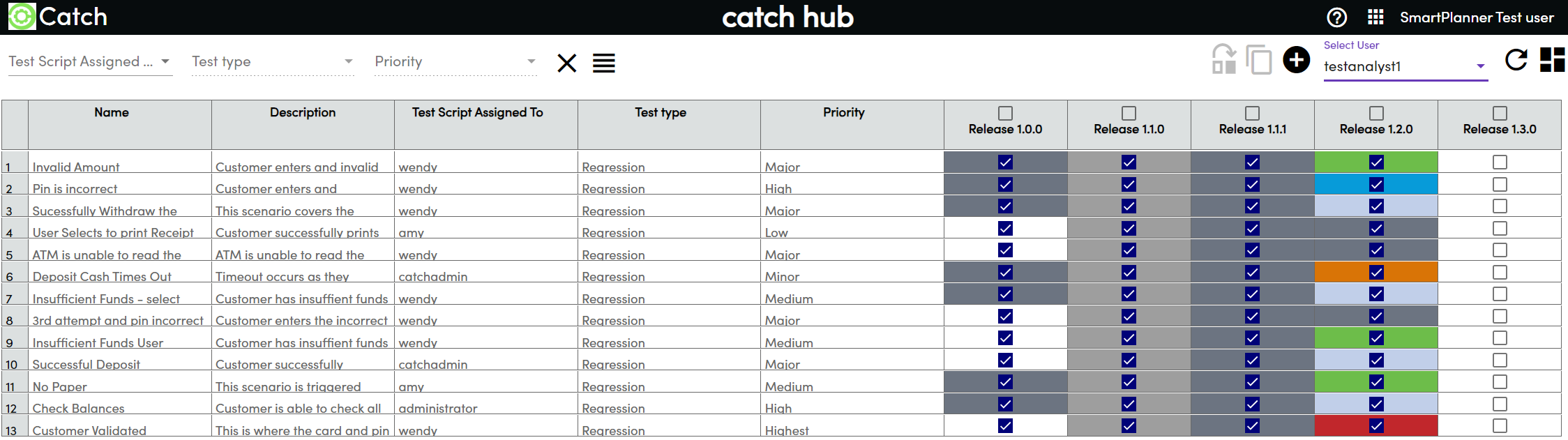
- Choose a user from the dropdown to assign the test runs to.
Create Test Runs:
- Click on the Create Run icon.

- Click on the Create Run icon.
Progress Bar:
- A progress bar will be displayed, showing the status of the run creation.
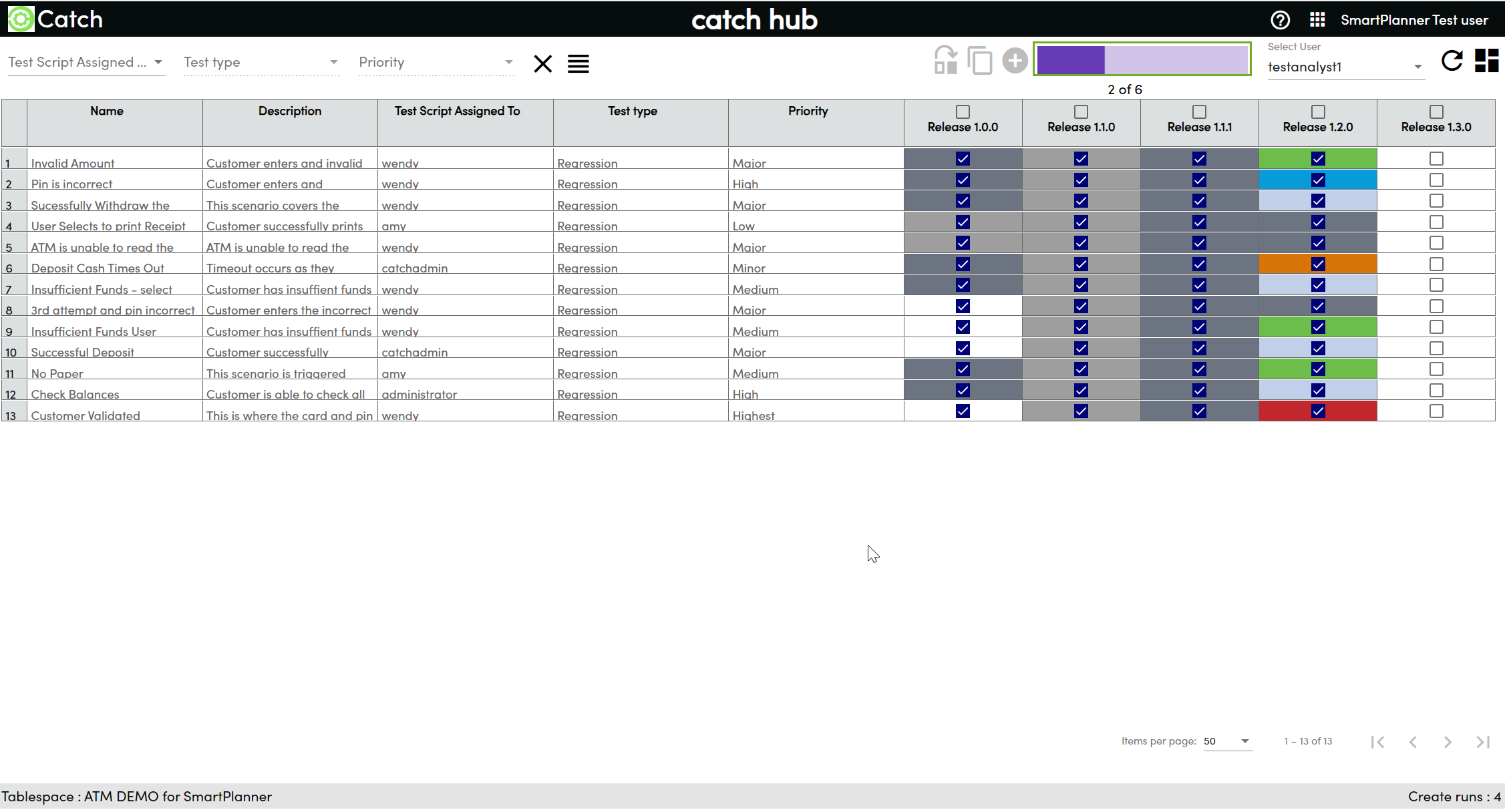
- A progress bar will be displayed, showing the status of the run creation.
After Successful Creation:
- The created test runs will appear in light grey as they are assigned to a user
- Hover over any of the newly created test run and a tooltip will appear showing the assignee of the test run
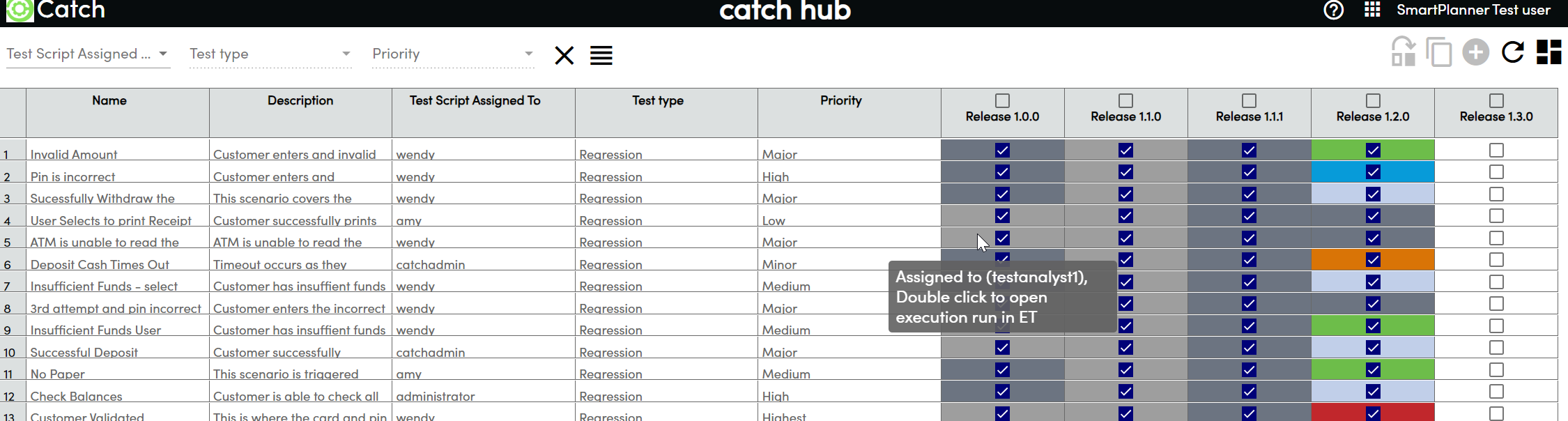
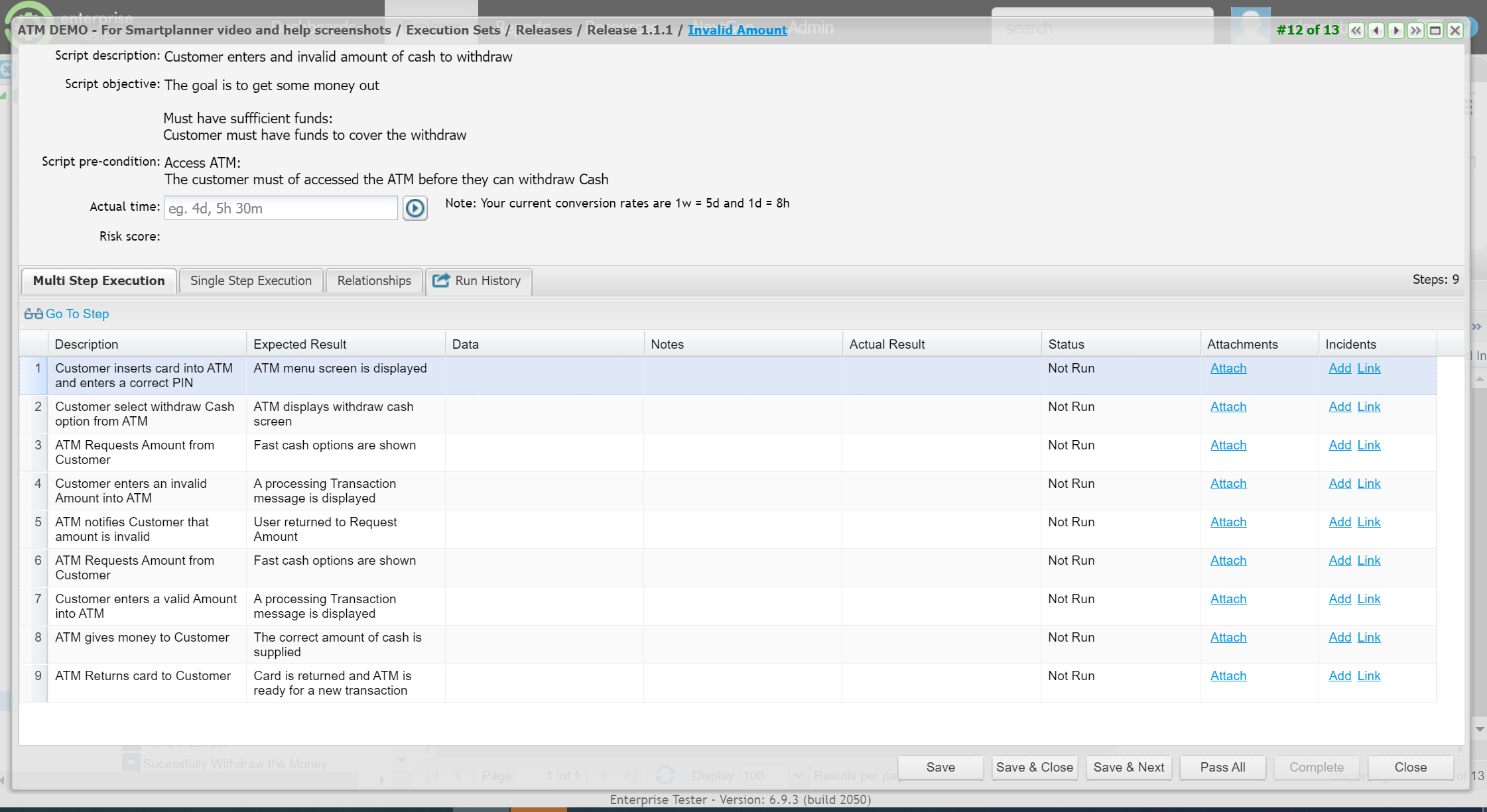
- You can double click on any of the test executions displayed and they will open in Enterprise Tester.
Select the test scripts that you want to create test runs for in the appropriate Test Cycle column.
Click on the Create run icon
A progress bar is displayed and shows the status of the run creation.
After successful creation the colour of the created test runs will be dark grey as they are unassigned.
If you mouse over any of the test runs that were just created it will not show any assignee.