You have the flexibility to bulk create test runs and assign them to a user immediately or leave them unassigned for future assignment.
Test Cycles
- Execution Packages: These are columns in Enterprise Tester where test runs will be created (e.g., Release 1.0.0, Release 1.1.0).
Using Filters
- Filter Criteria: Narrow down your test script selection criteria before creating or assigning test runs.
Selecting Test Scripts
You can select test scripts in the following ways:
- Select All: Check the box in the Test Cycle column header to select all test scripts.
- Select Single Script: Click on the checkbox corresponding to a single test script in the appropriate Test Cycle.
- Select Multiple Scripts: Hold down the Shift key and click to select multiple test scripts in a row.
Navigation
- When initially loaded, the Create Run icon will be disabled.
- After selecting one or more scripts, the Create Run icon will enable.
- The tooltip for the Create Run icon will indicate the number of selected scripts.
- The Select User dropdown will appear, displaying active Enterprise Tester users alphabetically.
- Hovering over a user in the dropdown will show their email ID for identification.
This setup allows for efficient bulk management of test runs, ensuring clarity and ease in assignment and execution within Enterprise Tester.
Select Test Scripts:
- Select the test scripts you want to create test runs for in the appropriate Test Cycle column.
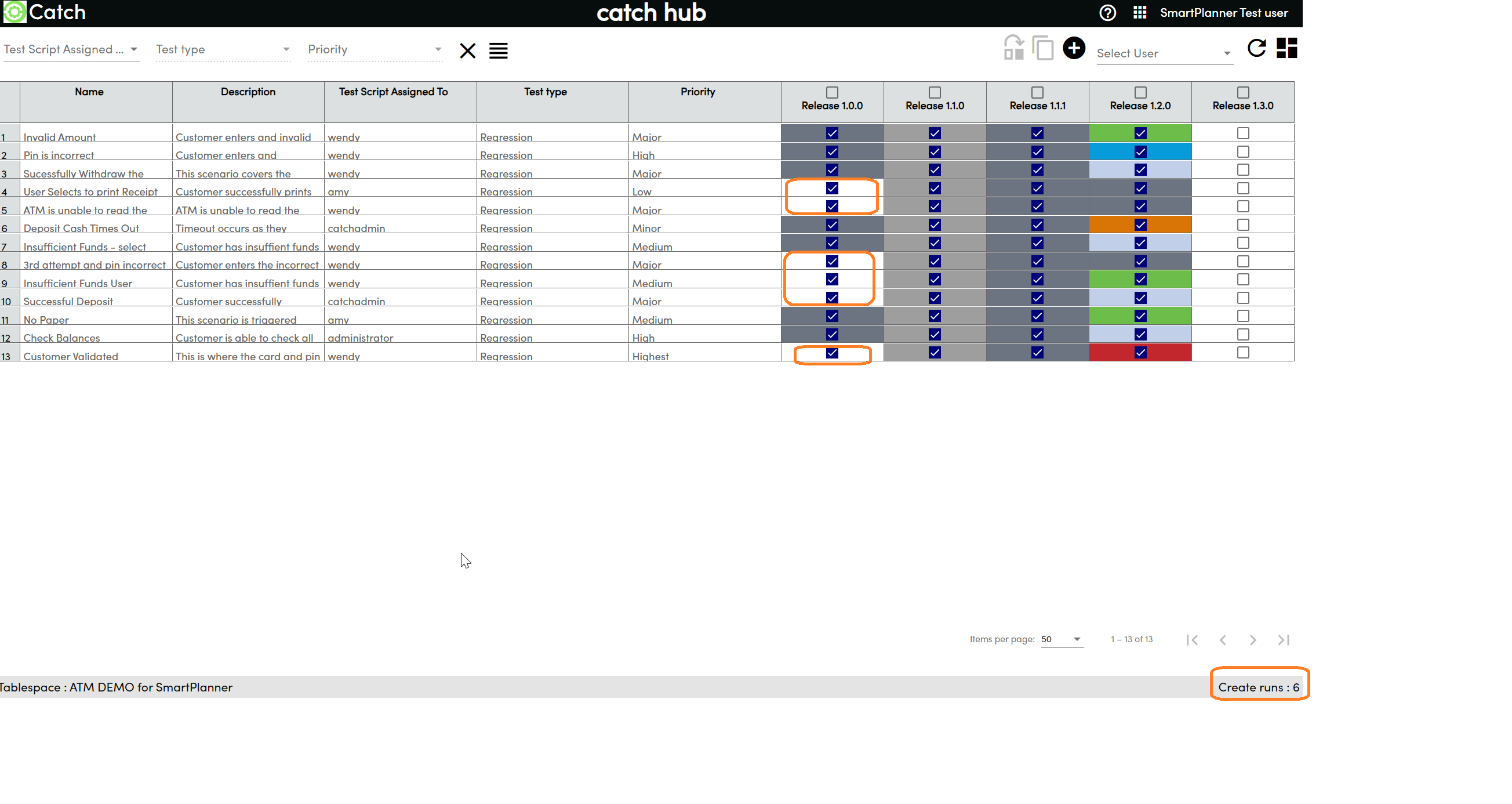
- Select the test scripts you want to create test runs for in the appropriate Test Cycle column.
Open Assignee Dropdown:
- Click on the dropdown menu next to the Create Run button

- Click on the dropdown menu next to the Create Run button
Select User:
- Choose a user from the dropdown to assign the test runs to.
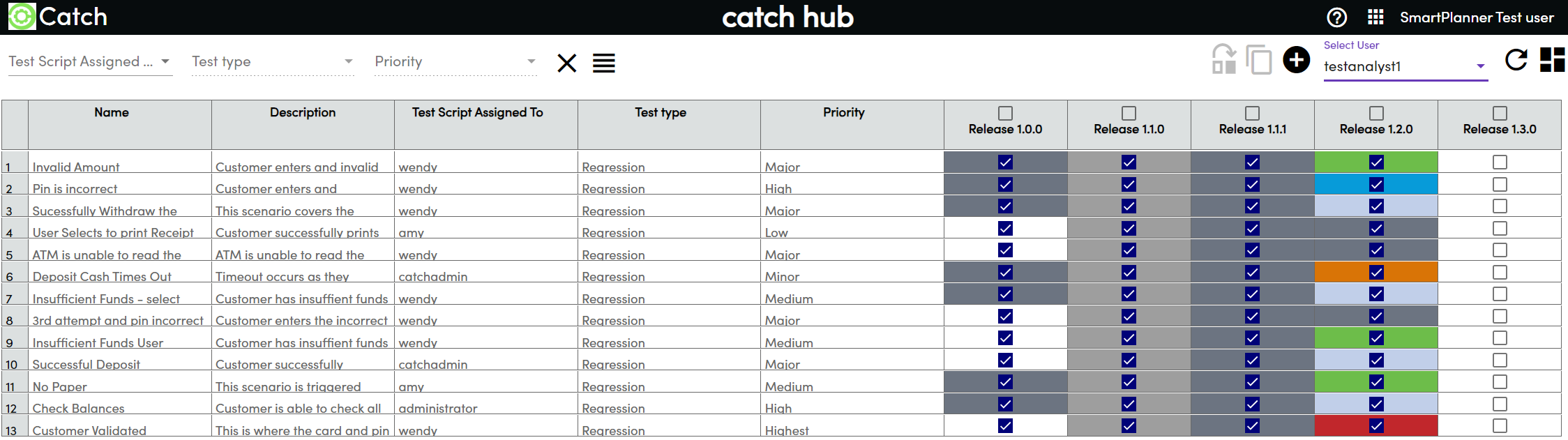
- Choose a user from the dropdown to assign the test runs to.
Create Test Runs:
- Click on the Create Run icon.

- Click on the Create Run icon.
Progress Bar:
- A progress bar will be displayed, showing the status of the run creation.
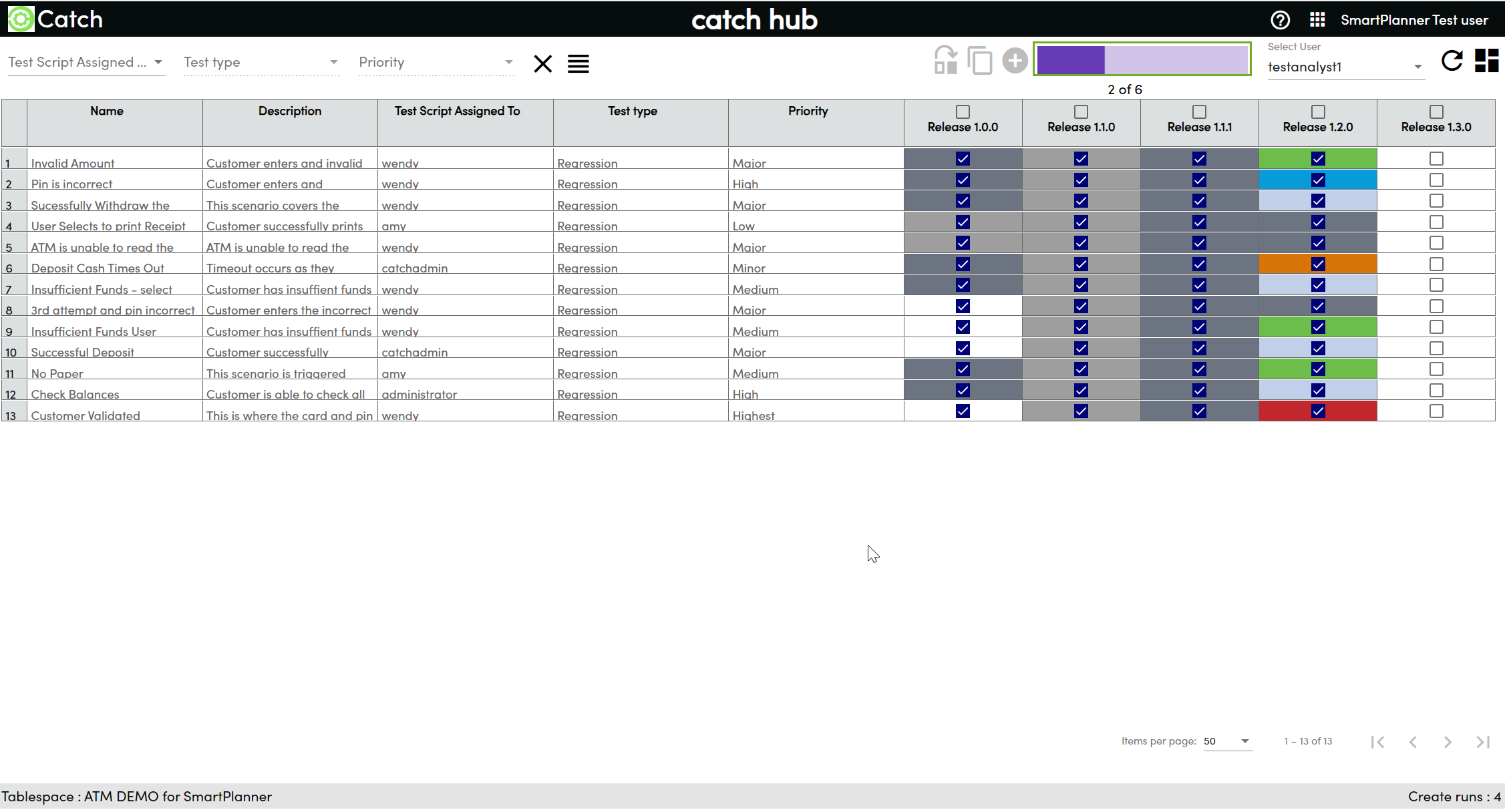
- A progress bar will be displayed, showing the status of the run creation.
After Successful Creation:
- The created test runs will appear in light grey as they are assigned to a user
- Hover over any of the newly created test run and a tooltip will appear showing the assignee of the test run
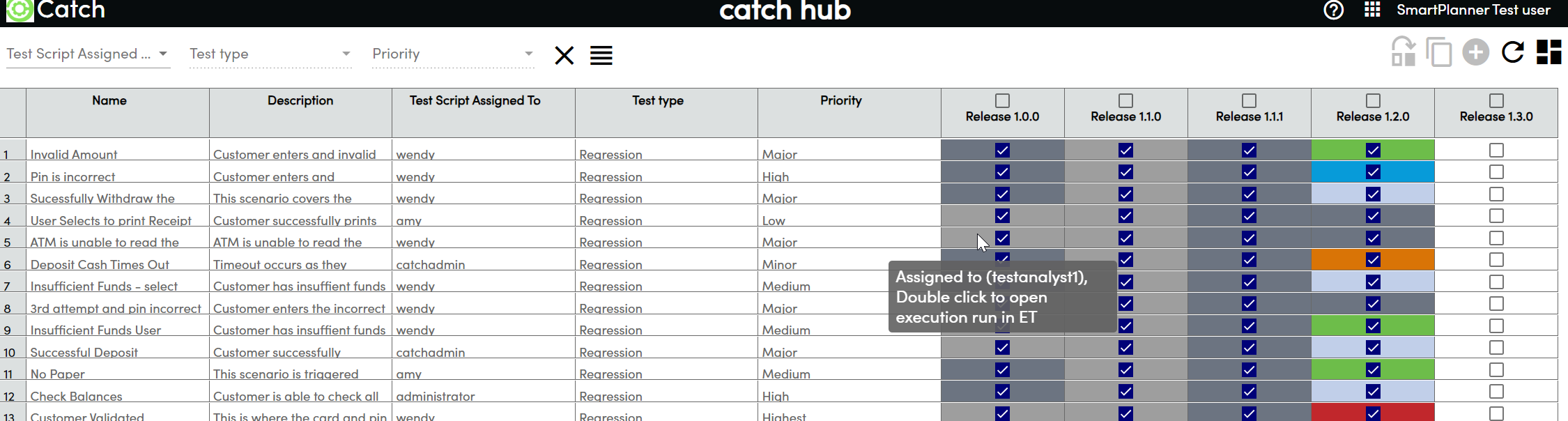
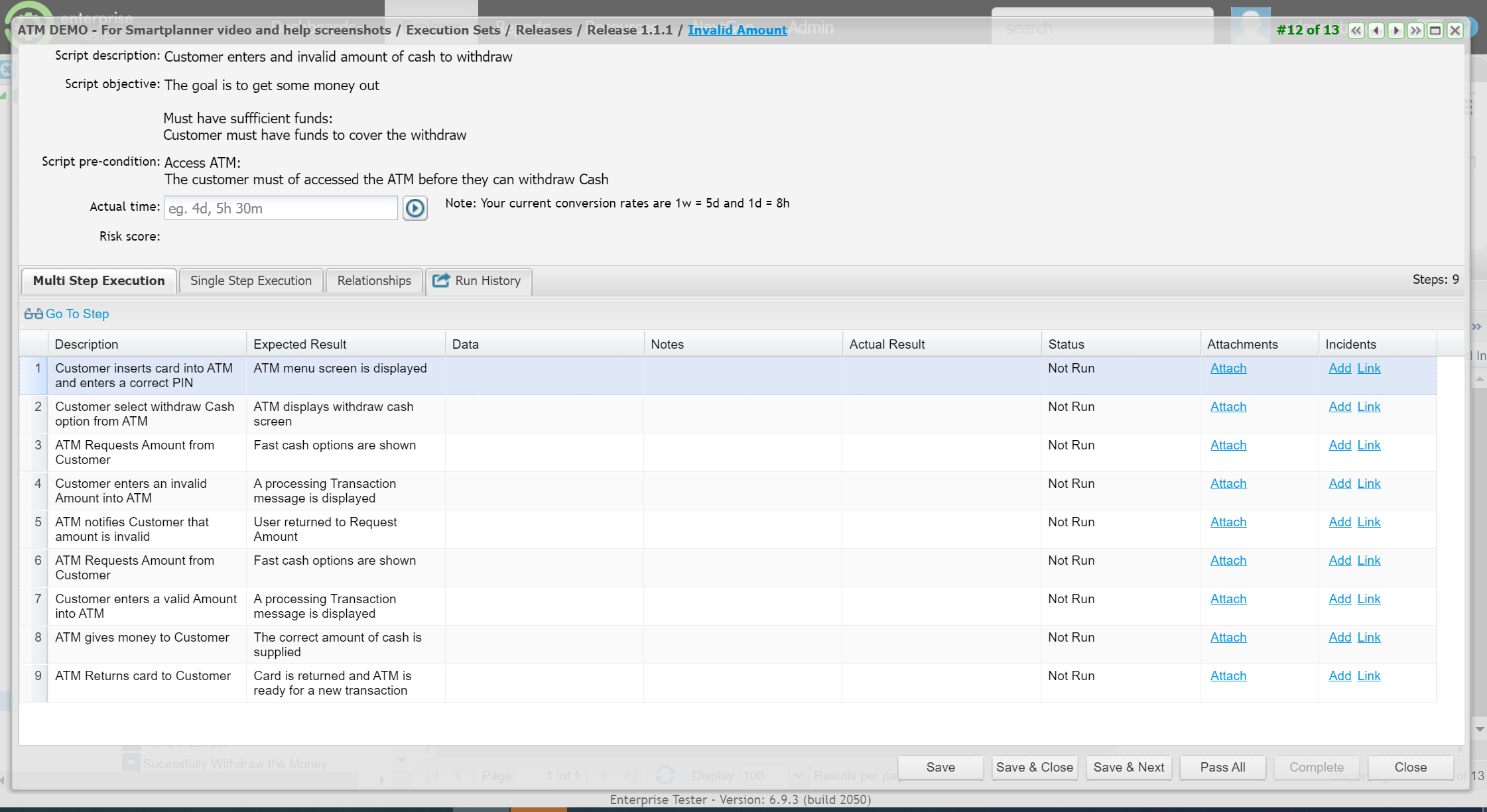
- You can double click on any of the test executions displayed and they will open in Enterprise Tester.
Select the test scripts that you want to create test runs for in the appropriate Test Cycle column.
Click on the Create run icon
A progress bar is displayed and shows the status of the run creation.
After successful creation the colour of the created test runs will be dark grey as they are unassigned.
If you mouse over any of the test runs that were just created it will not show any assignee.