Welcome to the documentation for Enterprise Tester for Jira, a simple, Jira-native manual testing solution that allows you to manage test cases and steps directly inside your Jira Cloud projects.
Overview
Enterprise Tester for Jira adds a structured test management layer to Jira by introducing a new issue type: ET Test along with a step-based interface for test execution. This allows agile and QA teams to:
Create manual test cases
Define step-by-step test instructions
Execute and record test results
Keep all data within Jira’s native storage and permission model
✅ Ideal for regulated or security-conscious environments – no external systems or databases required.
Compatibility
⚙️ Works With
✅ Compatible With:
Company-managed Jira Software projects
Scrum and Kanban boards
Bug Tracking project template
⚠️ Not Supported (Yet):
Team-managed (next-gen) projects
💡 Support for Team-managed projects is on the roadmap.
Hosting
- ✅ Jira Cloud
- ❌ Jira Server / Data Center (not supported)
Installation & Configuration
Step 1: Install the App
Go to Jira Settings > Apps > Find new apps
Search for Enterprise Tester for Jira
Click Install
Step 2: Global Configuration (Admin only)
Navigate to a project and select Enterprise Tester for Jira app

- Select the Global Configuration tab.
If no configuration exists, you will see an Create Test management configurations button.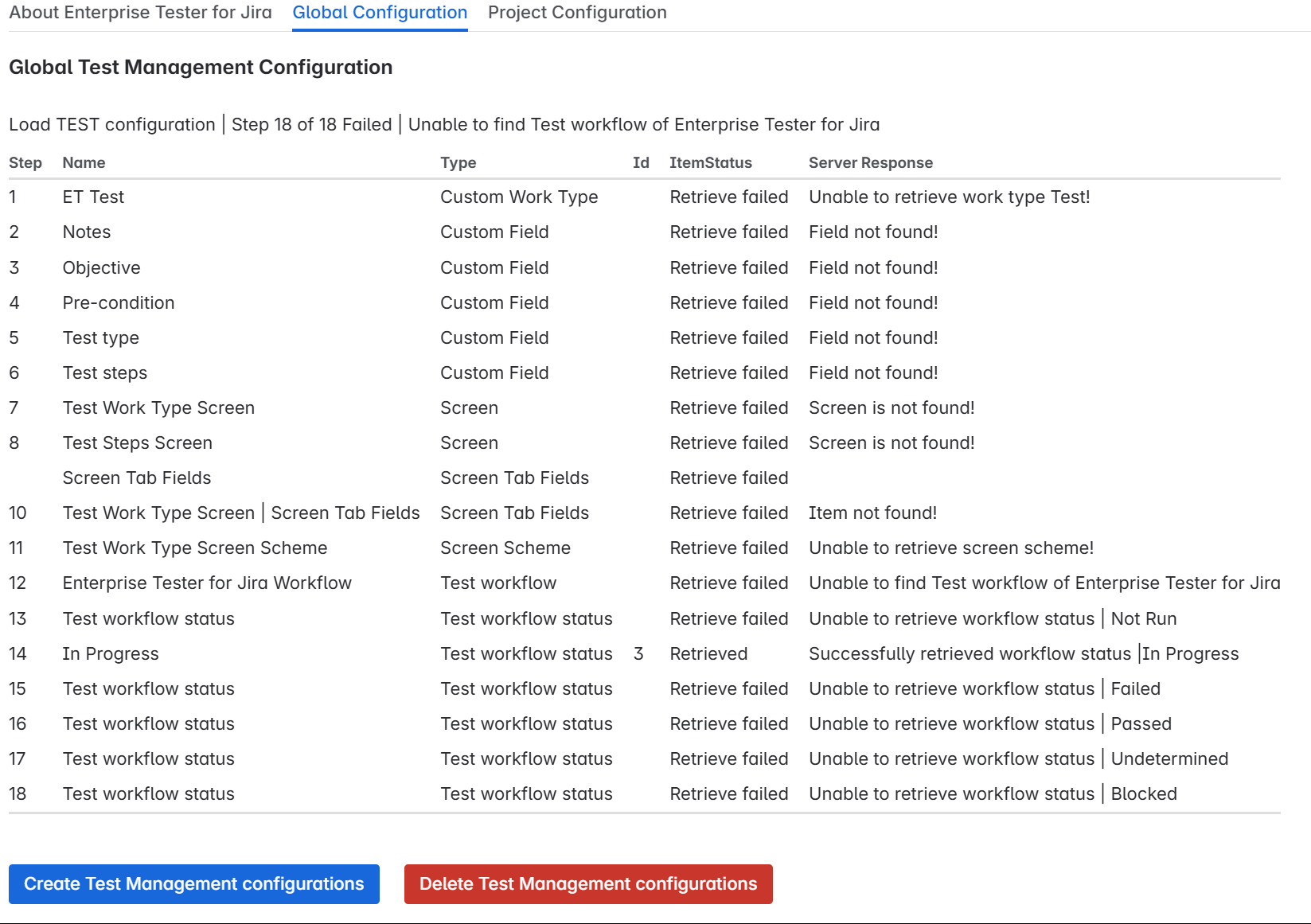
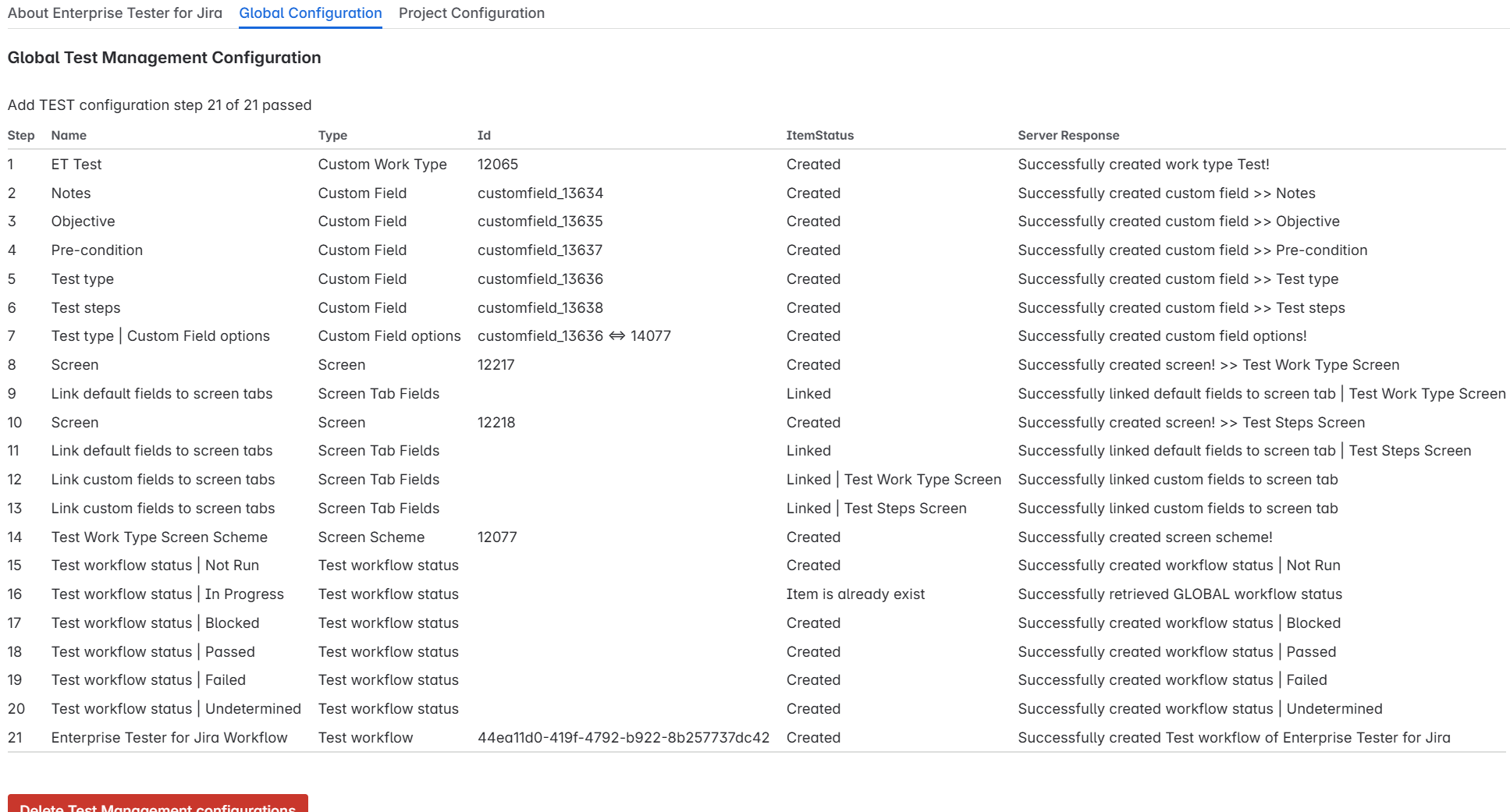
Click Create Test Management configurations to initiate the configuration.
This configuration applies across all applicable projects in your organization.
Once created, the Add Test Configuration button disappears.
Step 3: Select Project
- Select the Project Configuration tab. You will see a list of all software projects and a dropdown menu.
- Select a project to manage its test configuration.

Step 4: Create Test Configuration in Project
- Click Add Test Management configuration to Project to apply the test configuration to the selected project.
Note: If the project uses a shared workflow scheme, adding the test workflow will affect all projects sharing that scheme.
Once successfully configured the following screen will be displayed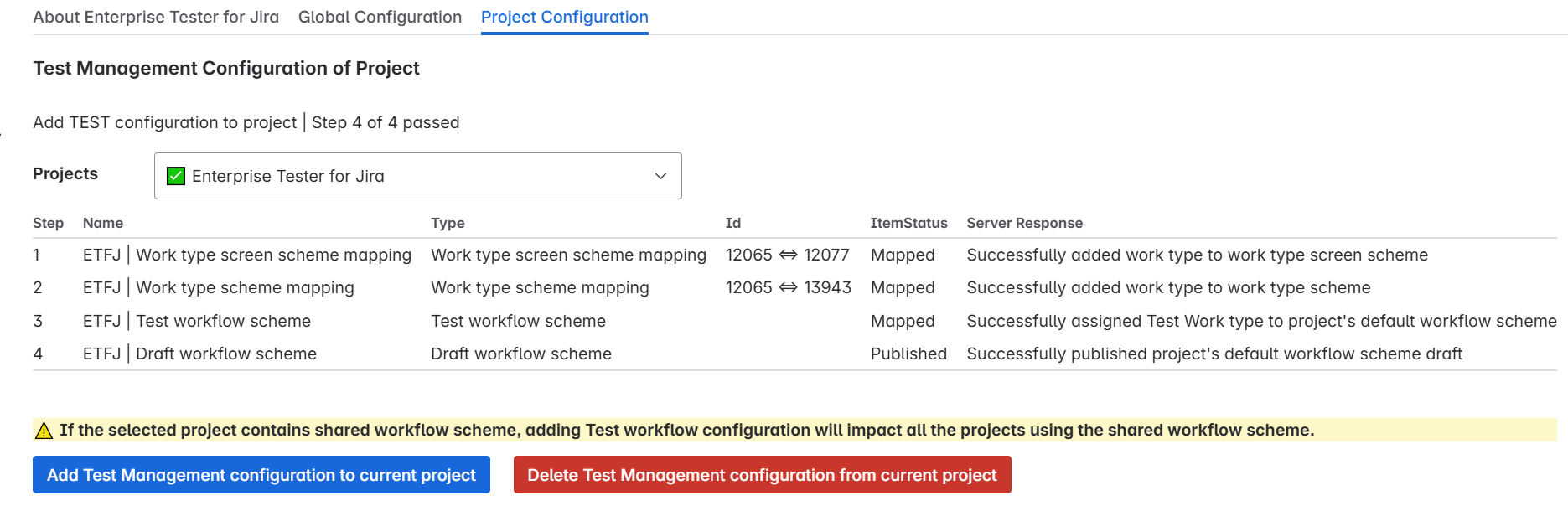
Using Enterprise Tester for Jira
Create a Test Case
The ET Test work type includes the following custom fields :
- Objective
- Pre-condition
- Notes
- Data
- Test Type
Click Create in Jira and select issue type ET Test

Fill in test summary and description
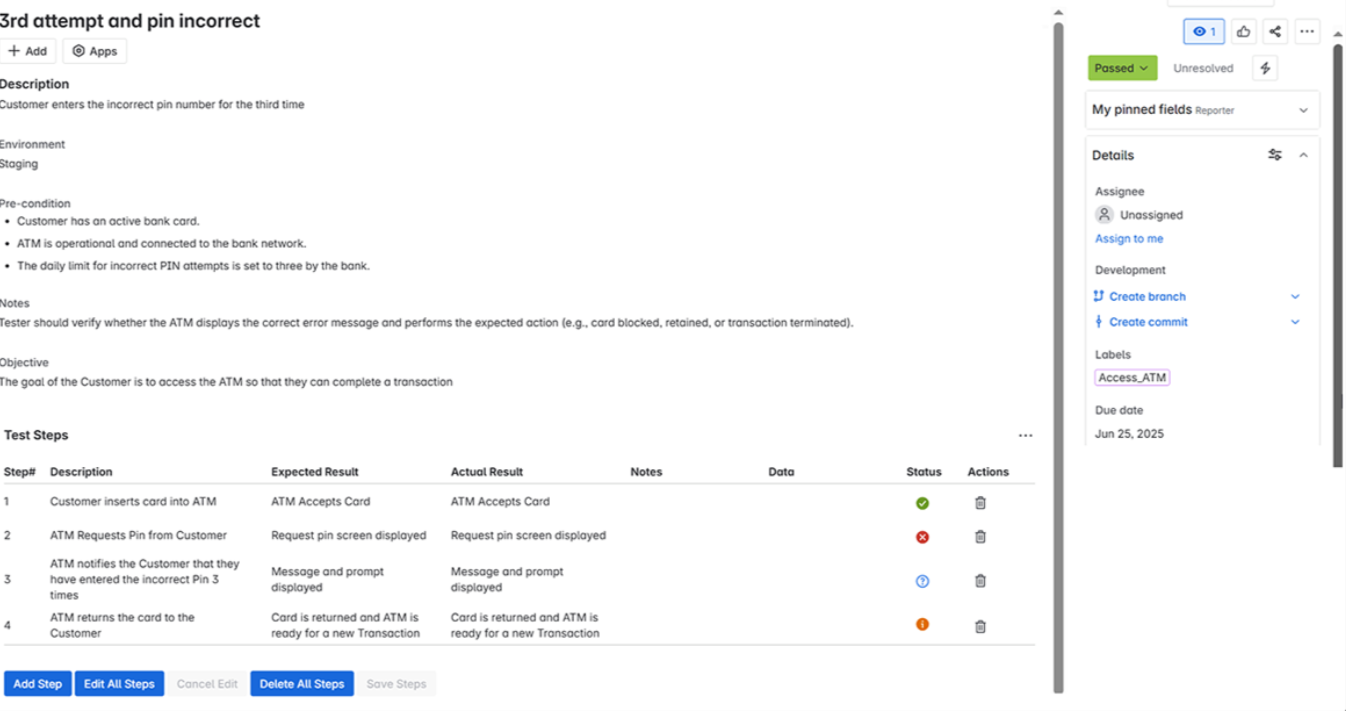
Adding Test Steps
Open the ET Test issue
From the app menu, select Test Steps

Add steps with expected outcomes
Use pass/fail status to mark results
To delete a step, click the Delete icon on that step.
You can move the Test work item through any workflow status available in the project.
Deleting Configurations
Delete Test Management Configuration
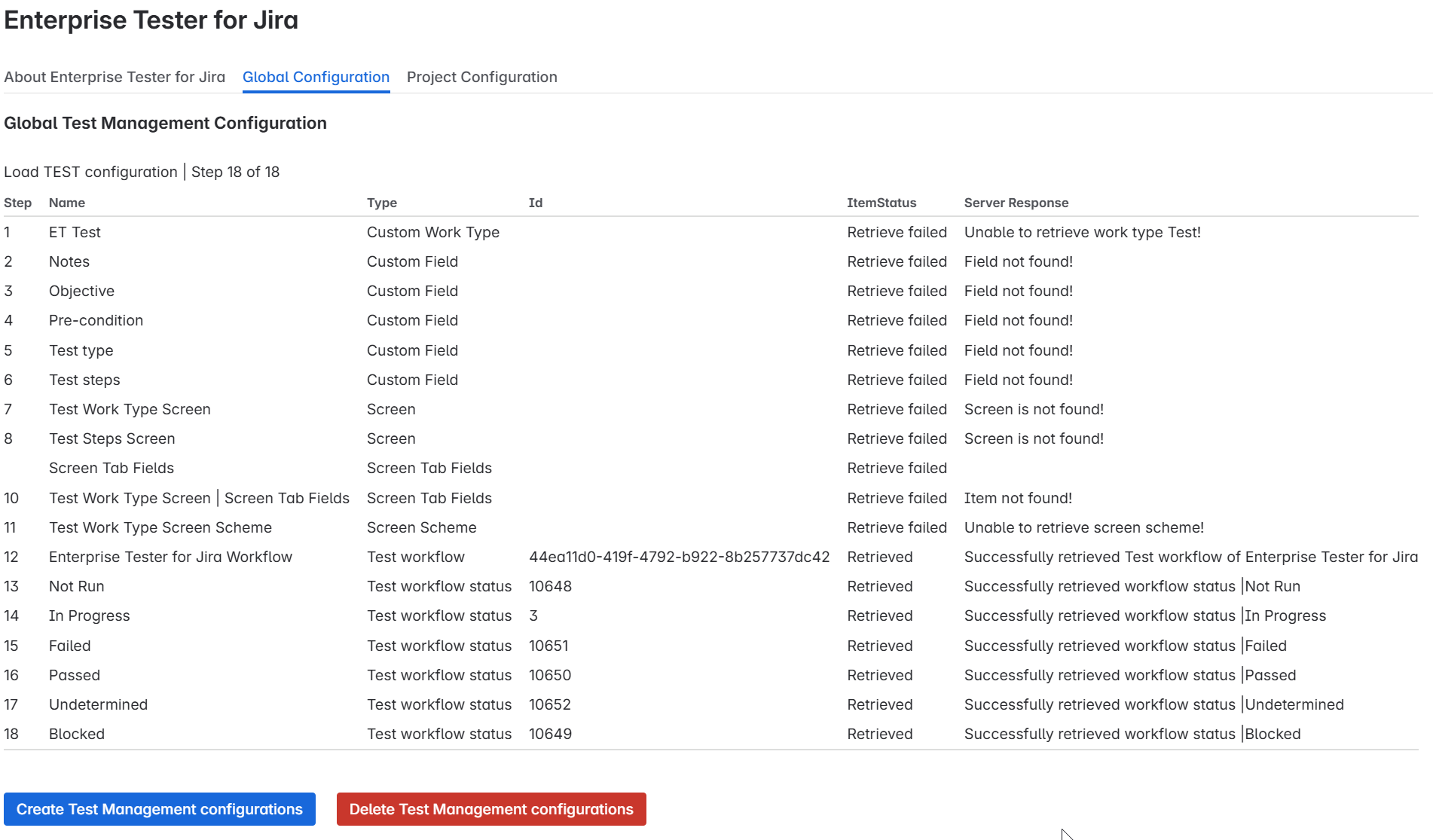
To delete the global configuration, click Delete Test Management Configuration.
You can only delete if the configuration has not been added to any projects.
If the configuration is in use by any project, the delete option will not be visible.
After deleting the Global Configuration if you see “unable to retrieve field not found”, it means the configuration was successfully removed
Delete Test Configuration from Project
If a configuration exists for the project, a Delete Test Configuration of Project button will be visible.
You can only delete a test configuration if it is applied specifically to the selected project.
Important: You cannot delete a project’s test configuration if there are existing ET Test work items in that project.
You must first remove or migrate those work items to other work types.
- After deleting the Global Configuration from the Project you will see "Mapping removed"

Cautionary Notes
Avoid deleting configurations while test types are still active
Always refresh the configuration page after changes
Support
📧 Support Email: support@catchsoftware.com