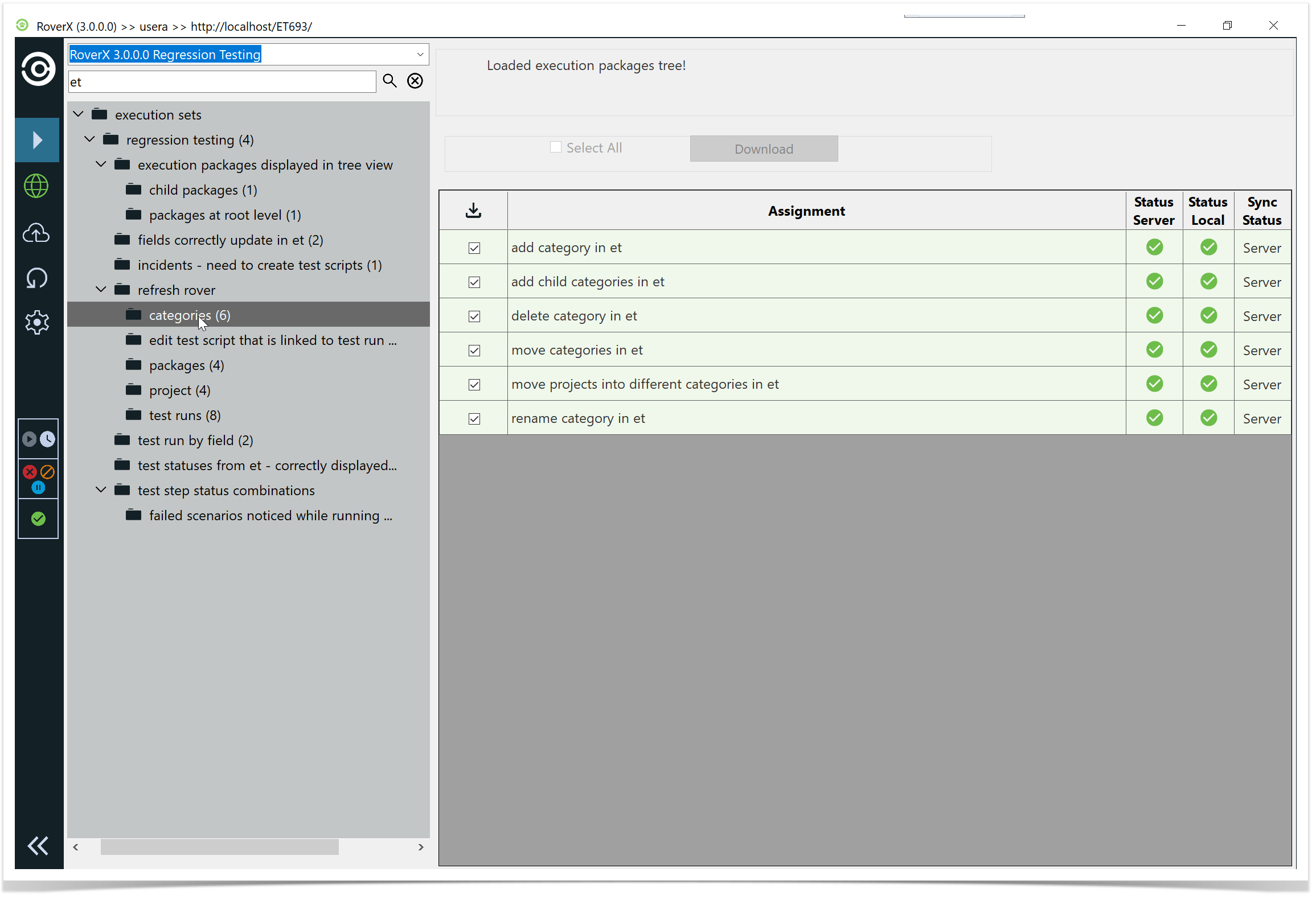
To find specific items within RoverX, follow these steps:
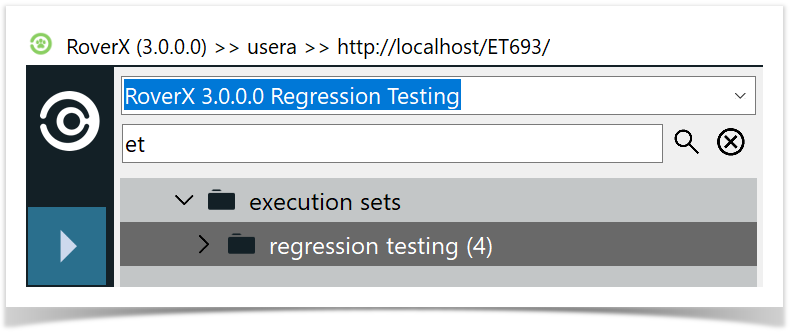
Enter Search Criteria: Type your search terms into the Search field.
Execute the Search: Press <Enter> on your keyboard or select the Search icon.
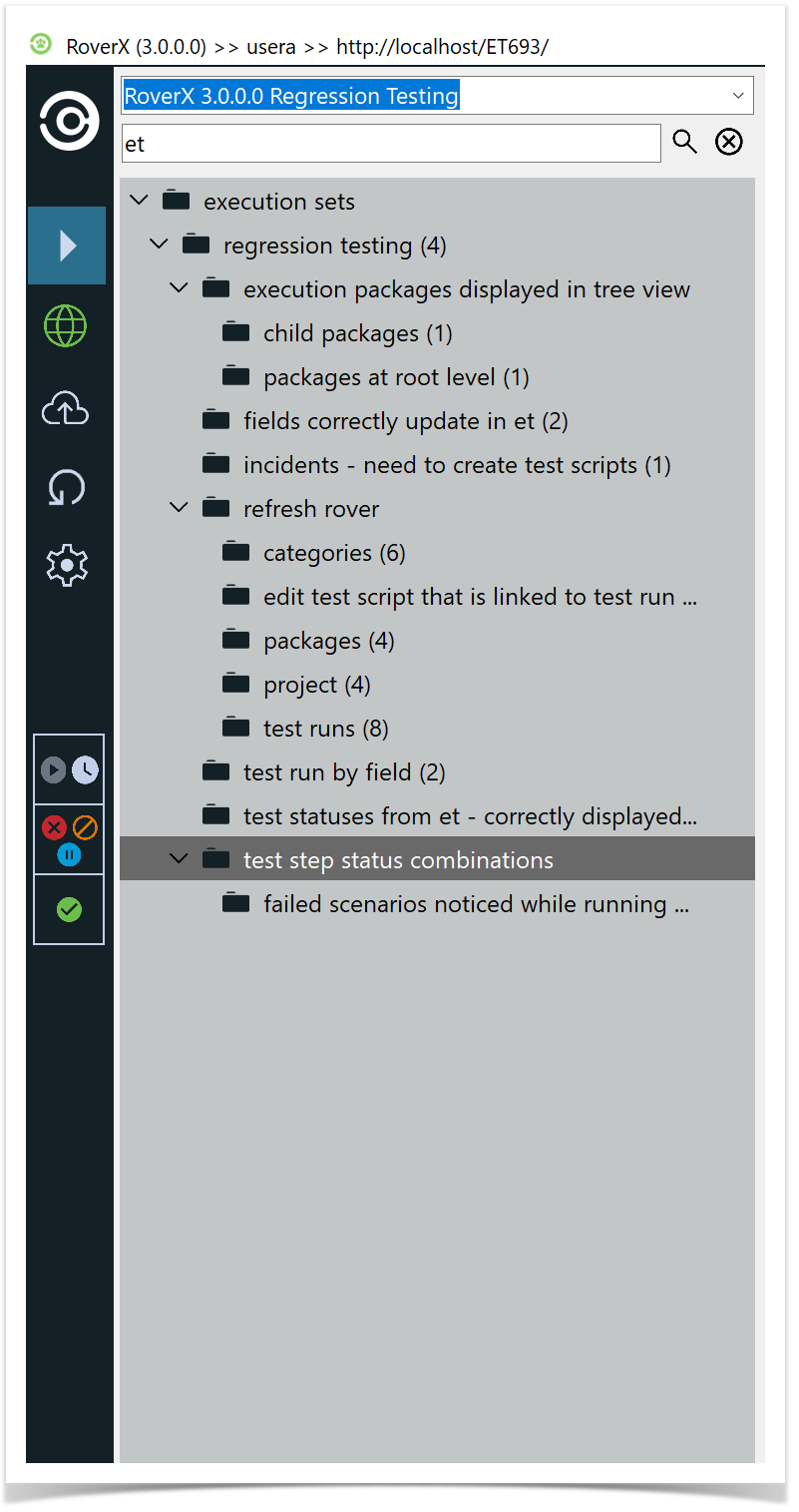
View Search Results: The search results will be displayed in the tree view. Only items that match your search criteria, along with their parent folders, will be shown.
- Expand Folders: To view all relevant search results and their associated items, you may need to expand the folders in the tree view. Please note that if you clear the search, the folders will stay expanded.
- View Test Runs: Click on the packages to see the test runs returned in the search.