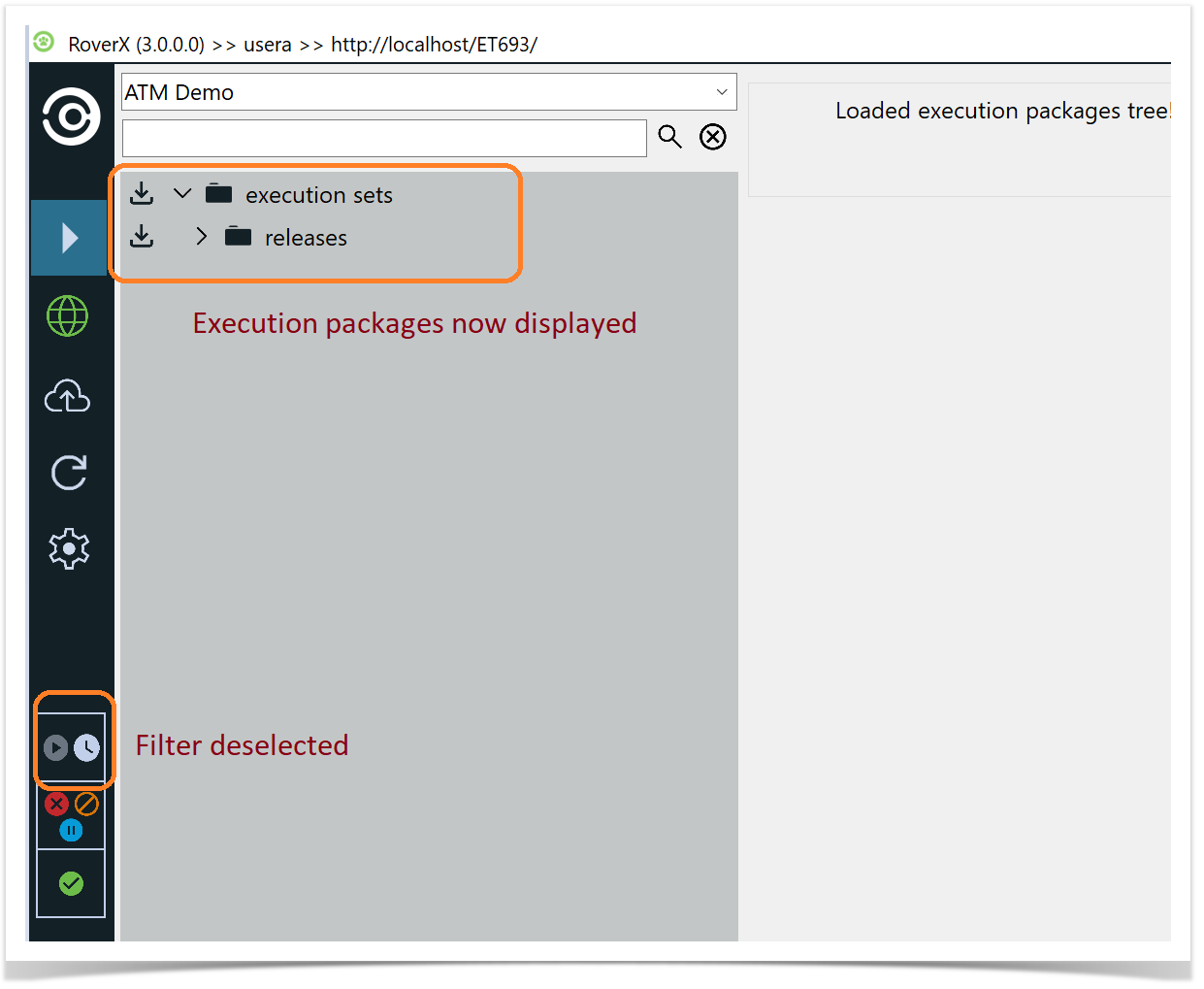
When you log in to RoverX for the first time Project field will be blank.
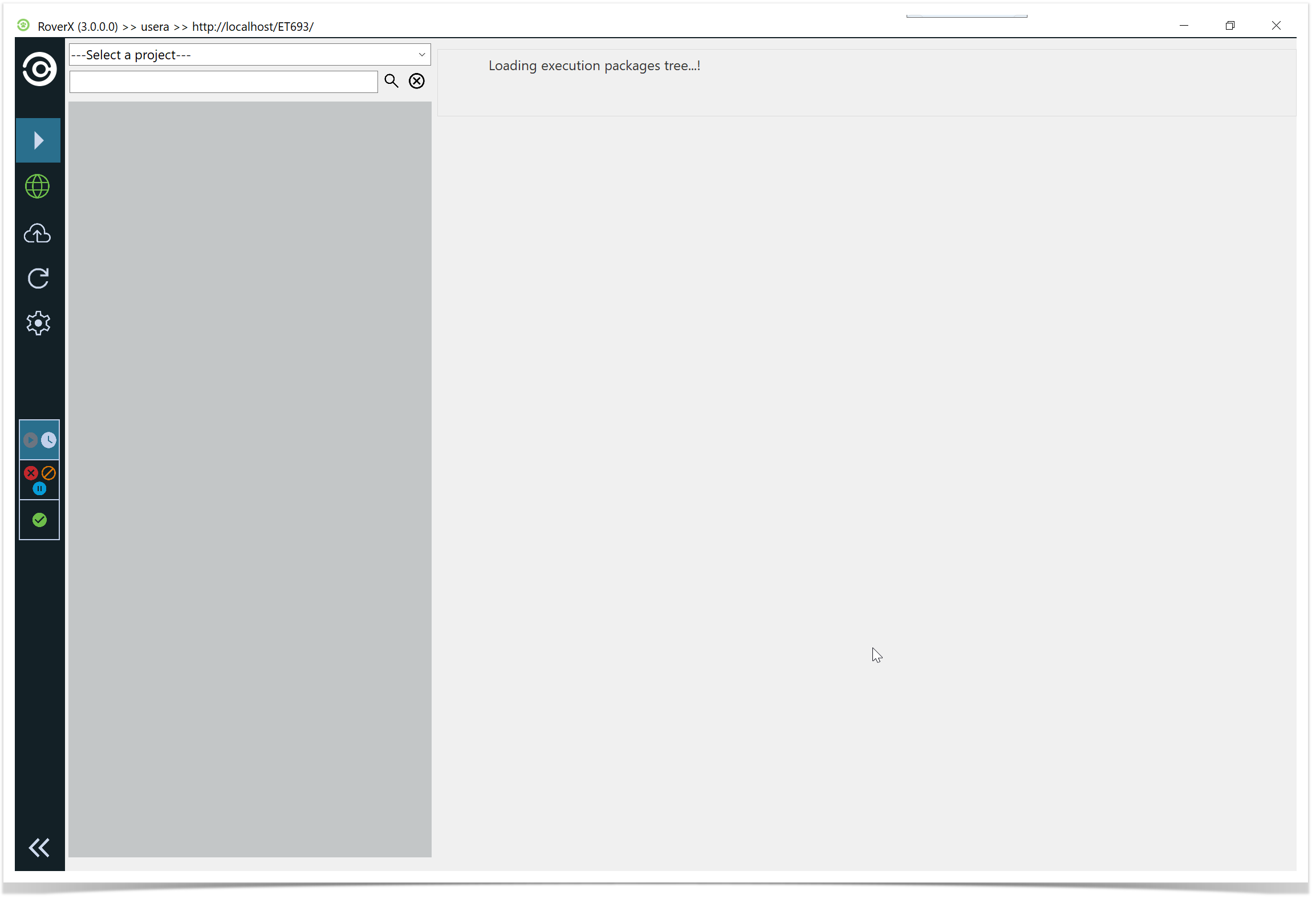
Open the Project List: Click on the down arrow located above the search field. This will display a list of available projects from Enterprise Tester.
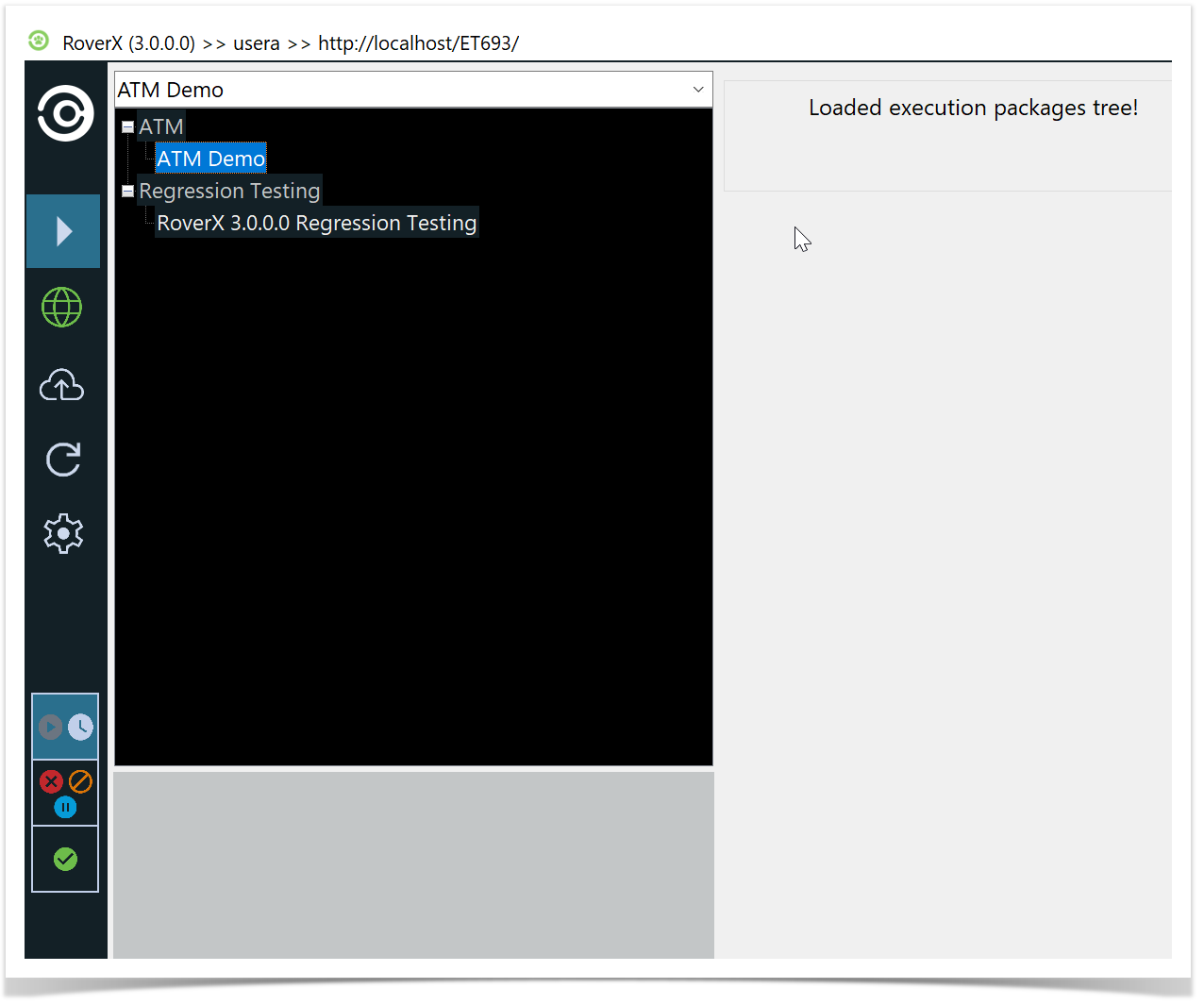
View Available Projects: Projects that appear in light grey are Categories within Enterprise Tester. The list of projects shown will depend on the projects your user account has access to in Enterprise Tester.
Select a Project: From the Project drop-down list, choose a project.
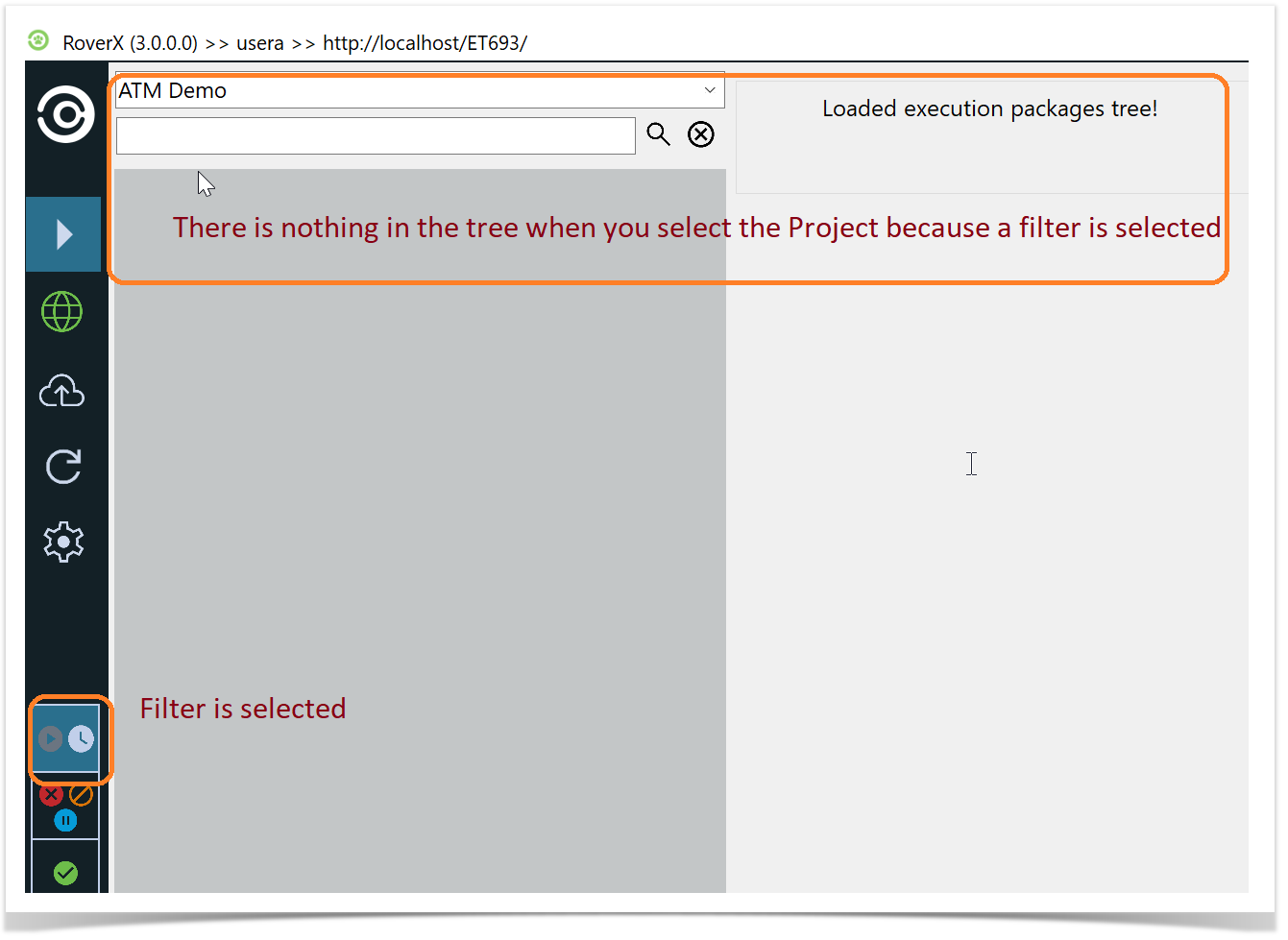
Note: When you first select a project to download, deselect the Not Run / In Progress filter.
This ensures that all available test runs are downloaded rather than only those that are not started or in progress.
You will know if there is a filter selected as it will show no Execution Sets to downloaded
Deselect the filter