Search Indexing
Enterprise Tester features a comprehensive search engine which will periodically require search indexing to be performed.
Certain actions (such as adding custom fields) trigger a re-index to be performed.
Re-indexing enables new information to become searchable.
Re-indexing can take anywhere from 5 minutes depending on many factors including:
- Database performance.
- IO performance of the disk where the Enterprise Tester indexes are being stored (a slow SAN/NAS based disk can impact on indexing and search performance).
- The number of records and relationships stored in Enterprise Tester.
Enterprise Tester now makes re-indexing more efficient by identifying only the projects that need to be re-indexed.
These projects will be displayed in a table on the Indexing Administration screen.
A new dropdown option — Required Projects — is available.
Select this option to re-index only the projects that require it, reducing processing time and system impact.
If a re-index is required and an Administrator logs into Enterprise Tester – they will be redirected to the Indexing Administration page.
📌 Note: Depending on whether a full re-index is needed or only certain projects require it, you will see a slightly different view.
If a full reindex is required this screen will be displayed

If only certain projects are required to be reindexed this screen will be displayed

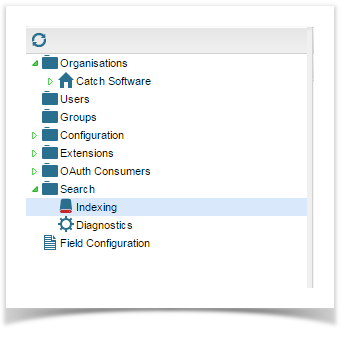
As an Administrator you can also access the Indexing Administration screen by double clicking the Indexing node in the explorer tree:
Performing a Re-index
Plan the timing
It’s best to re-index during off-peak hours.
⚠️ Users can still log in while re-indexing is in progress, but search results, grids, and graphs may be inconsistent until the process is complete.
- From the Reindexing Administration screen select the Re-index Now button.
- If a Full Reindex is required it will default to --All Projects -- in the Project dropdown.
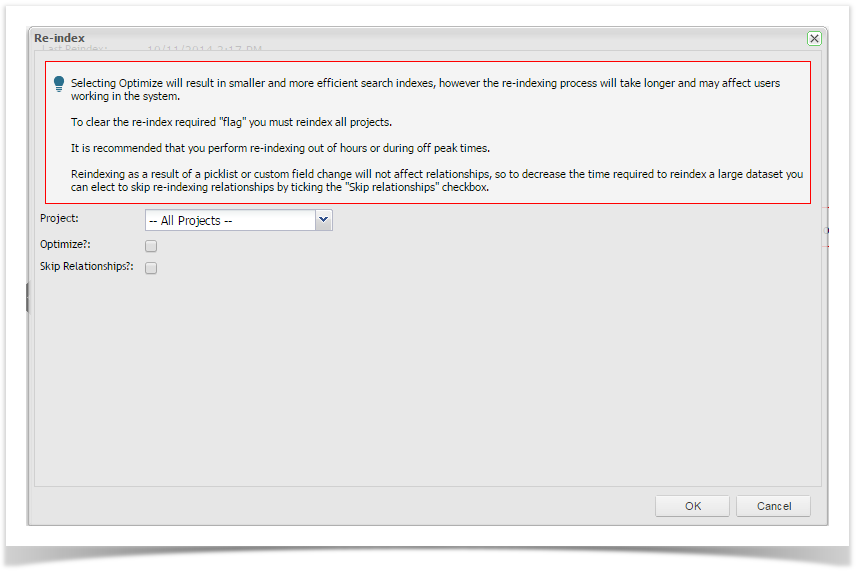
- If only certain projects are required to be reindexed it will default to --Required Projects-- in the Project dropdown.

- Check Optimize? if required. This will result in smaller and more efficient search indexes, however the re-indexing process will take longer and may affect users working in the system.
- Check Skip Relationships? if required. This will skip reindexing of relationships.
- Click OK

A reindex progress bar will be displayed:

A confirmation of re-index completion will be displayed:

When the re-index completes, the indexing window should refresh and the value Requires Index value should be No.

Other Indexing Administration Tabs
- Fields Tab – lists all indexed fields.
- Reserved Words Tab – lists all system reserved words that shouldn’t be used in custom fields.
Changing the indexes folder location
By default the location of the Indexes folder will default to the "Data" folder of your installation.
The indexes folder can grow up to 1 gigabyte in size, so if you don't have a lot of space free on your installation drive, or prefer to store data in a different location, you can change the web.config file to specify this location. See the appSettings page for details of how to do this.