A tablespace is a filtered list of your test cases where you can assign them to test cycles and work within the SmartPlanner application.
Permissions Required
- Ensure you are a member of a group with the SmartPlanner administrator permission in CatchHub.
Creating a Tablespace
Access SmartPlanner:
- Click the SmartPlanner tile on your CatchHub dashboard to go to the SmartPlanner home page.
Create New Tablespace:
- Select the Create new tablespace button
Fill Out the Prompt:
- Complete the required information.
- Ensure your Enterprise Tester credentials are correct and have admin permissions within Enterprise Tester.
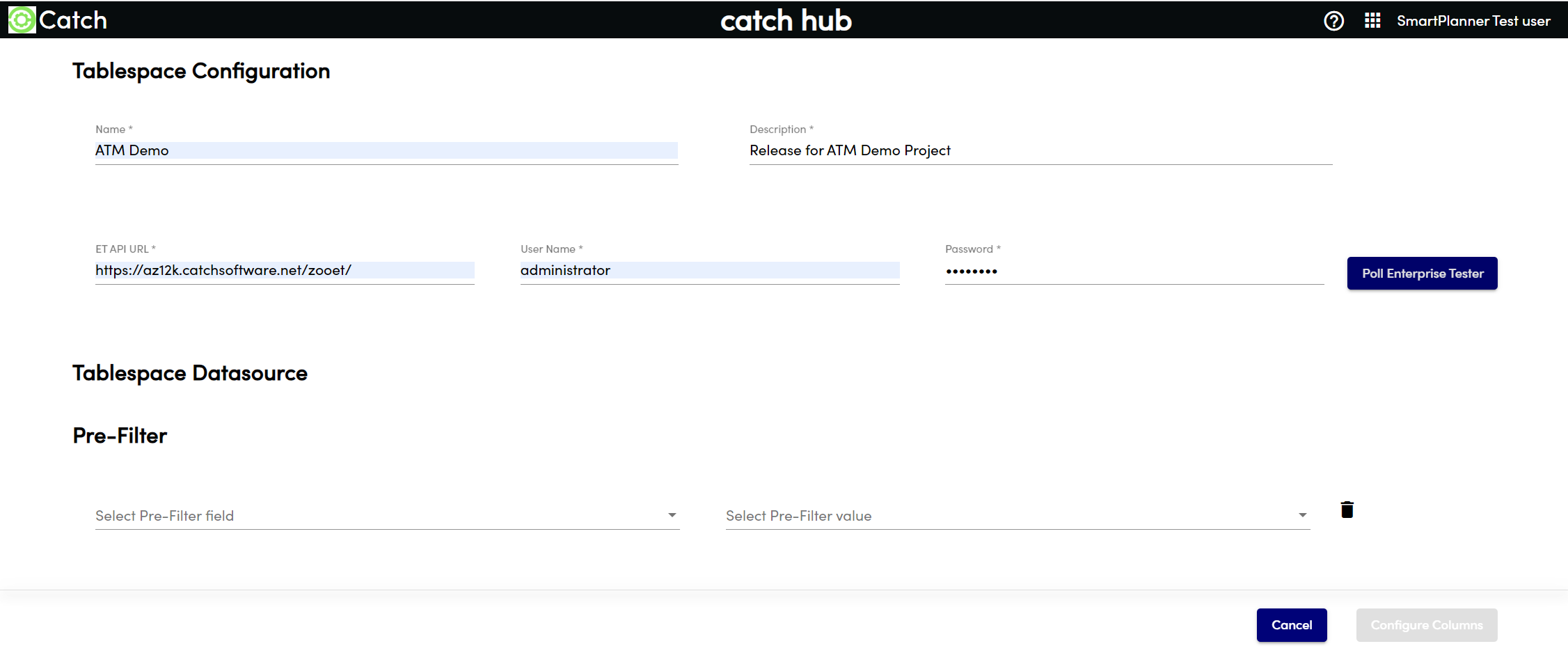
Poll Enterprise Tester:
- Poll Enterprise Tester to make the appropriate projects and packages available for filtering.
- You can add more than one project or multiple packages to filter down.
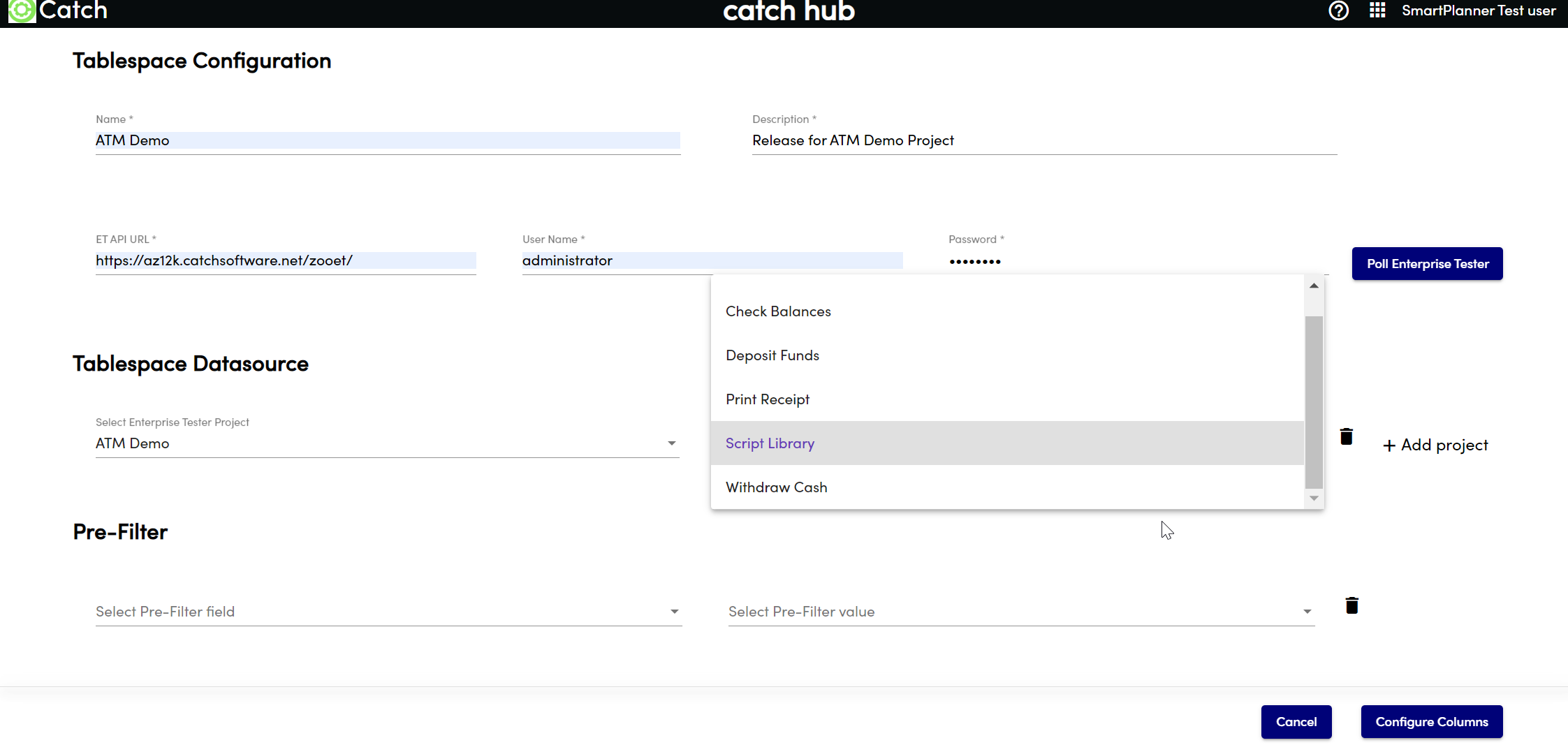
Add a Pre-Filter (Optional):
- You can add a pre-filter to the table to filter on a specific property such as priority, status, etc.
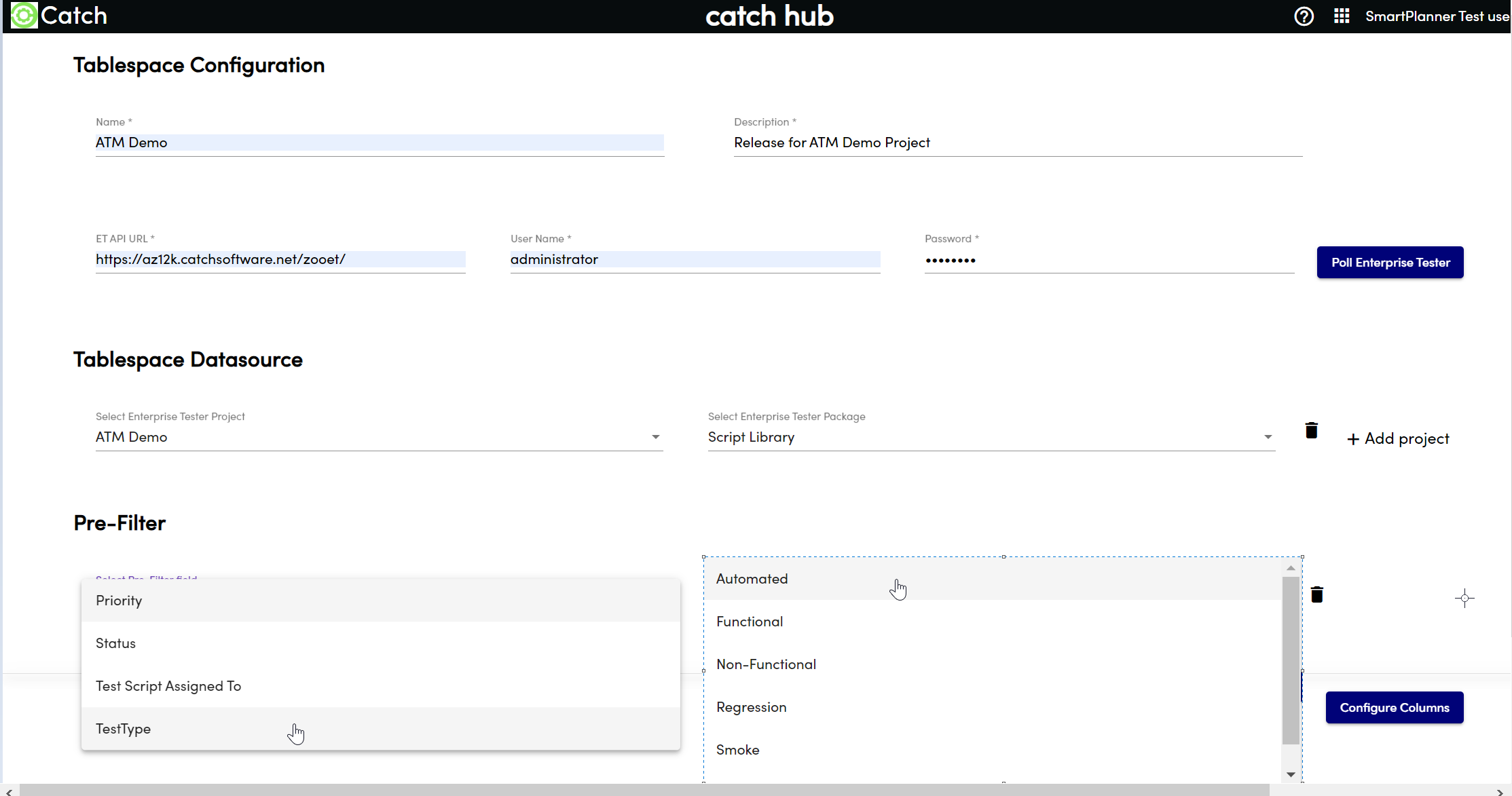
- You can add a pre-filter to the table to filter on a specific property such as priority, status, etc.
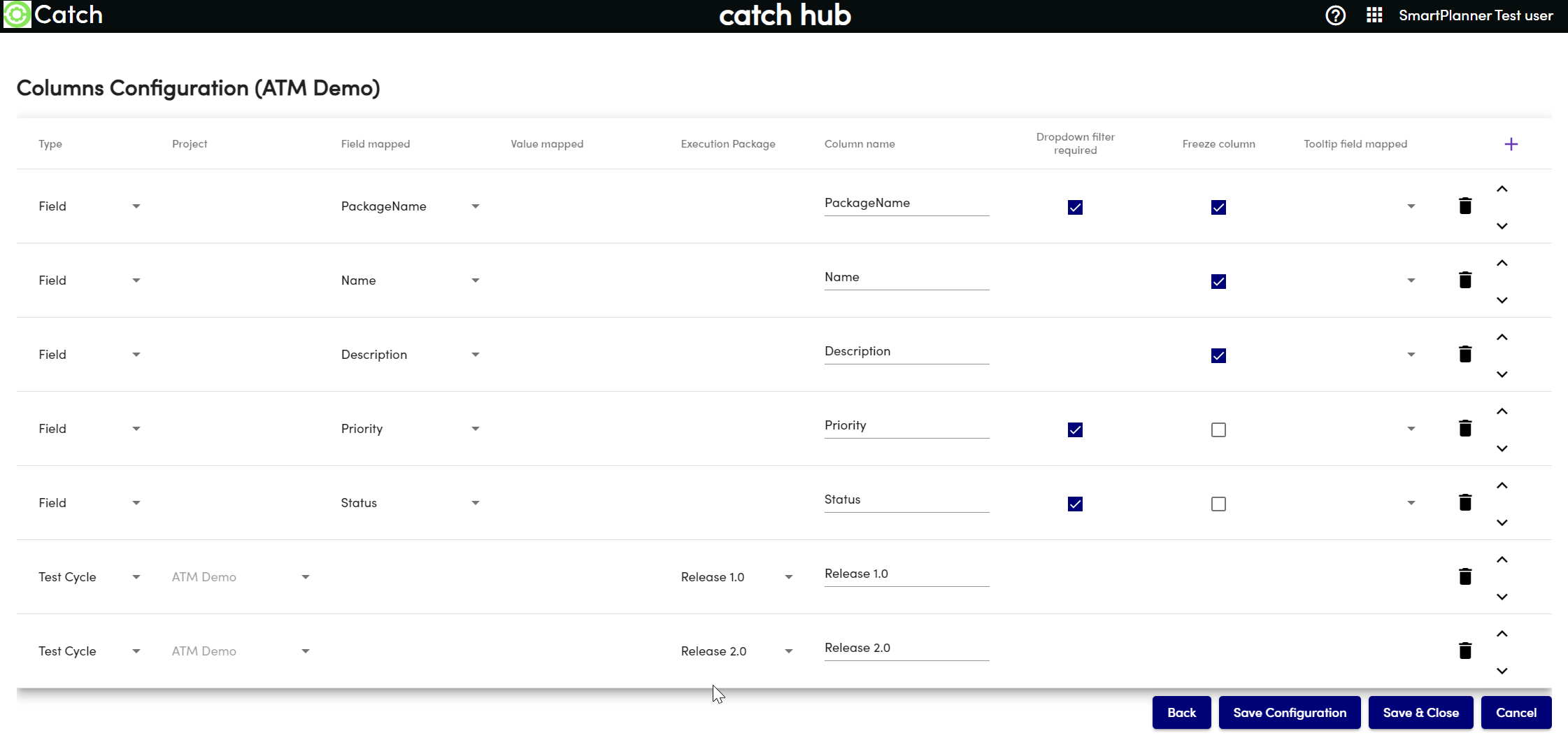
Configure Columns:
- Select Configure Columns to start creating your table structure.
- Each row represents a column in the tablespace.
- To add a column, select the + icon in the top right corner.
- By default there are some fields already added. You can either use these fields or delete them and add your own fields.
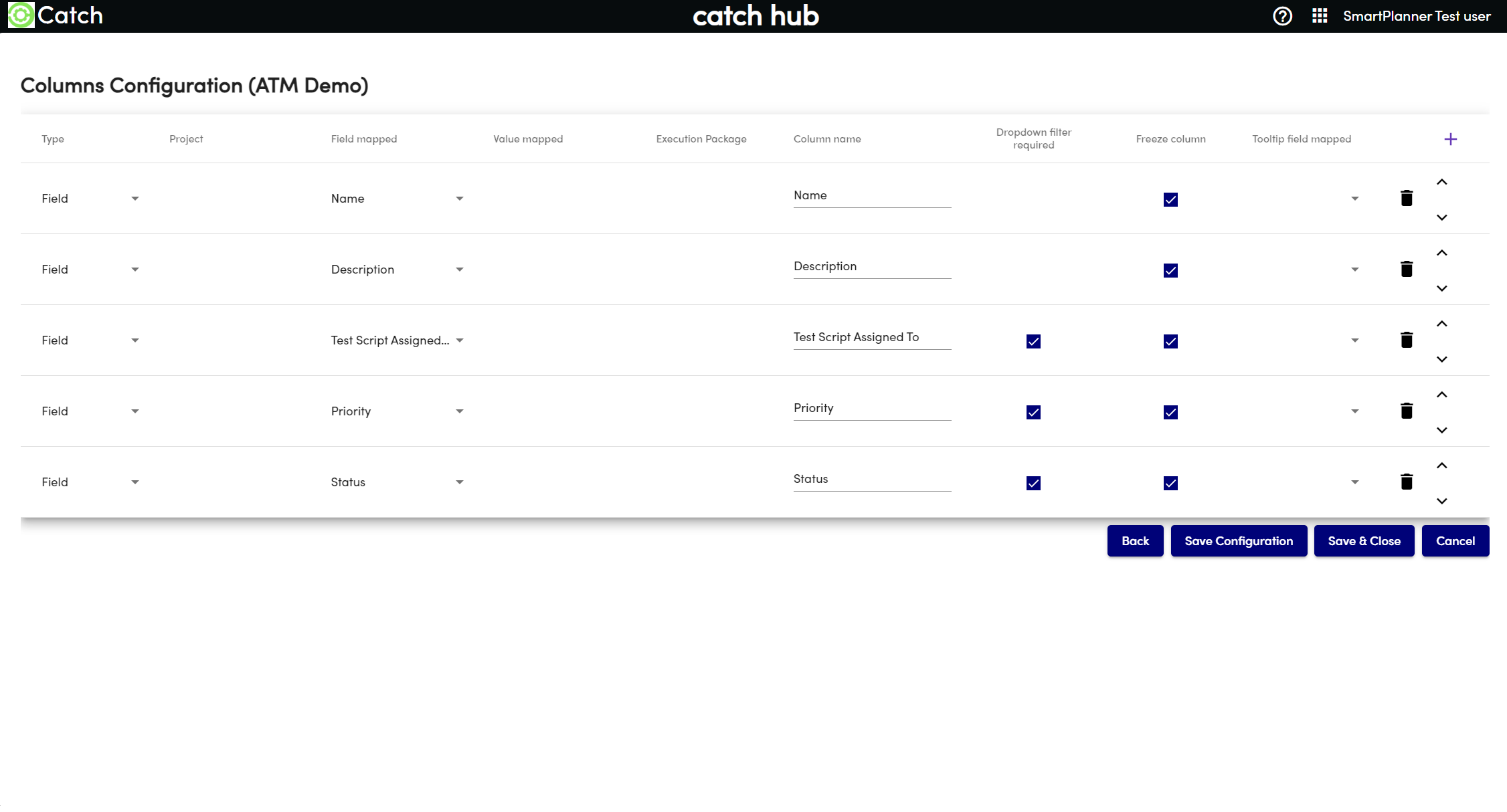
Options When Creating a Row
Type:
- Field: Data from Enterprise Tester (e.g., Name, Description, Status).
- Test Cycle Checkbox: Allows assigning a test case to a test cycle and creating a test execution.
- Value Checkbox: Allows assigning a test case to a specific product (e.g., "Version 1") for further filtering.
- Project: Select a specific project if there is more than one; otherwise, this column will not show.
Column Name:
- Prefilled if you select a mapping; otherwise, you can enter your own name.
Field Mapped:
- Used for Field type and Value checkbox rows (not for Test Cycle checkbox).
Value Mapped:
- Used for Value checkbox types to nominate a value to map.
Execution Package:
- Specify the test cycle that a test execution will be assigned to.
Dropdown Filter:
- Enabled for "Field" type columns and for ET standard dropdowns & Custom fields. It allows filtering to find data easier.
Freeze Column:
- Freezes the column to the left of the screen.
Tooltip Field:
- Allows mapping an additional field to a cell for hover-over information.
Delete Row:
- Use the rubbish bin icon to delete a row.
Rearrange Columns:
- Use the up and down arrows to rearrange the columns.
Finalizing the Tablespace
Save & Close:
- Once satisfied with the table, press Save & Close.
Return to Dashboard:
- You will be returned to the main dashboard where your table should now be visible (if you clicked display on the dashboard on the first screen).
Load Your Table:
- Click on your table to load it. It should look something like the configured setup.
Example Screenshots
Test Cycle Checkbox/Test Case Assignment Table:
- This shows how test cases are assigned to test cycles.
- This shows how test cases are assigned to test cycles.
Value Checkbox/Higher-Level Checkbox Table:
- This shows higher-level filtering options using value checkboxes.