Adding or Removing Applications in CatchHub
Note: Only Catch System Administrators can add or delete applications.
To add or remove applications from your CatchHub dashboard:
Access Administration:
- Click the top-right menu bar and click on your logged in name. This will show a dropdown menu.
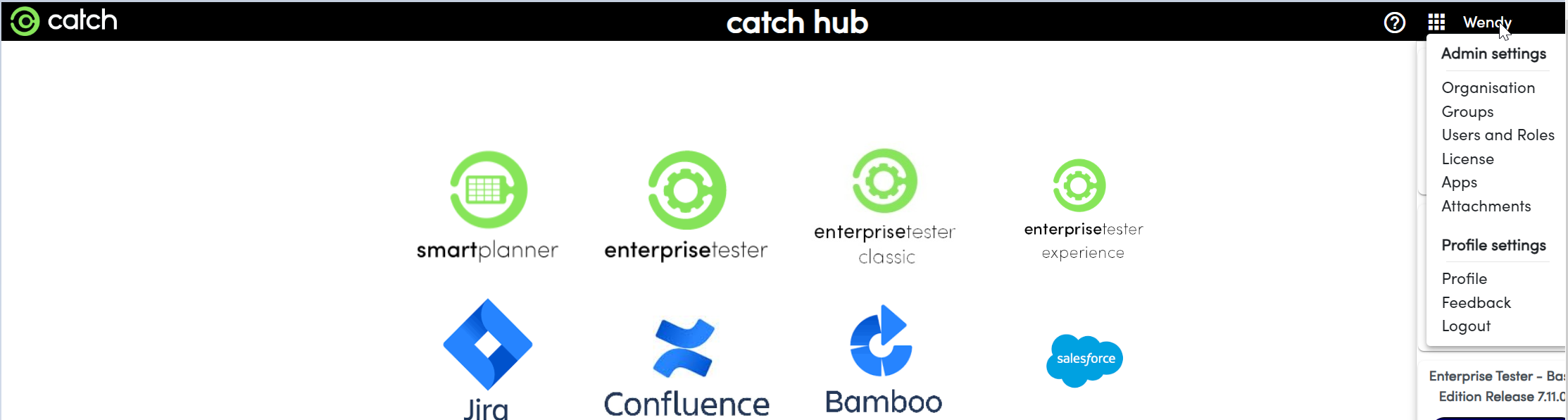
- Click the top-right menu bar and click on your logged in name. This will show a dropdown menu.
Navigate to Apps:
- Navigate to Apps where you can now add and remove applications. For the purpose of this scenario we will add an Atlassian JIRA dashboard link.
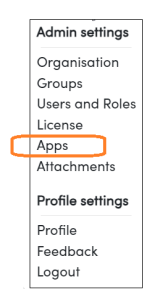
- Navigate to Apps where you can now add and remove applications. For the purpose of this scenario we will add an Atlassian JIRA dashboard link.
Add a New Link:
- At the bottom of the page, select "Add a new link". This will display a blank application prompt under any existing applications, where you can fill in the required information.
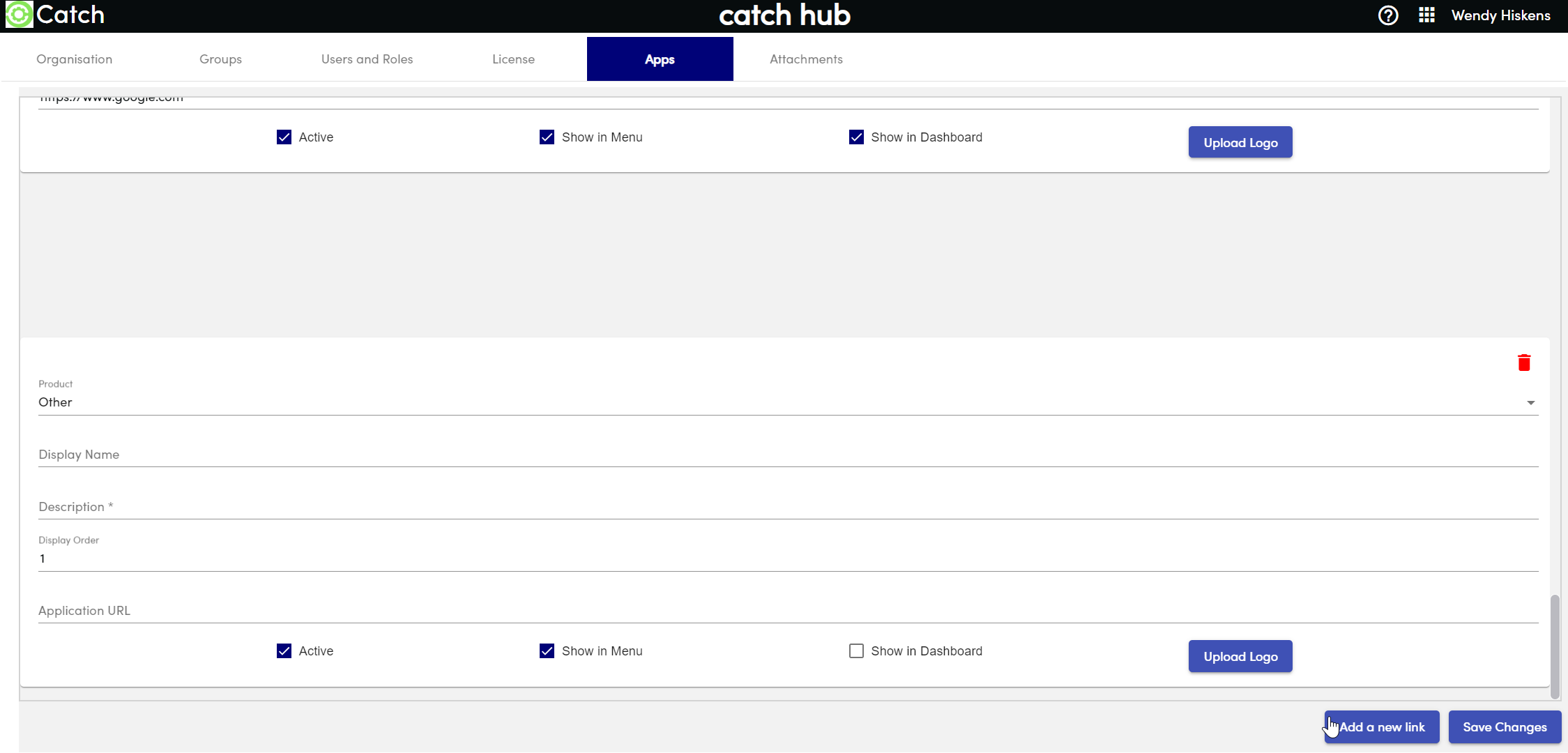
- By default, CatchHub has some pre-loaded applications such as Catch products, Atlassian JIRA, Confluence, and Microsoft DevOps. These come with pre-loaded logos for ease.
- To add your own product not listed, select “Other” and upload your own logo (recommended size: 500px x 466px).
- At the bottom of the page, select "Add a new link". This will display a blank application prompt under any existing applications, where you can fill in the required information.
Enter Application Details:
- Fill in the required information and ensure the tile points to the desired URL (e.g.,
mockorganizationatlassian.net). - Specify the order of tiles using the numbering system from 1 to 12, as CatchHub supports up to 12 applications.
- Fill in the required information and ensure the tile points to the desired URL (e.g.,
Save Changes:
- Once you have added the product and entered the required information, press “Save Changes” and return to your CatchHub dashboard to see your new applications displayed.