...
- Downloaded - Indicates whether the test run has been downloaded to your local machine or is still stored on the Enterprise Tester server.
- Assignment - The name or identifier of the test run.
- Status Server - Displays the current status of the test run on the Enterprise Tester server.
- Status Local - Shows the current status of the test run on your local machine.
- Sync Status - Tells you whether the test run has been recorded on the server or if it only exists locally. If the status is "local," the test run will be uploaded to Enterprise Tester
server during the next synchronisation.
Viewing and Executing Tests
Once you have downloaded your test runs, you can click or tap on the test run in the table, depending on the device you are using, to view or execute your script.
Displayed Fields
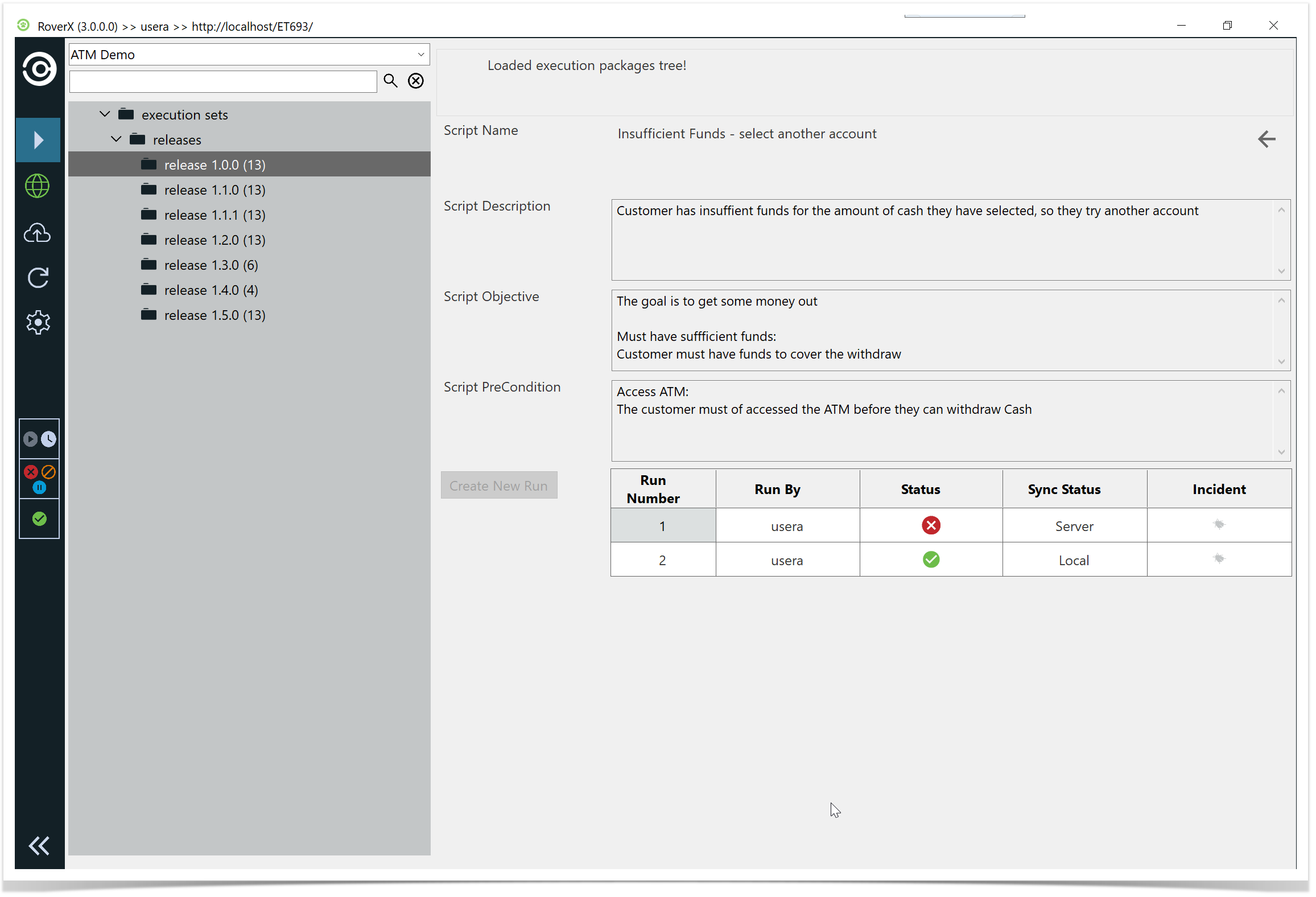
When you view a test run, the following fields will be displayed on the screen. Note that if any fields are blank in Enterprise Tester, they will not appear in RoverX.
- Script Description: A detailed description of the test script.
- Script Objective: The goal or purpose of the test script.
- Script Pre-Conditions: Any conditions that need to be met before executing the test script.
- Script Post Conditions: Conditions expected after the test script has been executed.
- Script Notes: Additional notes related to the test script.
- Run History: The last two test executions will be shown for reference.
Run History
You can choose to view any of the previous runs on the run history grid. The run history grid provides some basic details, including:
- Run Number: The identifier for each test run.
- Run By: Details of who executed the run.
- Status: The status of each test run.
- Sync Status: Indicates whether the run has been recorded on the server or if it only resides locally.
- Incidents: Any incidents associated with the test run.