...
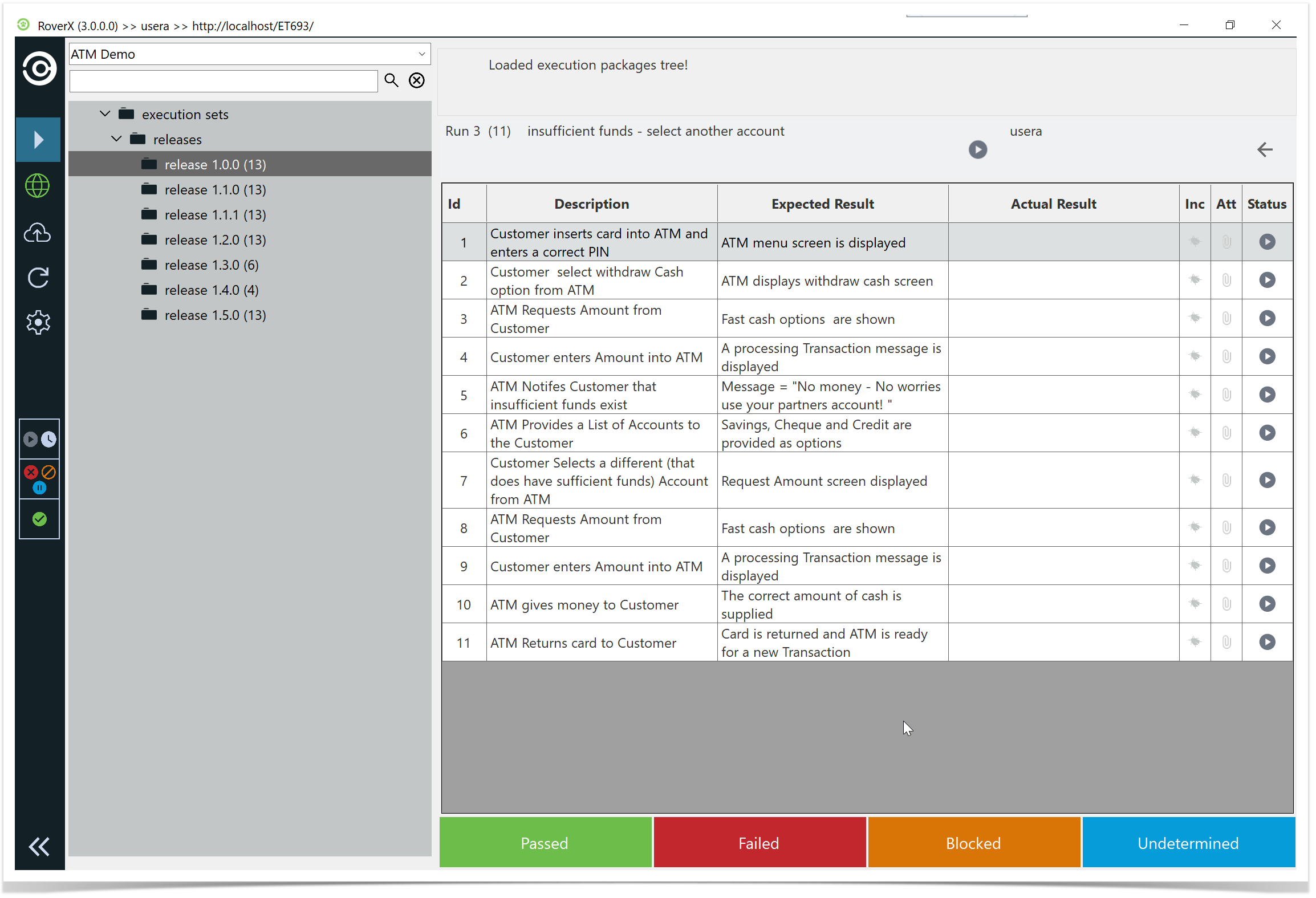
- Run Number: The identifier for the current test run.
- Number of Steps: The total number of steps in the test run (displayed in brackets).
- Test Run Name: The name of the current test run.
- Test Run Status: The current status of the test run.
- Back Button: Allows you to navigate back to the previous screen.
- Step Result Menu: Located at the bottom of the screen, for selecting the results of each test step.
- Custom Field Icon: Appears if there are any custom fields associated with the test run.
Copying Data from a Not Passed Test Run
Creating a new run from a completed Not Passed test run (Failed, Blocked, or Undetermined) the following data will be copied from the previous run;
Actual results
- Data
Notes
Statuses
Bugs (attachments only if stored locally)
This allows you to continue testing without re-entering information, while respecting Rover’s attachment handling.
Info Note: Attachments on bugs are only copied if they were created in Rover and synced to Enterprise Tester without clearing the local database. Attachments downloaded from Enterprise Tester are not stored locally in Rover, so they will not be copied.
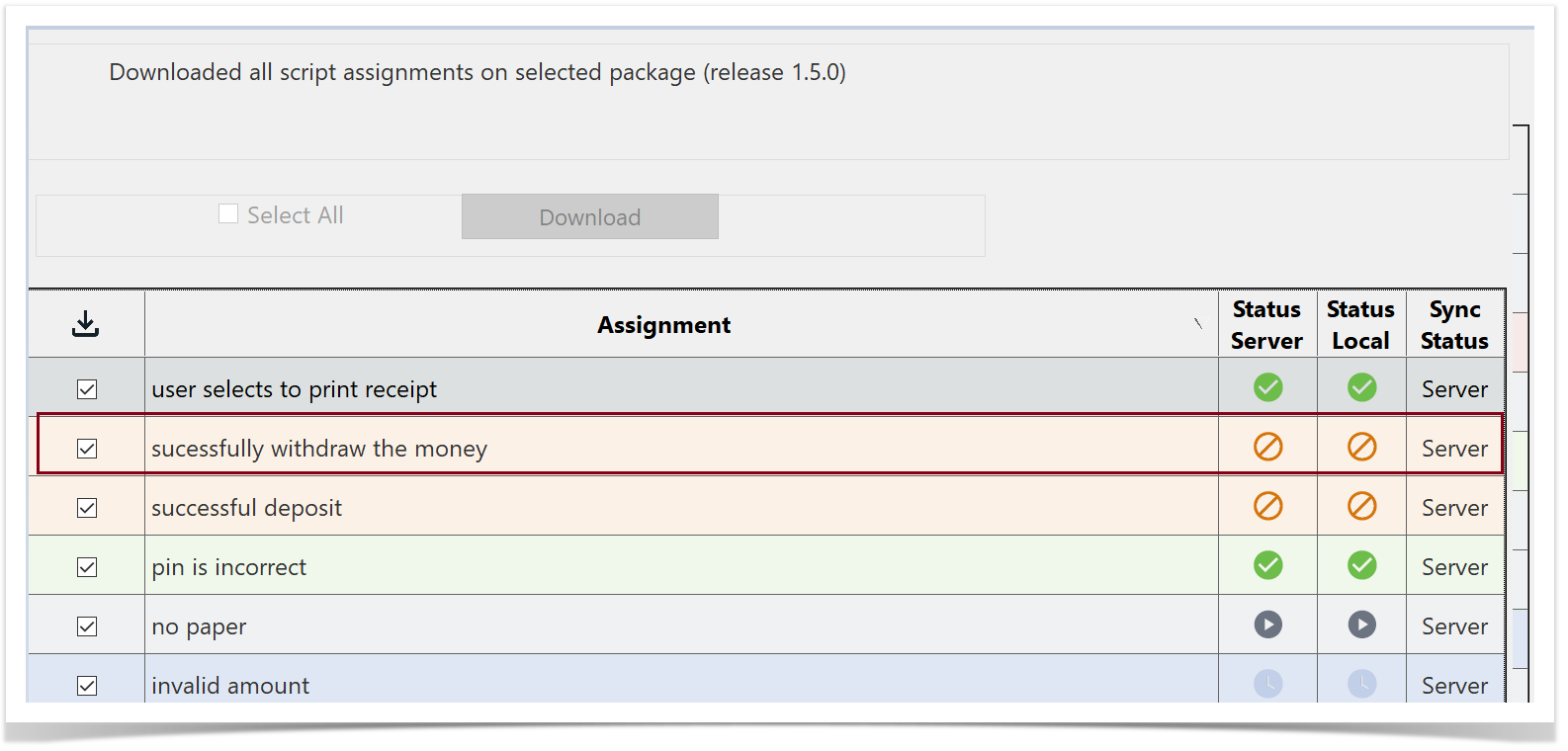
In the following example we will use "successfully withdraw the money" test run which has a status of Blocked
...
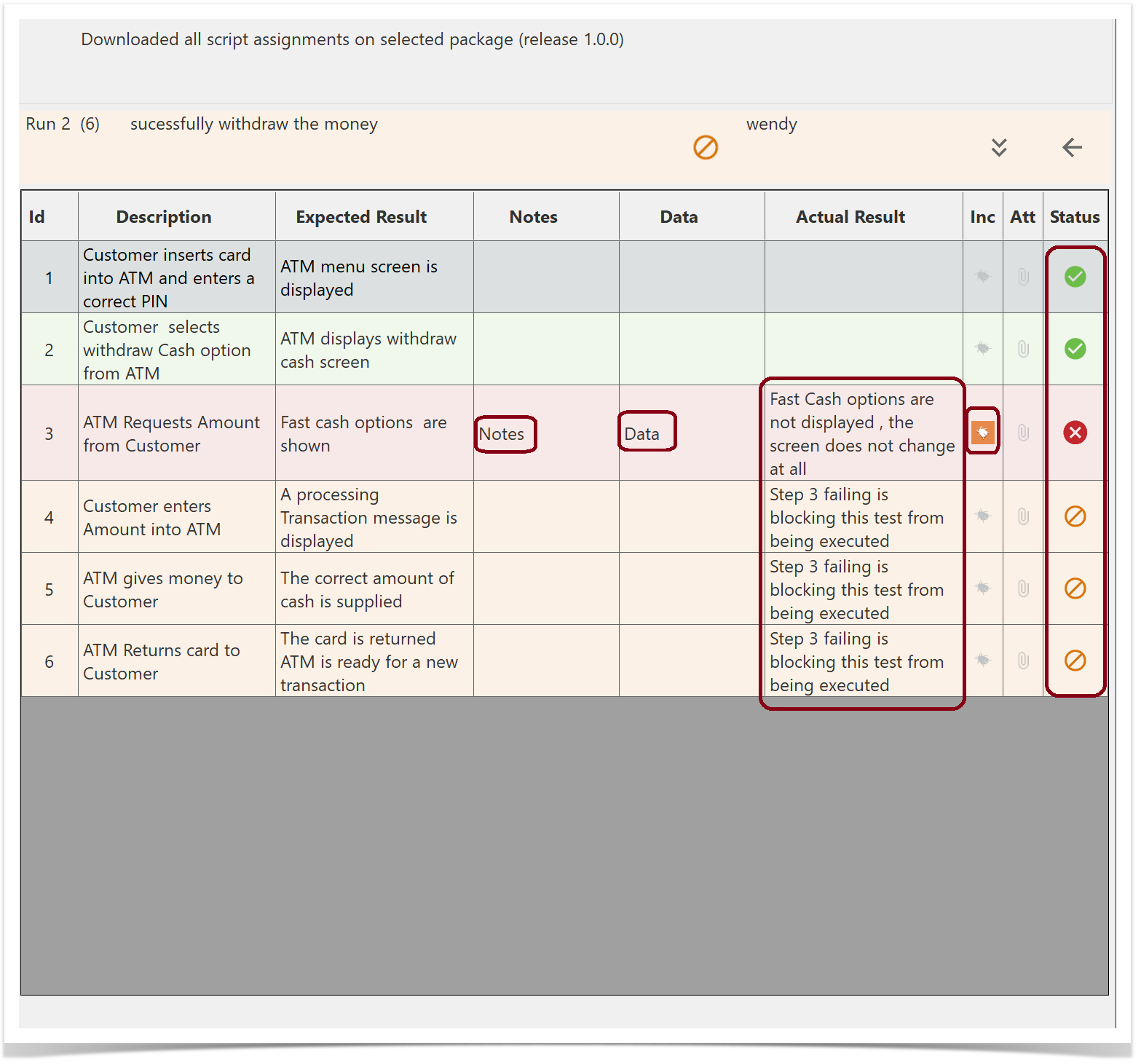
Open the existing Run from the Server that has the Incident associated to it.(Run Number 2).
You can see the different step statuses, Notes , Data, Actual Results and the associated Bug.
Return to the Run History screen and select the Create New Run button.
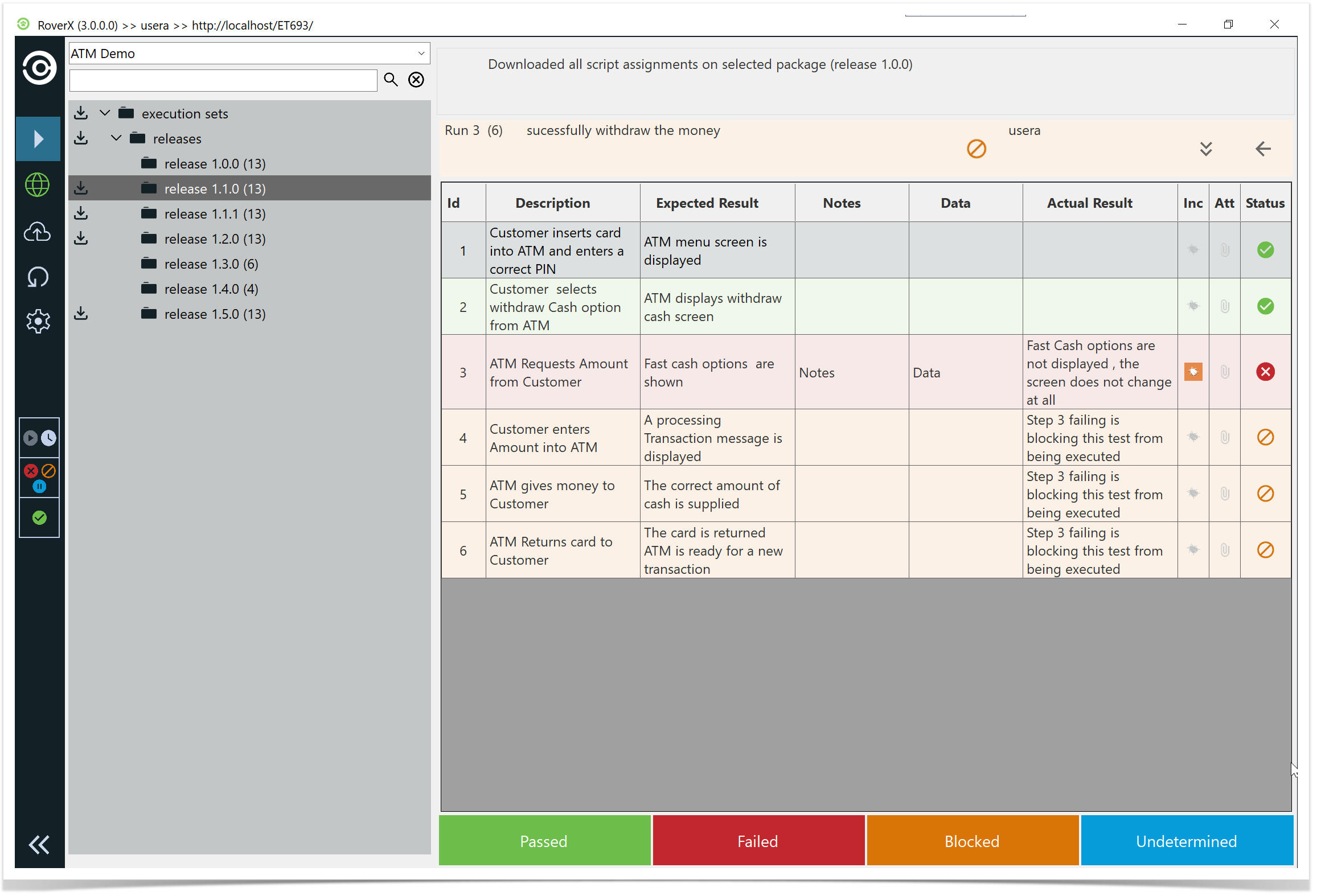
The step statuses, Notes , Data, Actual Results and the associated Bug are copied over to the new test run.
Viewing and updating Custom fields
...