...
Access Administration:
- Click the top-right menu bar in the top left and navigate to the Administration menu.and click on your logged in name. This will show a dropdown menu.
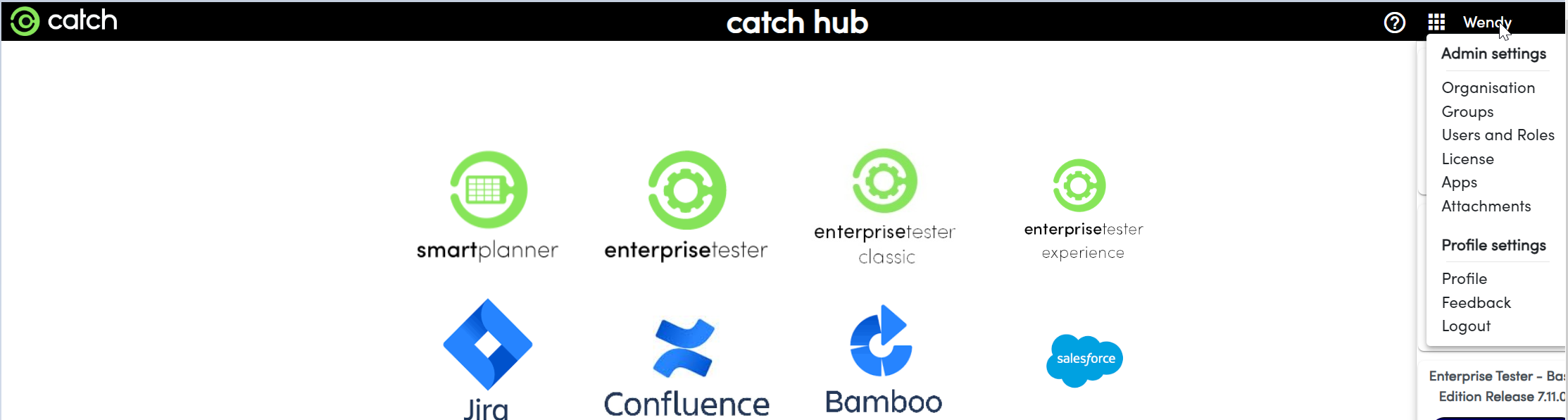
- Click the top-right menu bar in the top left and navigate to the Administration menu.and click on your logged in name. This will show a dropdown menu.
Navigate to Apps:
- Once in the Administration menu, go to the "Apps" section where Navigate to Apps where you can now add or and remove applications. For the purpose of this scenario we will add an Atlassian JIRA dashboard link.
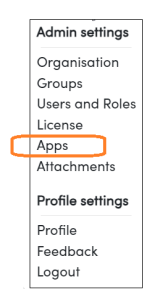
- Once in the Administration menu, go to the "Apps" section where Navigate to Apps where you can now add or and remove applications. For the purpose of this scenario we will add an Atlassian JIRA dashboard link.
Add a New Link:
- At the bottom of the page, select "Add a new link". This will display a blank application prompt under any existing applications, where you can fill in the required information.
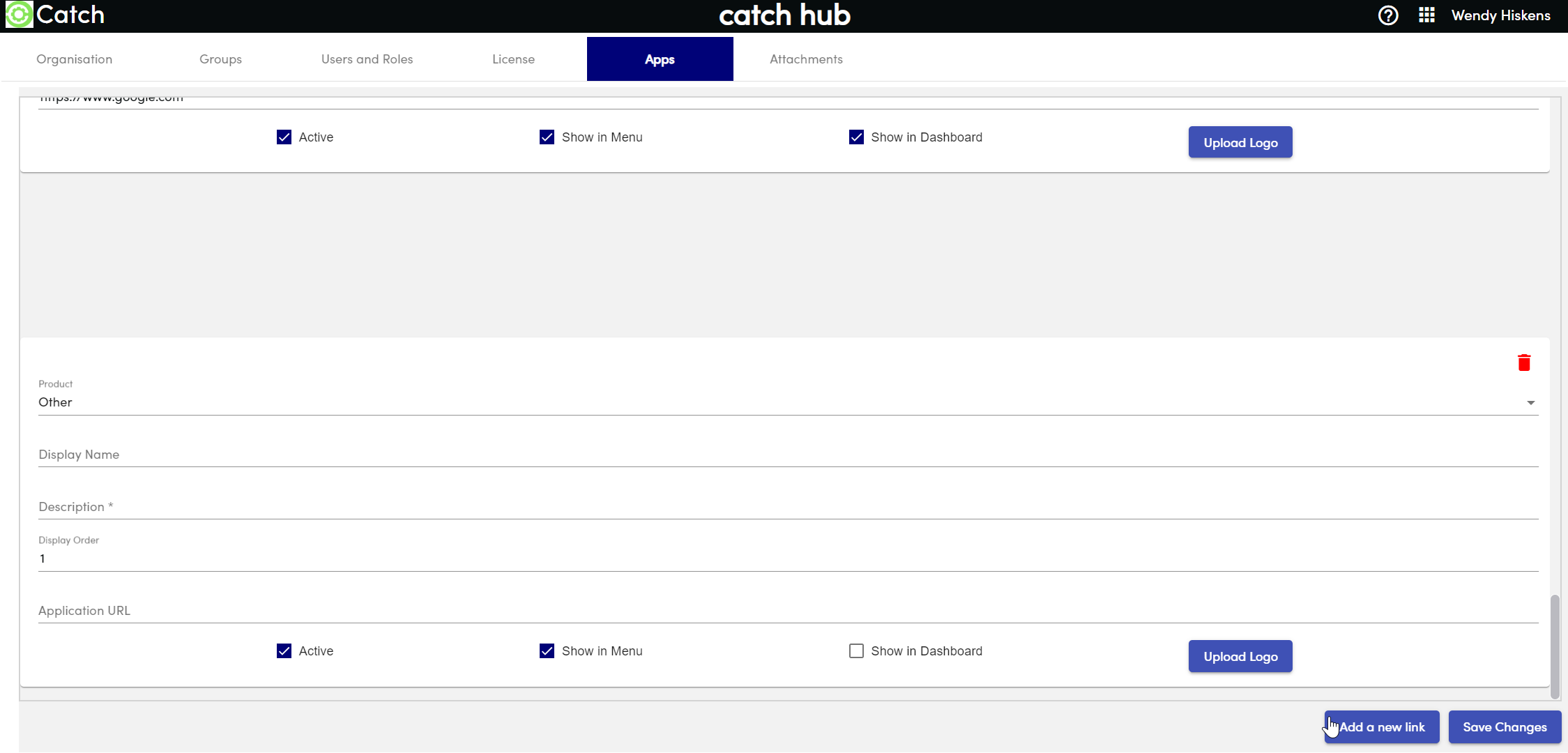
- By default, CatchHub has some pre-loaded applications such as Catch products, Atlassian JIRA, Confluence, and Microsoft DevOps. These come with pre-loaded logos for ease.
- To add your own product not listed, select “Other” “Other” and upload your own logo (recommended size: 500px x 466px).
- At the bottom of the page, select "Add a new link". This will display a blank application prompt under any existing applications, where you can fill in the required information.
Enter Application Details:
- Fill in the required information and ensure the tile points to the desired URL (e.g.,
mockorganizationatlassian.net). - Specify the order of tiles using the numbering system from 1 to 12, as CatchHub supports up to 12 applications.
- Fill in the required information and ensure the tile points to the desired URL (e.g.,
Save Changes:
- Once you have added the product and entered the required information, press “Save Changes” “Save Changes” and return to your CatchHub dashboard to see your new applications displayed.