If your test run includes custom fields, you will see this button  in the header. Clicking on this icon will close the Test Steps panel and display all the custom fields, allowing you to view and update them accordingly.
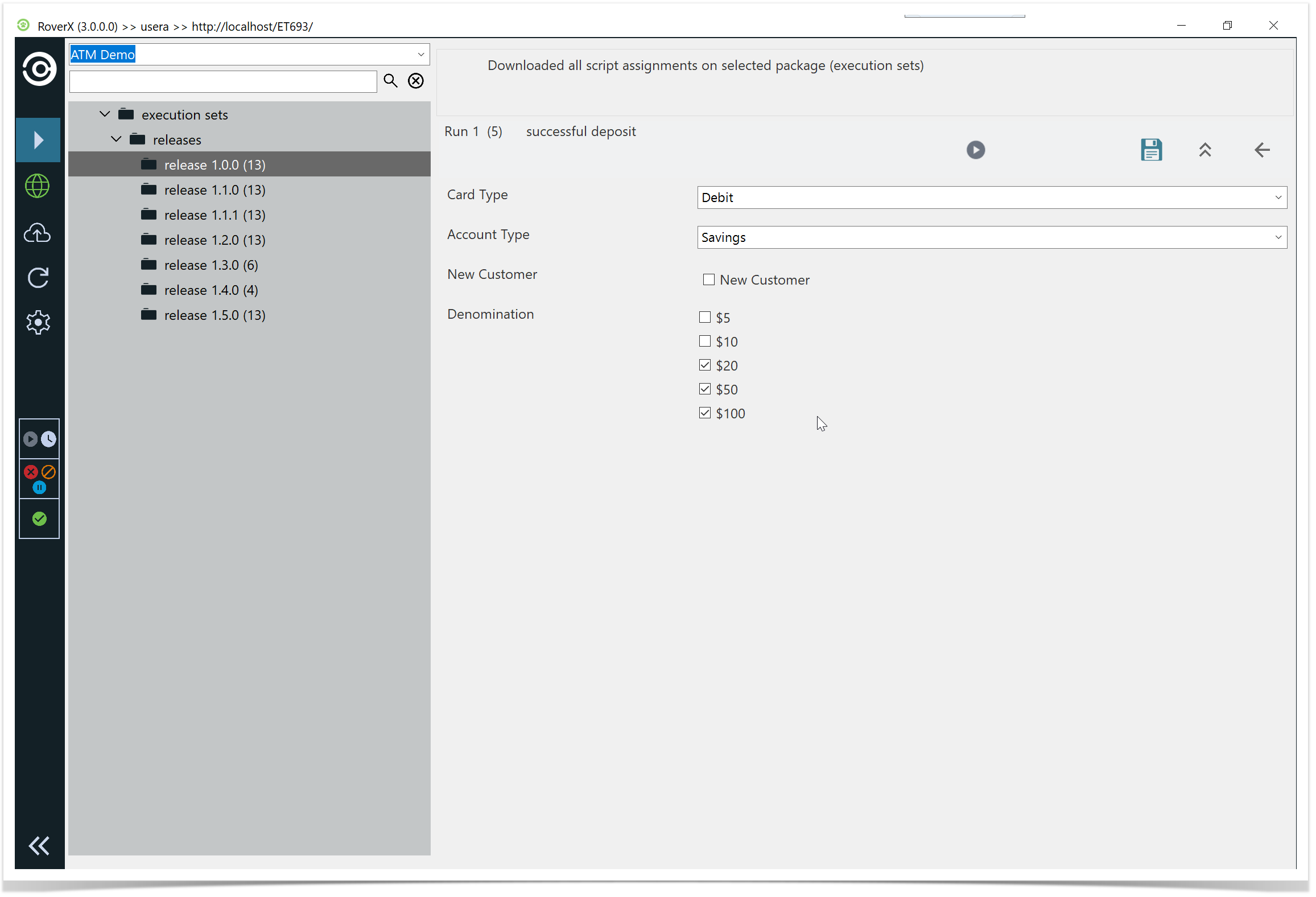
You can then update any of the custom fields and select the Save button. A confirmation message will be displayed to confirm that the data has been saved successfully.
Select OK button.
To close the Custom Fields panel and return to the Test Steps, select the  button.
Just like in Enterprise Tester, the Test Execution screen includes a text field for entering Actual Results for each test step.
While a step is active, you can select the Step Result option at the bottom of the screen to set the status for that specific step. Once you select a status for a test step, the screen will automatically move to the next step in the list.
Hyperlinks and local paths can be added in the Actual Result field.