RoverX provides a convenient way to copy your Execution Sets and Incidents to your client machine or device, enabling offline testing. When you are reconnected, you can upload your test runs and incidents back to Enterprise Tester.
To synchronize your Execution Sets and Incidents:
Ensure Connectivity: You will need an internet connection or access to Enterprise Tester, which may require being connected to your office network. This connectivity is necessary for both the download and upload processes.
Download Execution Sets and Incidents: When connected, download the necessary Execution Sets and Incidents to your local machine for offline use.
Upload Changes: Once you have completed your testing, you can synchronize (upload) your Execution Sets and Incidents back to Enterprise Tester.
Uploading Entities to Enterprise Tester
Once you have completed your testing, you can upload your runs and incidents back to Enterprise Tester by navigating to the Sync Dashboard.
To Upload Your Runs and Incidents:
Access the Sync Dashboard:
- Navigate to the Sync tab. Note that the Sync Dashboard can only be accessed when you are in Online mode and connected to the Enterprise Tester server.
Start Synchronization:
- Clicking on the Sync Dashboard will automatically initiate the synchronization process, uploading your runs and incidents to Enterprise Tester.
Sync Dashboard at a Glance
The Sync Dashboard provides a comprehensive view of the synchronization status, allowing you to monitor upload progress and ensure successful data transfer.
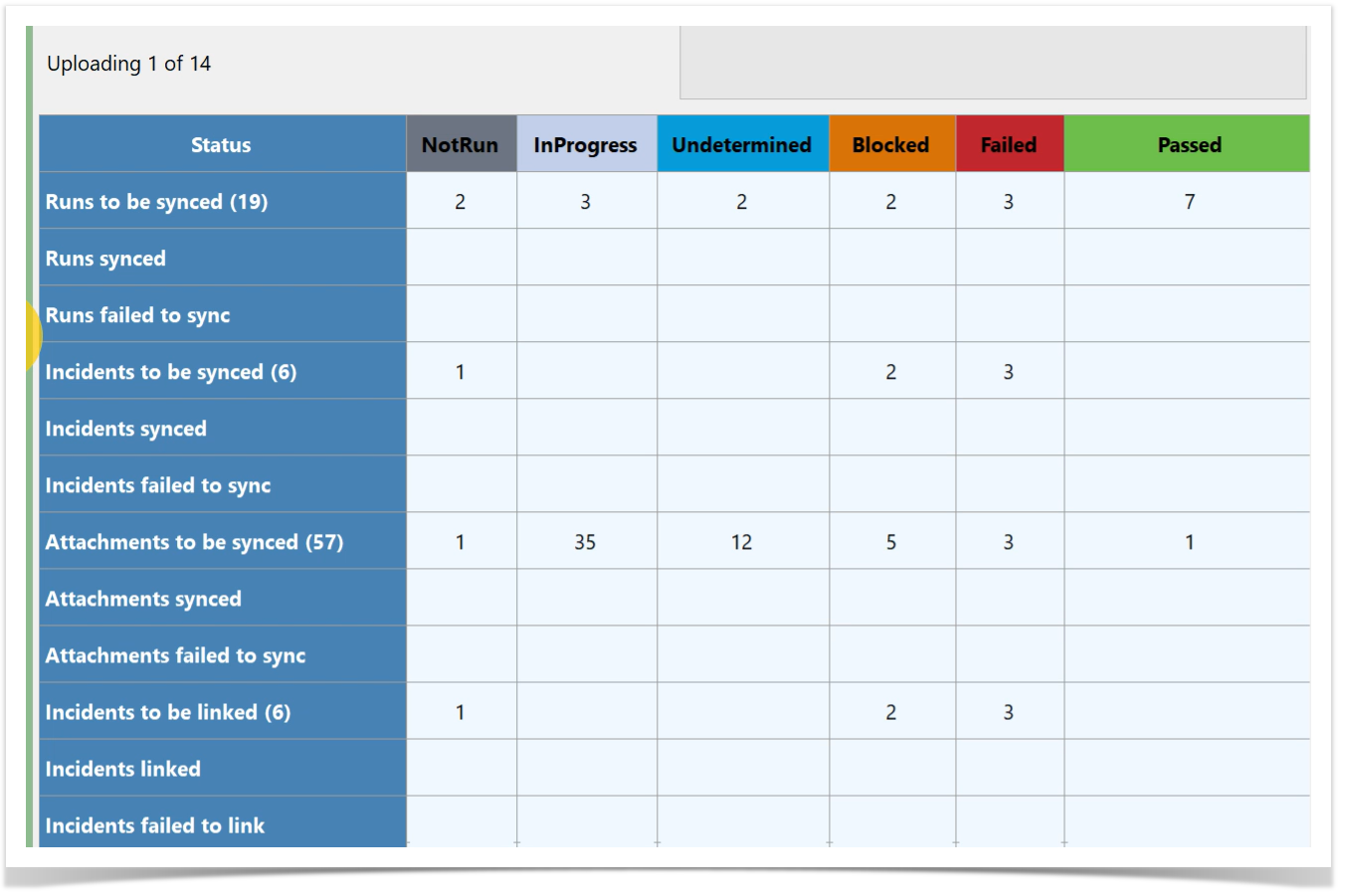
- Progress Bar: Displays the sync progress.
- Runs to be Synced: Number of test runs to be synced, grouped by status.
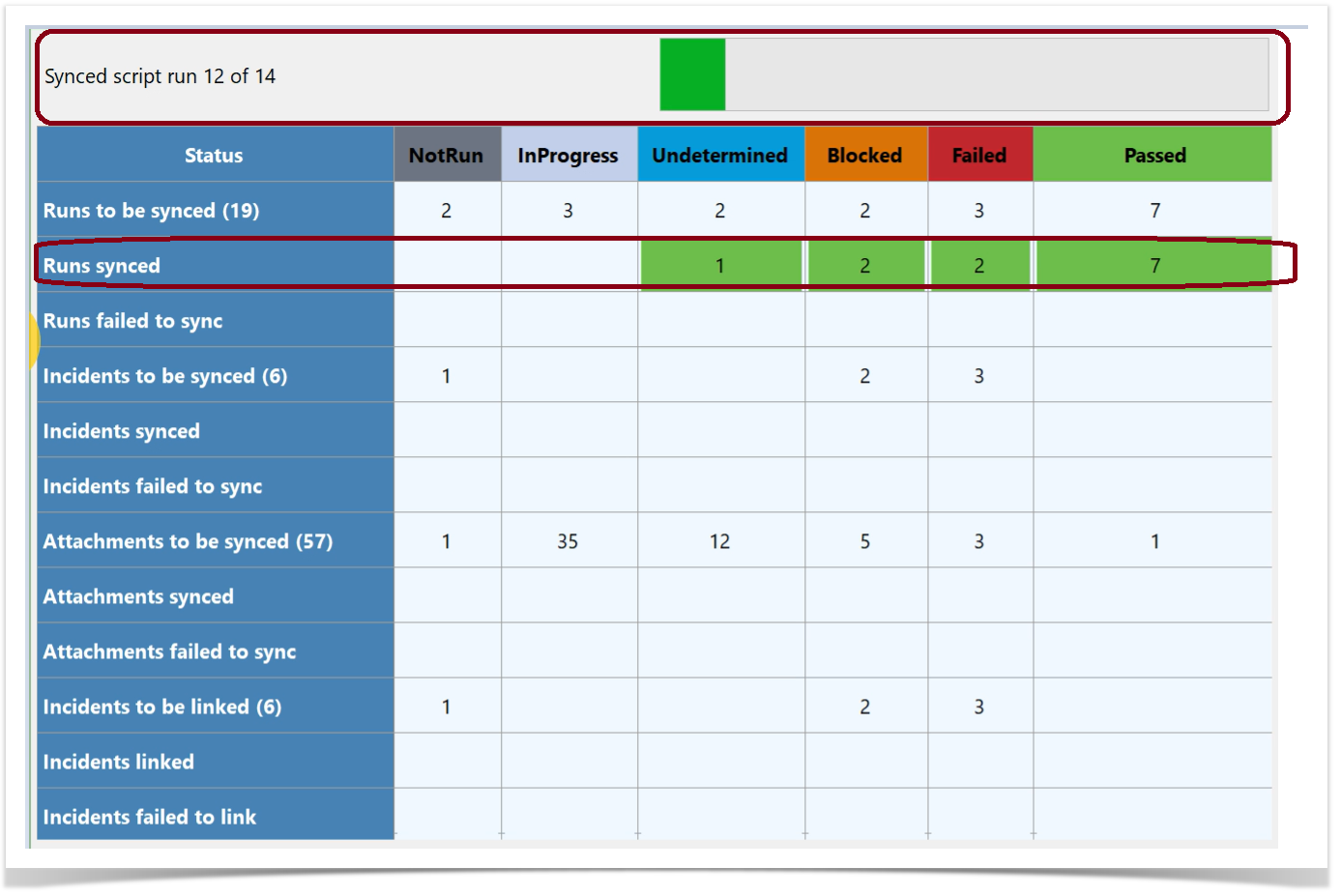
- Runs Synced: Number of successfully synced test runs (highlighted in green).
- Runs Failed to Sync: Number of test runs that failed to sync (highlighted in red).
- Incidents to be Synced: Number of incidents per test run status to be synced.
- Incidents Synced: Number of successfully synced incidents (highlighted in green).
- Incidents Failed to Sync: Number of incidents that failed to sync (highlighted in red).
- Attachments to be Synced: Number of attachments to be synced, grouped by test run status.
- Attachments Synced: Number of successfully synced attachments (highlighted in green).
- Attachments Failed to Sync: Number of attachments that failed to sync (highlighted in red).
- Incidents to be Linked: Number of incident links to be synced.
- Incidents Linked: Number of successfully synced incident links (highlighted in green).
- Incidents Failed to Link: Number of incident links that failed to sync (highlighted in red).
Synchronization Process for Completed Test Runs
To ensure smooth and accurate synchronization to Enterprise Tester, the synchronization process is as follows:
1.Upload Completed Test Runs:
- Completed test runs are uploaded first.
- Test runs marked "In Progress" or "Not Run" will be uploaded later when selected by the user.
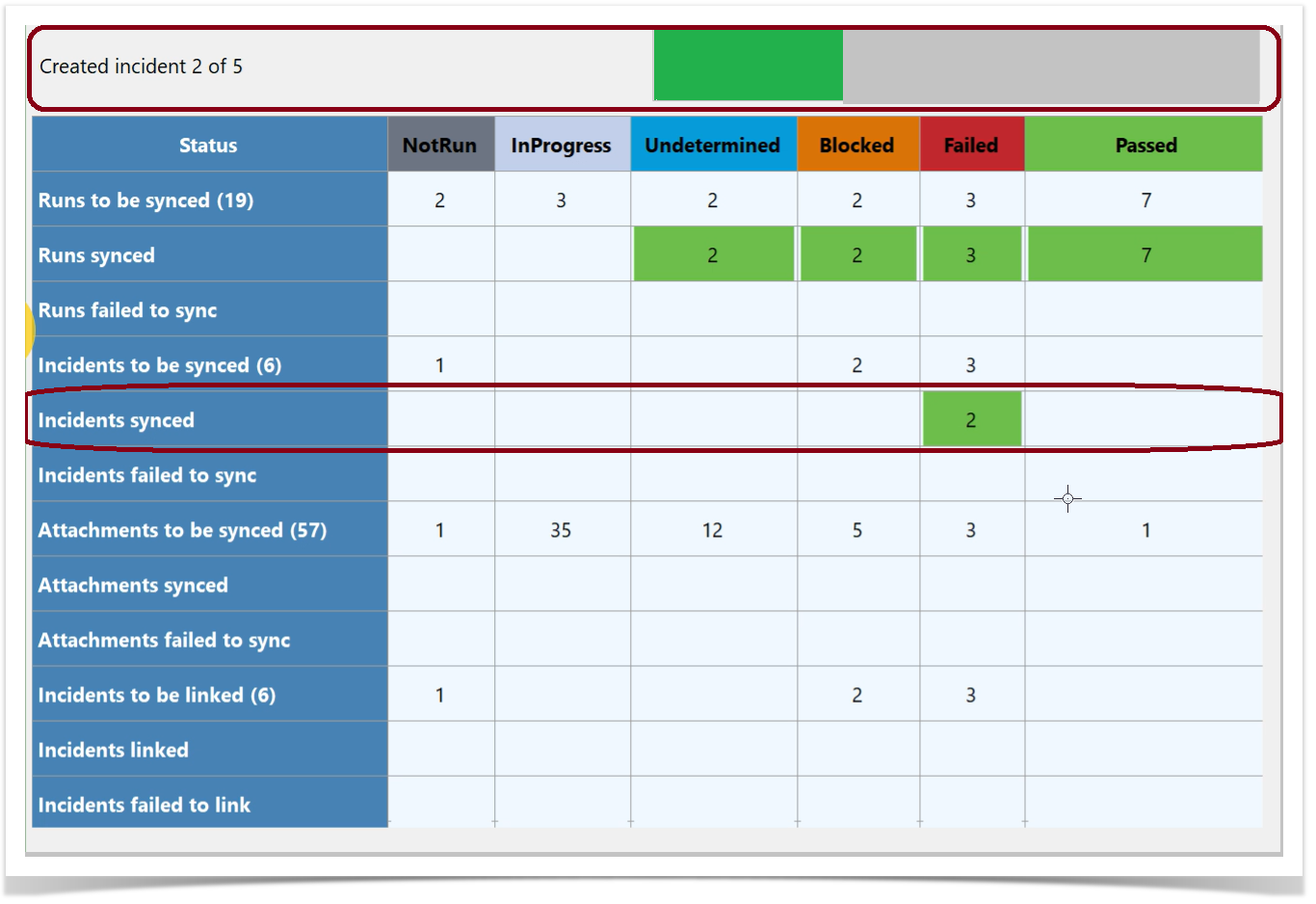
2. Upload Incidents Associated with Test Runs:
- After test runs are uploaded, associated incidents are uploaded.
- The dashboard displays both incidents to be synced and incidents that have been synced.
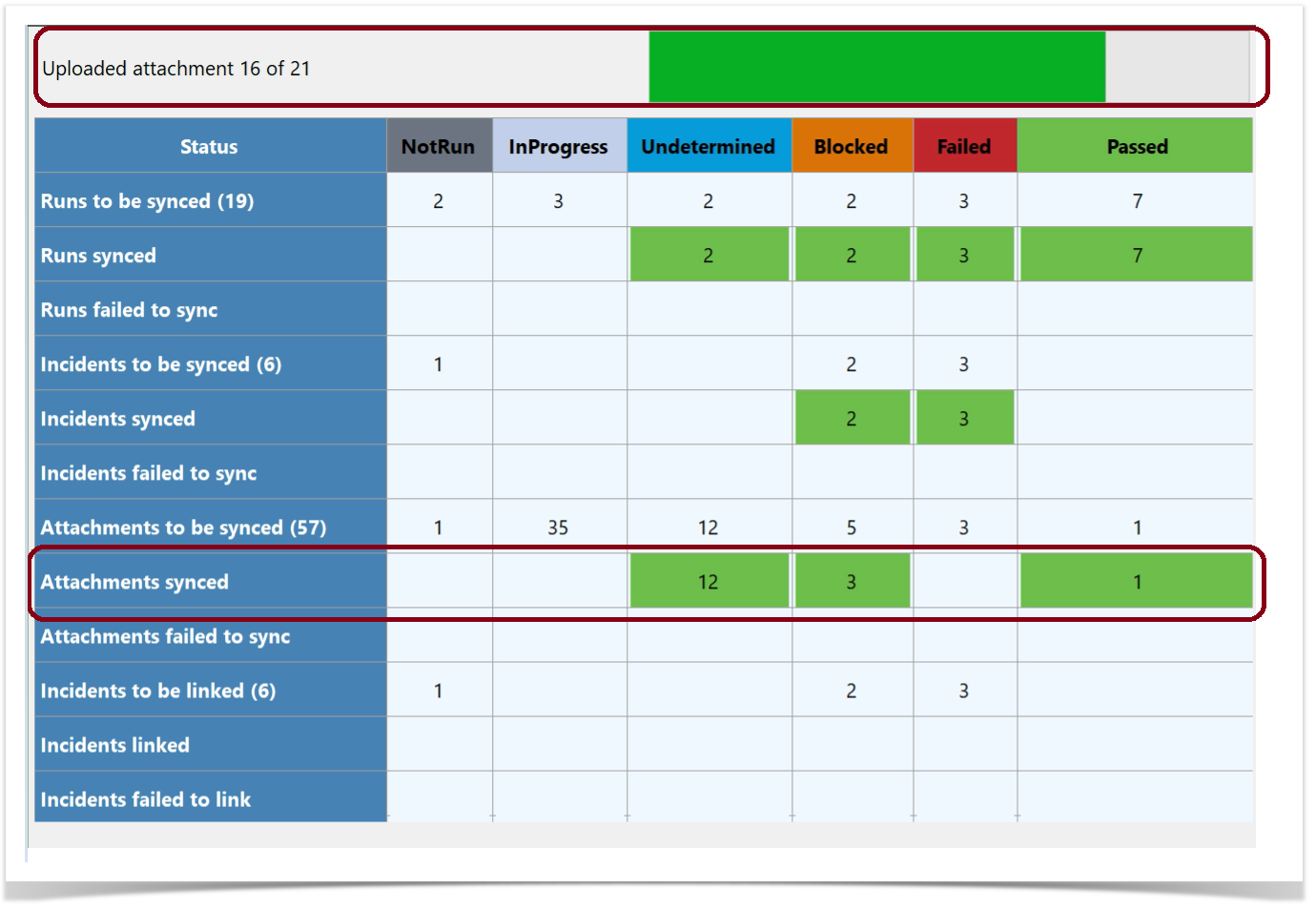
3. Upload Attachments:
- Attachments related to test steps and incidents are uploaded next.
4. Link Incidents to Test Runs:
- Finally, incidents are linked to their corresponding test runs to complete the synchronization process.
Process for Incomplete Runs
After all completed test runs, attachments, and incidents are uploaded:
Notification and Review:
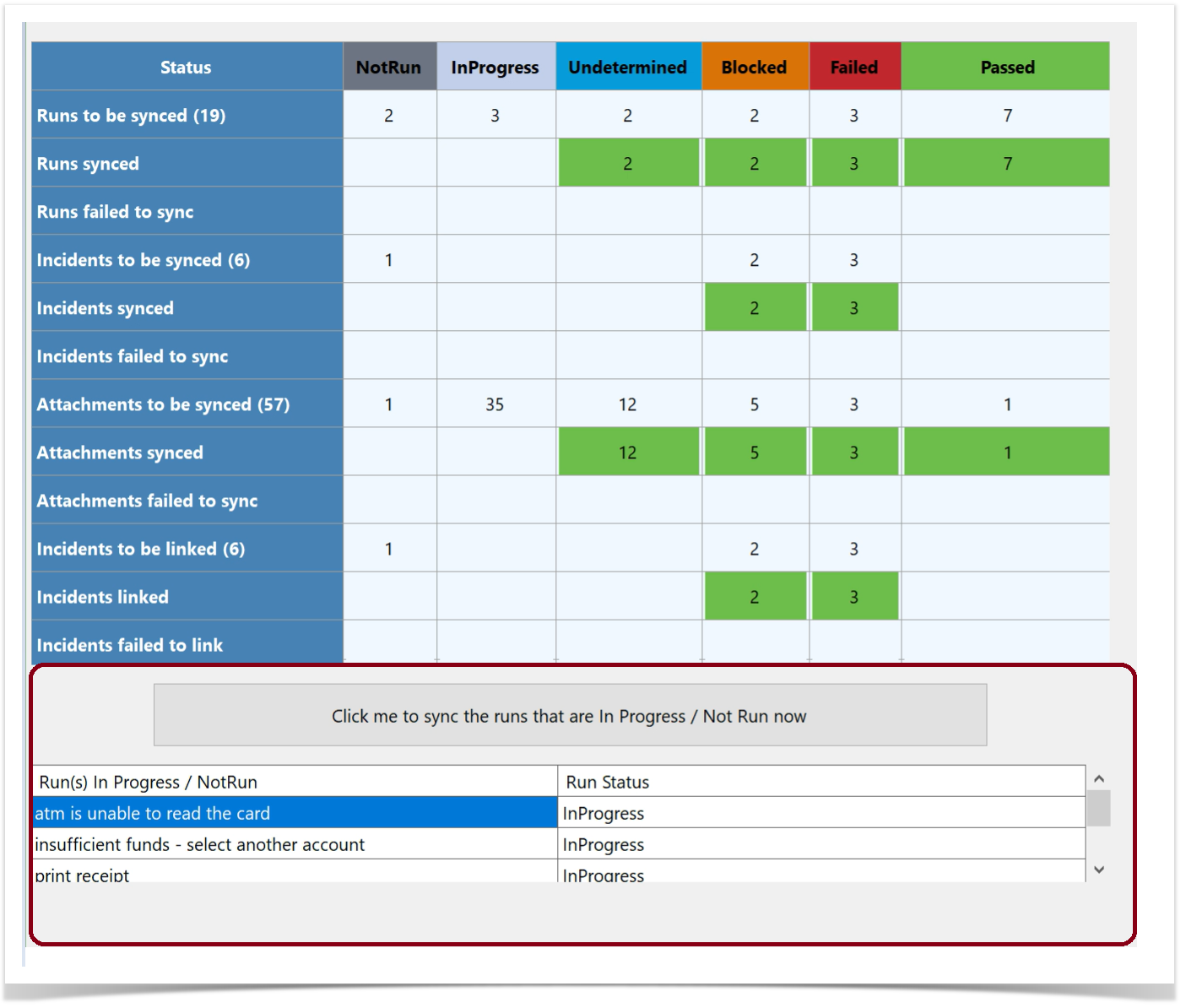
- A button will blink on the screen.
- A table will display test runs that are "In Progress" or "Not Run."
Decision:
- Review the incomplete test runs.
- Decide whether to upload them or return to Test Execution
 to complete them.
Upload Incomplete Test Runs:
- If you choose to upload, they will sync to Enterprise Tester with the same status.
- To upload, simply select the
 button. The sync process will follow the same order as the Synchronization Process for Completed Test Runs. Once the upload is completed, the table will disappear.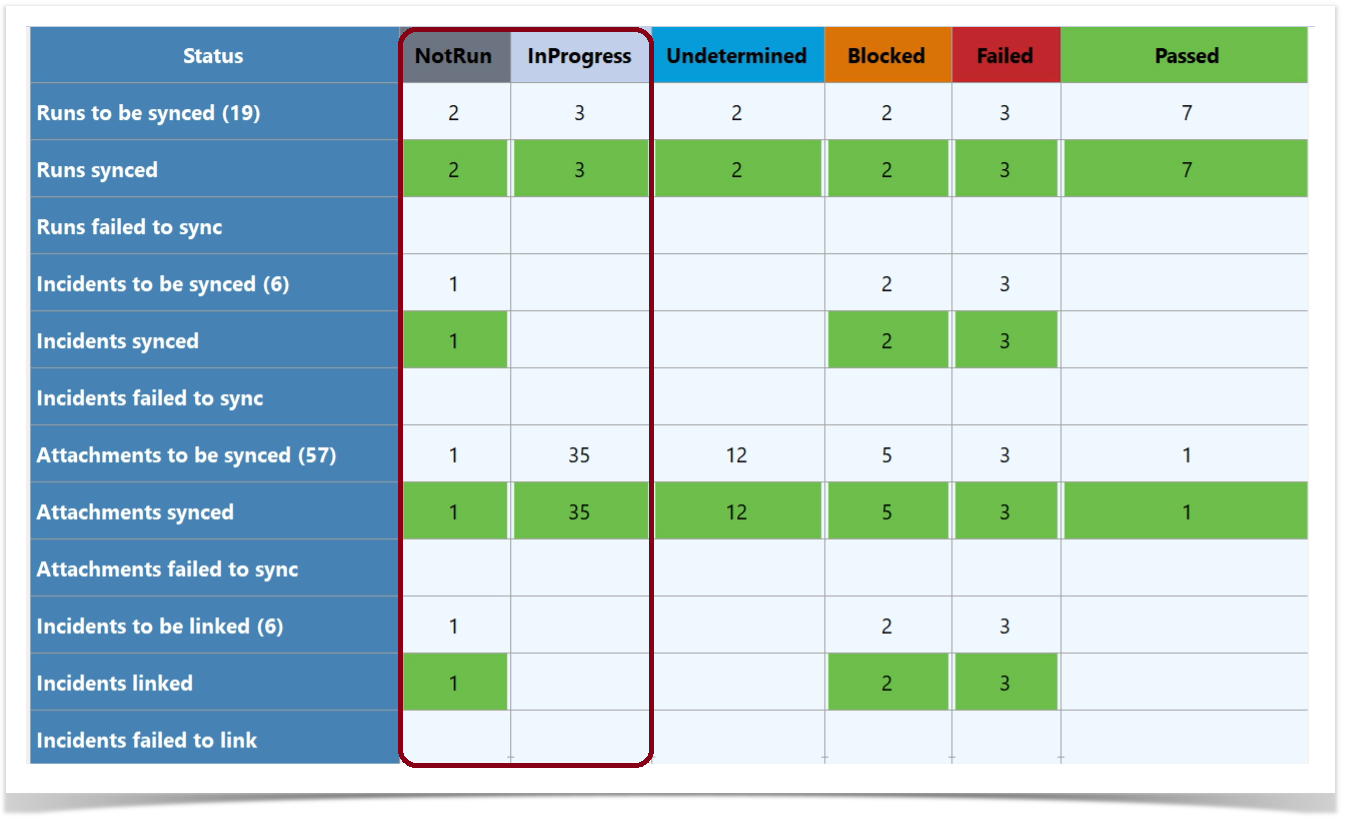
Notes on Synchronization
Synchronization requires matching the Enterprise Tester ID for each entity to ensure successful sync between RoverX and the Enterprise Tester server. Changes made to the Enterprise Tester server between downloading to RoverX and uploading results back to Enterprise Tester may cause synchronization issues. Here are common causes of synchronization failure:
Causes of Synchronization Failure:
Deletions on the Enterprise Tester Server:
- Deleted script assignments prevent runs or updates from syncing back to Enterprise Tester, even if the script assignment is recreated.
- RoverX uses Enterprise Tester IDs for mapping. Deletions remove these IDs, making synchronization impossible.
Baseline Restores in Enterprise Tester:
- Avoid baseline restores if using RoverX.
- Restores revert the project to a previous state, altering IDs and replacing them with new ones.
- Entities will not sync if a baseline restore occurs between downloading and uploading.
Custom Field Configuration:
- Changes to custom fields, such as making fields mandatory or adding new mandatory fields, can cause synchronization failure.
- If you have made these changes in Enterprise Tester you need to select the Refresh
 button to download the changes to RoverX.
Additional Notes:
- If you lose internet or VPN connection during synchronization, it will resume from where it left off once you are back online.
- Failed uploads will be displayed in a table similar to the Incomplete Test Runs.
- Test runs with a status of "Not Run" will only sync back to Enterprise Tester if they have an associated incident or attachment.
Troubleshooting Synchronization
If you are having trouble diagnosing the cause of your synchronization failure, please send a copy of your Rover log file for the day the sync failed to the Catch Support Team.
The Log files can be found by clicking on the folder icon on the Login screen. Please also note the time of the failure.
