This feature allows you to seamlessly transfer your filtered view from SmartPlanner to Enterprise Tester for further analysis or action
Steps to View Filtered Test Cases in Enterprise Tester
Apply Filters:
- Filter your test cases in the tablespace view as needed.
- Filter your test cases in the tablespace view as needed.
Copy Filter Query:
- Click the Copy Filter Query button located beside the Clear Filter button in your tablespace view.

- Click the Copy Filter Query button located beside the Clear Filter button in your tablespace view.
Confirmation:
- After copying, a green confirmation message will appear in the bottom right corner of the screen, indicating that the TQL has been successfully copied to your clipboard.
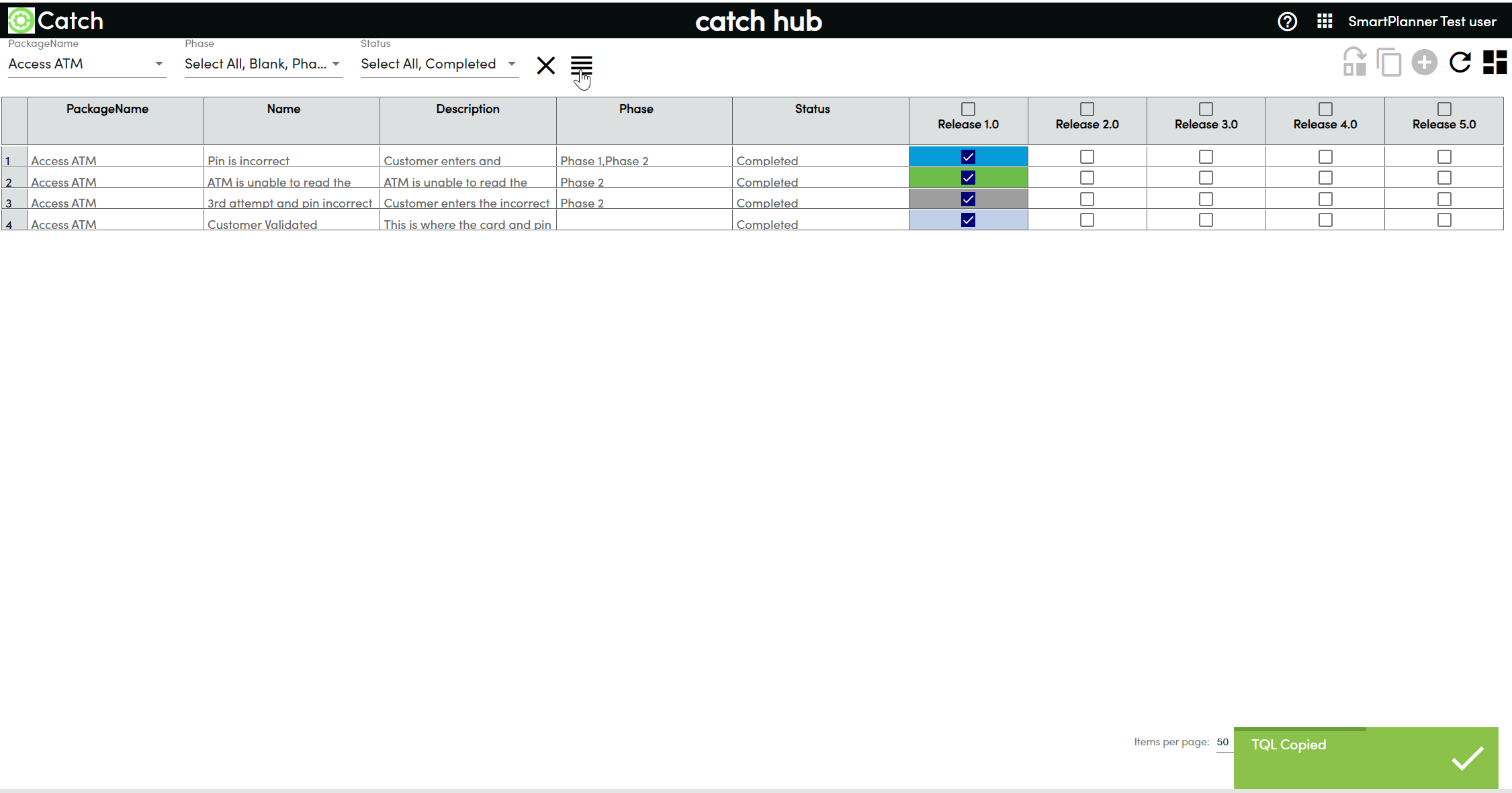
- After copying, a green confirmation message will appear in the bottom right corner of the screen, indicating that the TQL has been successfully copied to your clipboard.
Paste TQL in Enterprise Tester:
- Open Enterprise Tester and paste the copied TQL into the appropriate filter query section to view the filtered test cases.
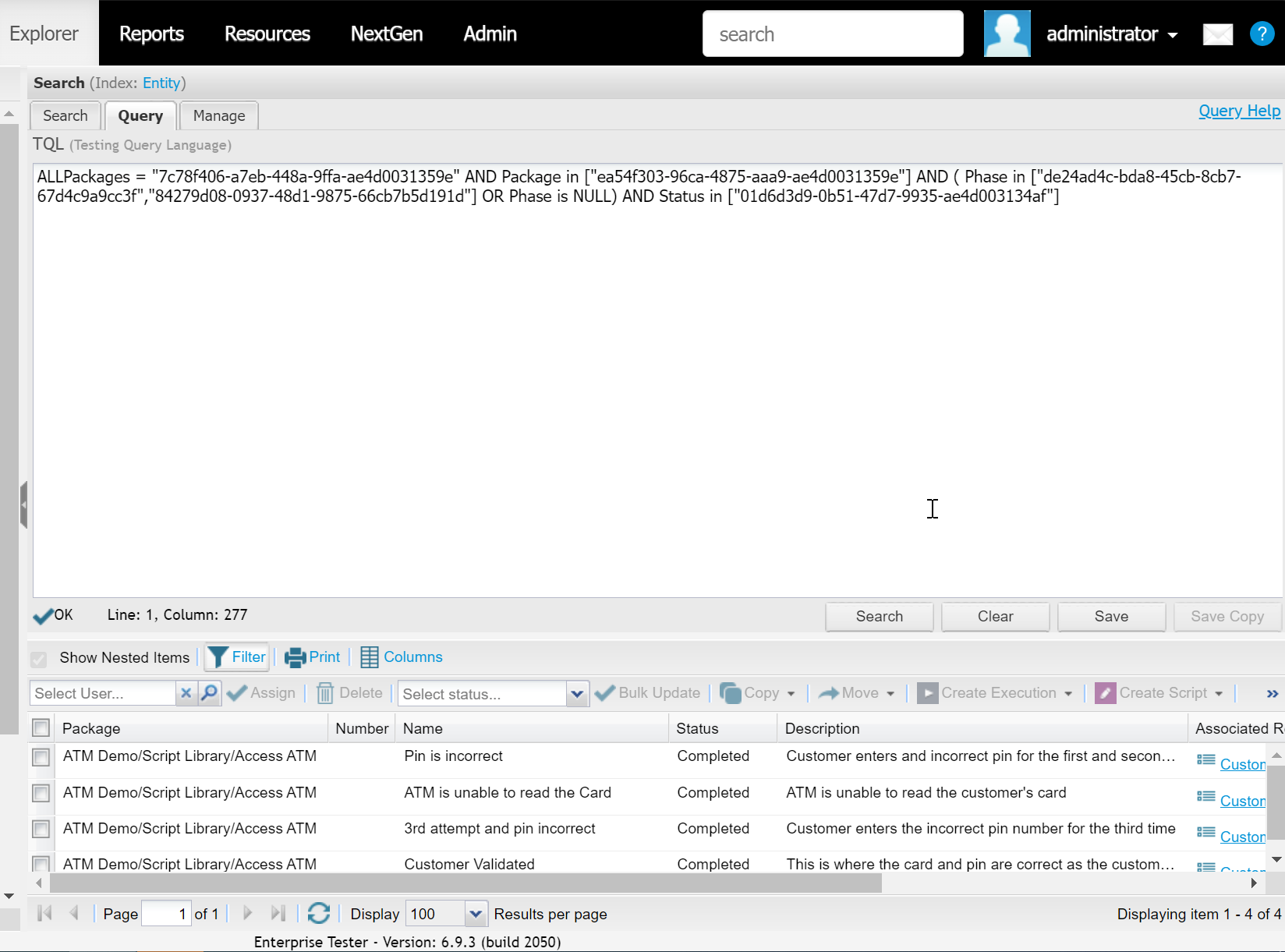
- Open Enterprise Tester and paste the copied TQL into the appropriate filter query section to view the filtered test cases.