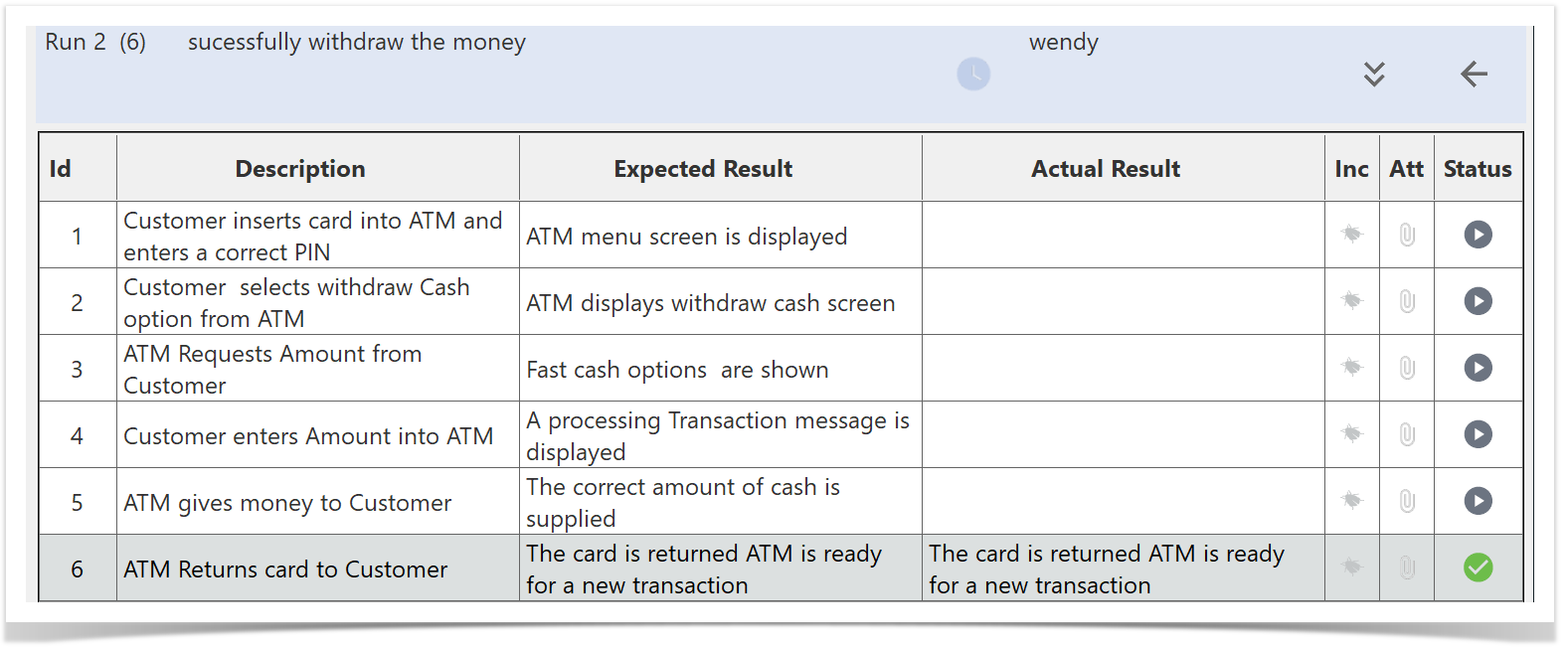
Keyboard Shortcuts for Test Execution
To enhance efficiency while working with test steps, you can use the following keyboard shortcuts:
- Ctrl+P: Mark the current step as Passed.
- Ctrl+F: Mark the current step as Failed.
- Ctrl+B: Mark the current step as Blocked.
- Ctrl+U: Mark the current step as Undetermined.
These shortcuts allow you to quickly update the status of the current test step.
Using Shortcut Keys to Set Step Status
You can streamline your testing process by using shortcut keys to set statuses for multiple steps at once.
For example, if you want to mark all steps in the test run as Passed:
- Press <CTRL+A> to select all steps.
- Then press <CTRL+P> to mark all selected test steps as Passed.
This functionality allows you to quickly update the status of multiple steps without having to select each one individually.
Copying and Pasting Text
RoverX allows you to copy and paste text from external sources, such as Excel, directly into the Expected Result field. To do this:
- Copy the desired text from your source (e.g., Excel) using Ctrl+C.
- Navigate to the Expected Result field in Rover.
- Paste the copied text into the field by using Ctrl+V.
This feature helps streamline the process of entering expected results by enabling quick transfers of text data.
Copy Expected Result to Actual Result:
You can copy the Expected Result into the Actual Result field. To do this, highlight the test step you want to update, then click or tap inside the Actual Result field.
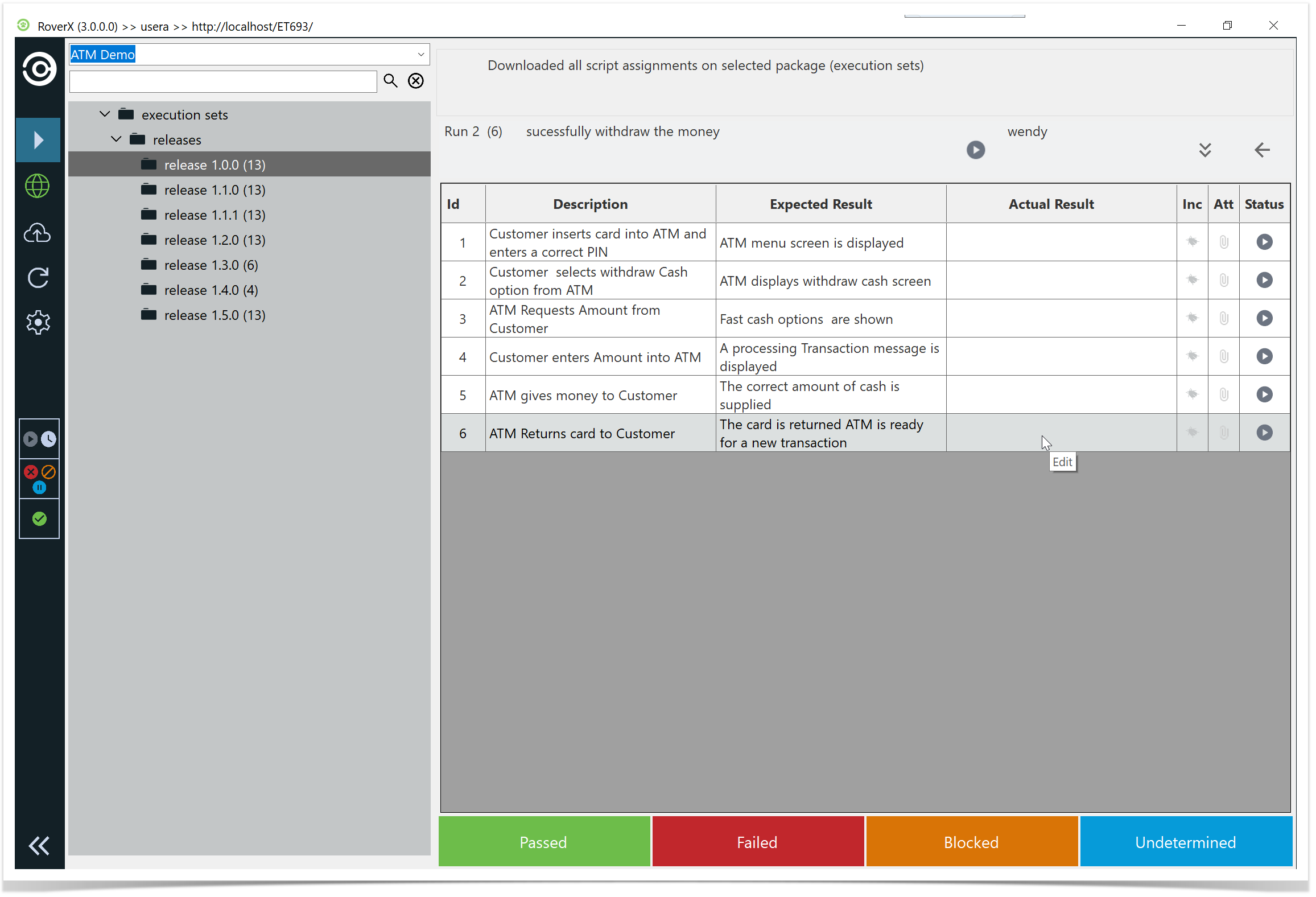
The Expected Result text will be copied automatically.
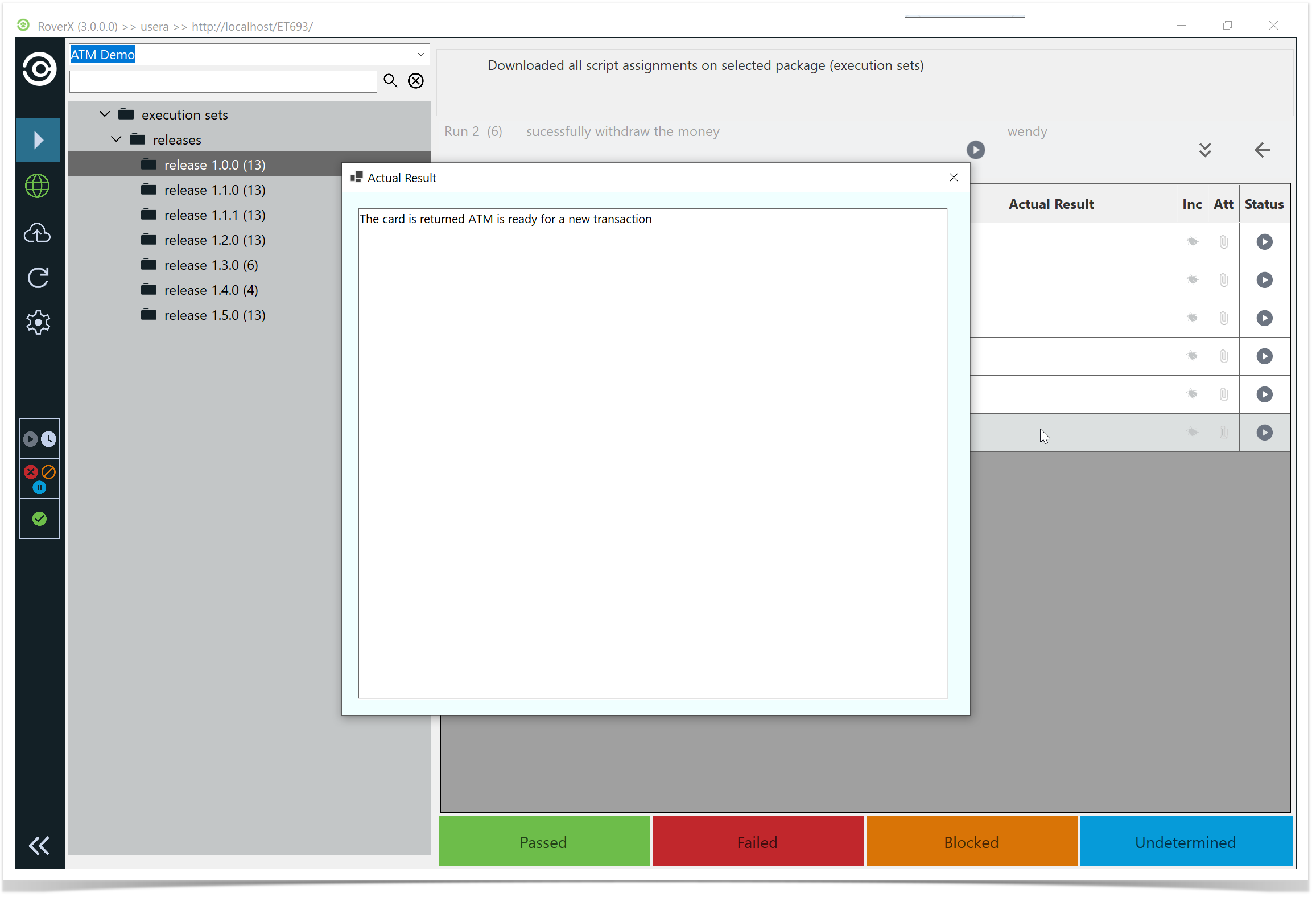
Then click on the X button to close the Actual Result pop up window.