To create users within CatchHub, navigate to the CatchHub administration section:
Access Administration:
- Click the top-right menu bar and select your name. This will show a dropdown menu.
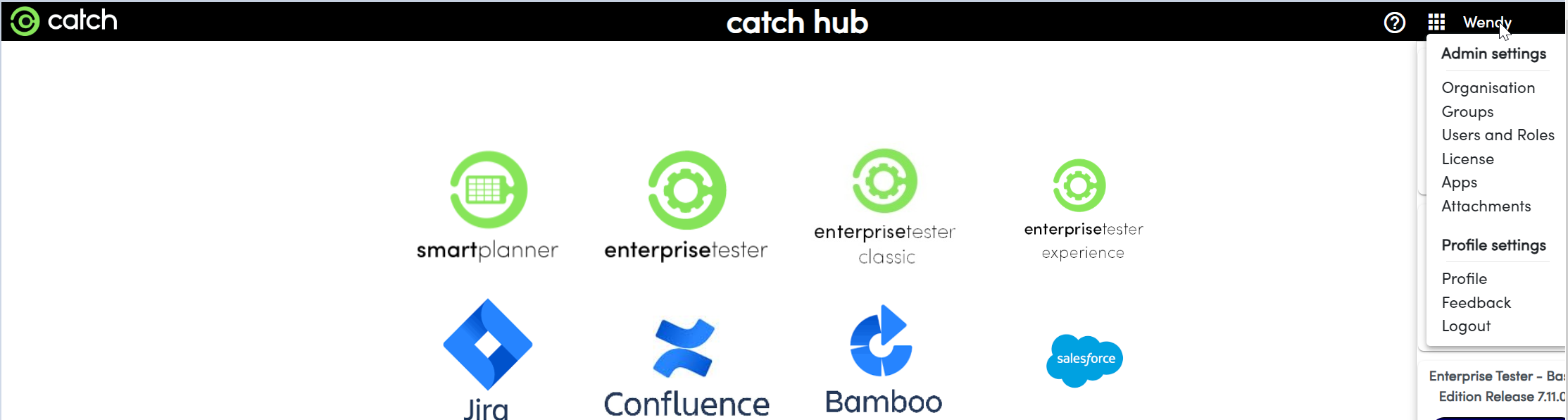
- Click the top-right menu bar and select your name. This will show a dropdown menu.
Navigate to Users and Roles:
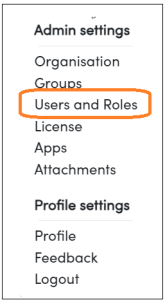
- Click on the "Users and Roles". This will display the user management menu.
- Click “Add User” to open the user creation prompt.

- Click on the "Users and Roles". This will display the user management menu.
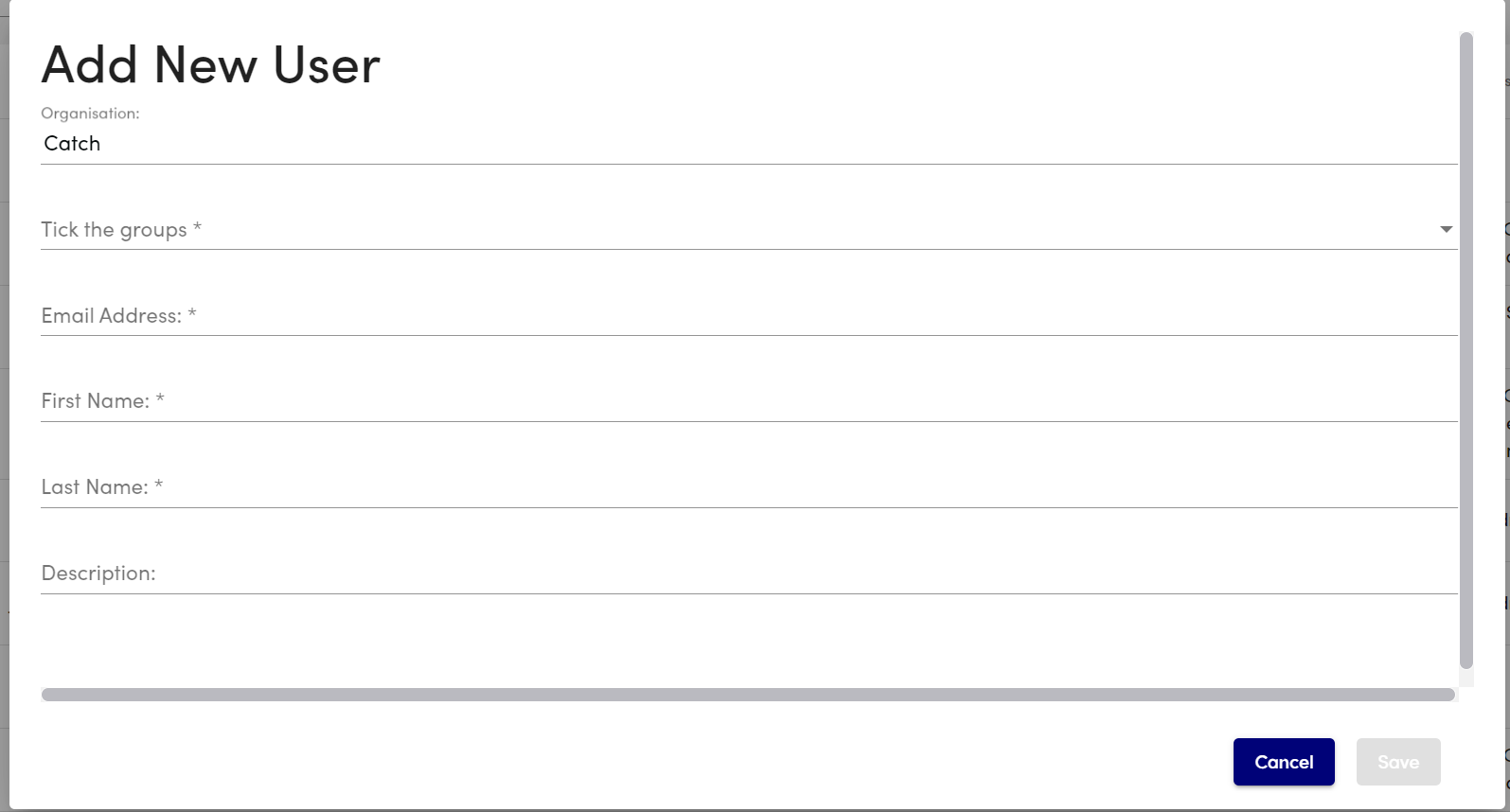
Fill in User Details:
- Email Address
- First Name
- Last Name
- Description
- Password
- Group Membership Selection
- Option to Create User in Connected Enterprise Tester Instance
Finalize User Creation:
- After entering the details, click “Create” to add the user. The user will now appear in the user list with the specified information, and they can log in using their credentials.
Important Note: Users must be created in CatchHub, even if logging in with Okta. This step is essential for setting permissions specific to each user.