An internet connection is required for this task. Make sure you are in Online mode in RoverX.
Ensure Online Mode: Verify that you are connected to Enterprise Tester and in Online mode in RoverX.
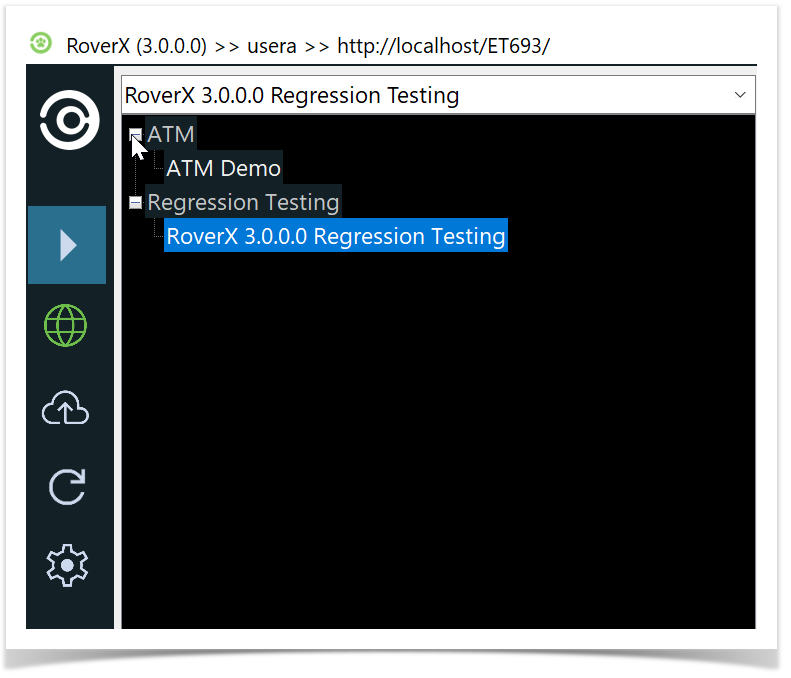
Select a Project: Choose the desired project from the Project drop-down list.
View Execution Sets: The navigator will display the execution set folders and their test runs (excluding agile runs) in the selected project, as listed in the Enterprise Tester.
Download Execution Sets: Select the execution sets you want to download. The selected execution sets will be downloaded to RoverX for offline access.
This process allows you to work with Execution Sets offline after downloading them from Enterprise Tester.
Selecting a Project
Open the Project Dropdown: Click on the Project dropdown list to view the available projects. Projects are organized into categories, similar to how they are structured in Enterprise Tester.
View Accessible Projects: Users will only see projects that are defined in their user permissions on the Enterprise Tester server.
Select a Project: Choose the desired project from the dropdown list. You can change the project at any time by selecting a different project from the dropdown.
Review Execution Sets: Once you have selected a project, you can review and select the execution sets or individual test runs you wish to download from the Enterprise Tester server.
Selecting execution sets
Expand Folders: By default, the folders are collapsed. The
 button indicates that the folder can be expanded and contains sub-folders. Select this button to expand the folder.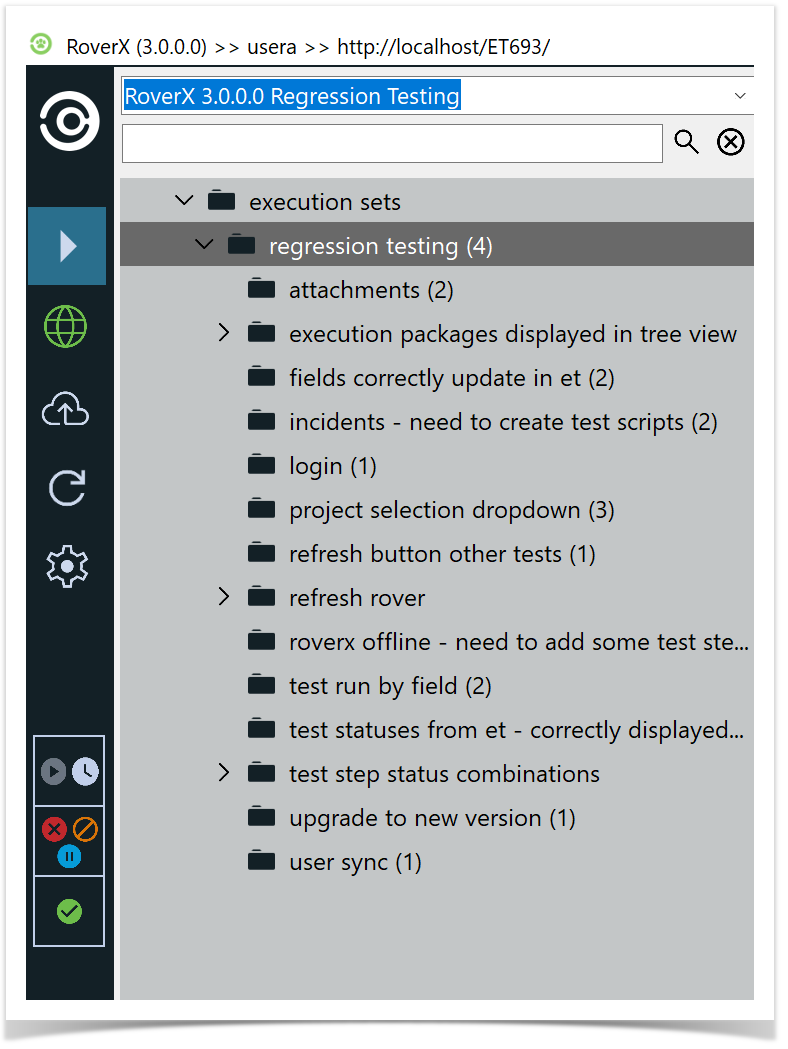
Folder Expansion Indicator: Once the folder can no longer be expanded, the button will change to the following icon
 .
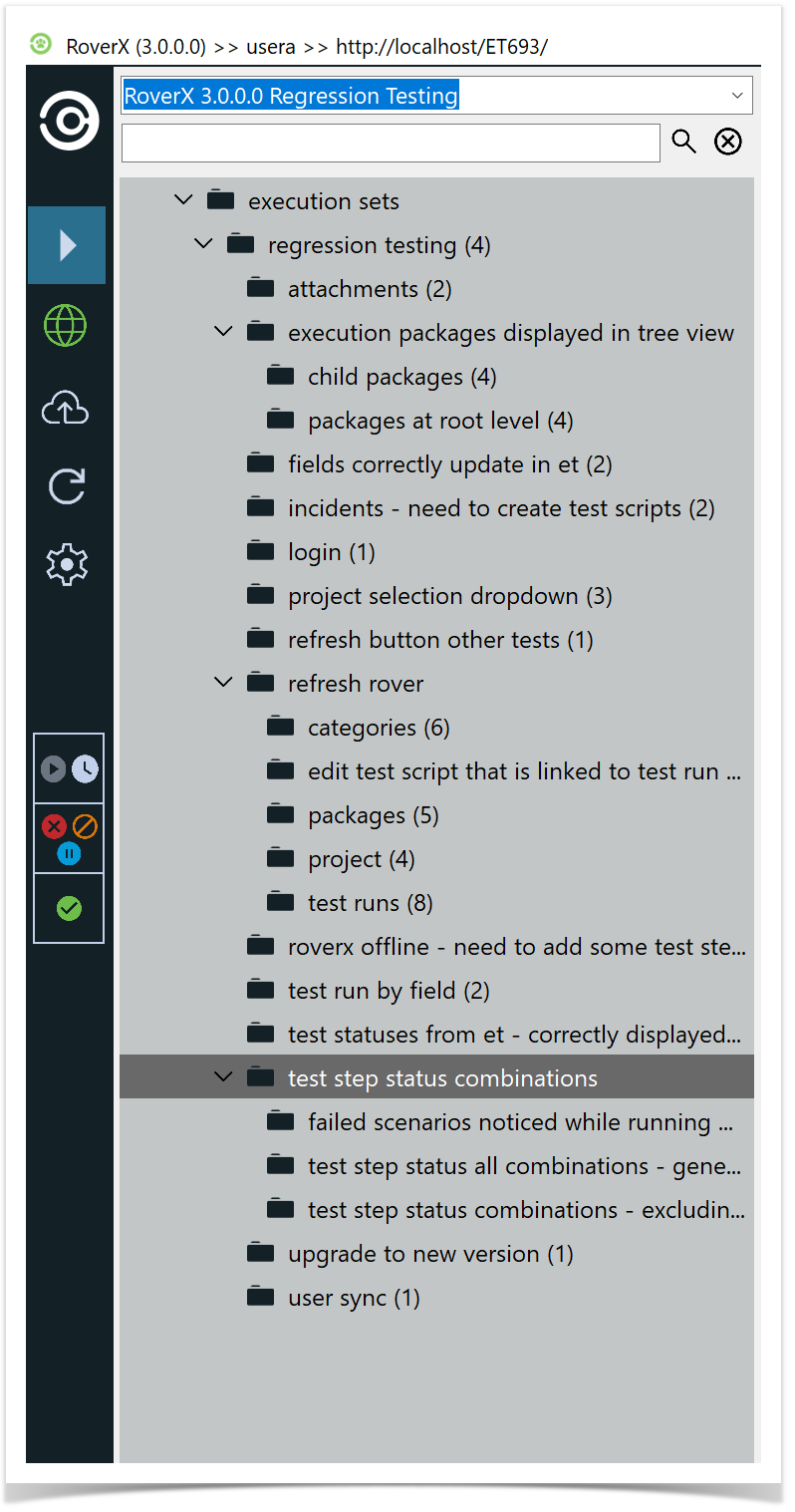
.Expand All Packages: To expand all packages within a folder, right-click on the top execution set or any folder you wish to expand all sub-folders within.
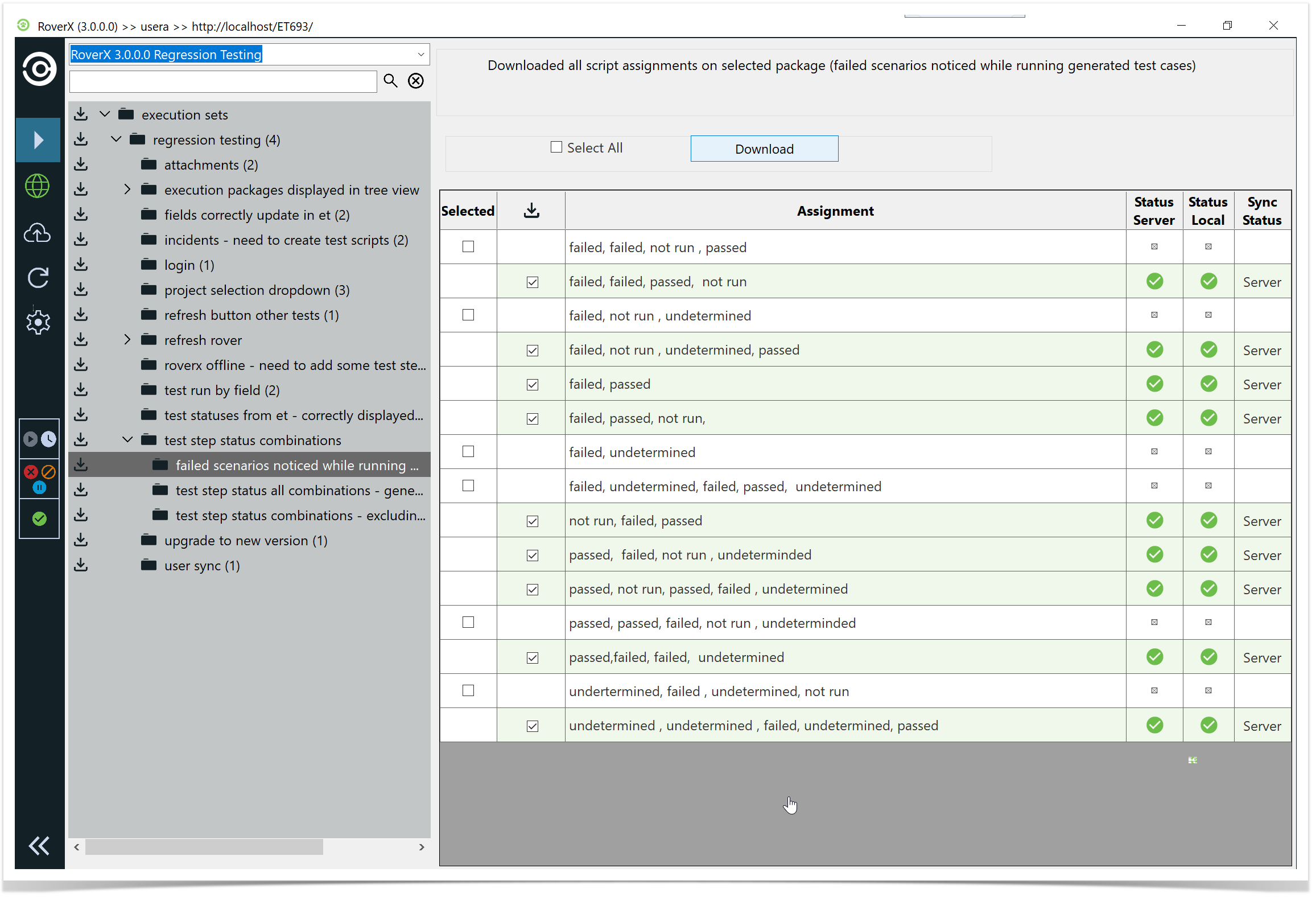
To view test runs in RoverX, follow these steps:
Expand the Folder:
- Navigate to the folder where the test runs are located and expand it.
Select the Folder:
- Click on the folder to display the Test Run table.
View Test Run Count:
- The number of test runs in the folder is displayed in brackets next to the folder name.
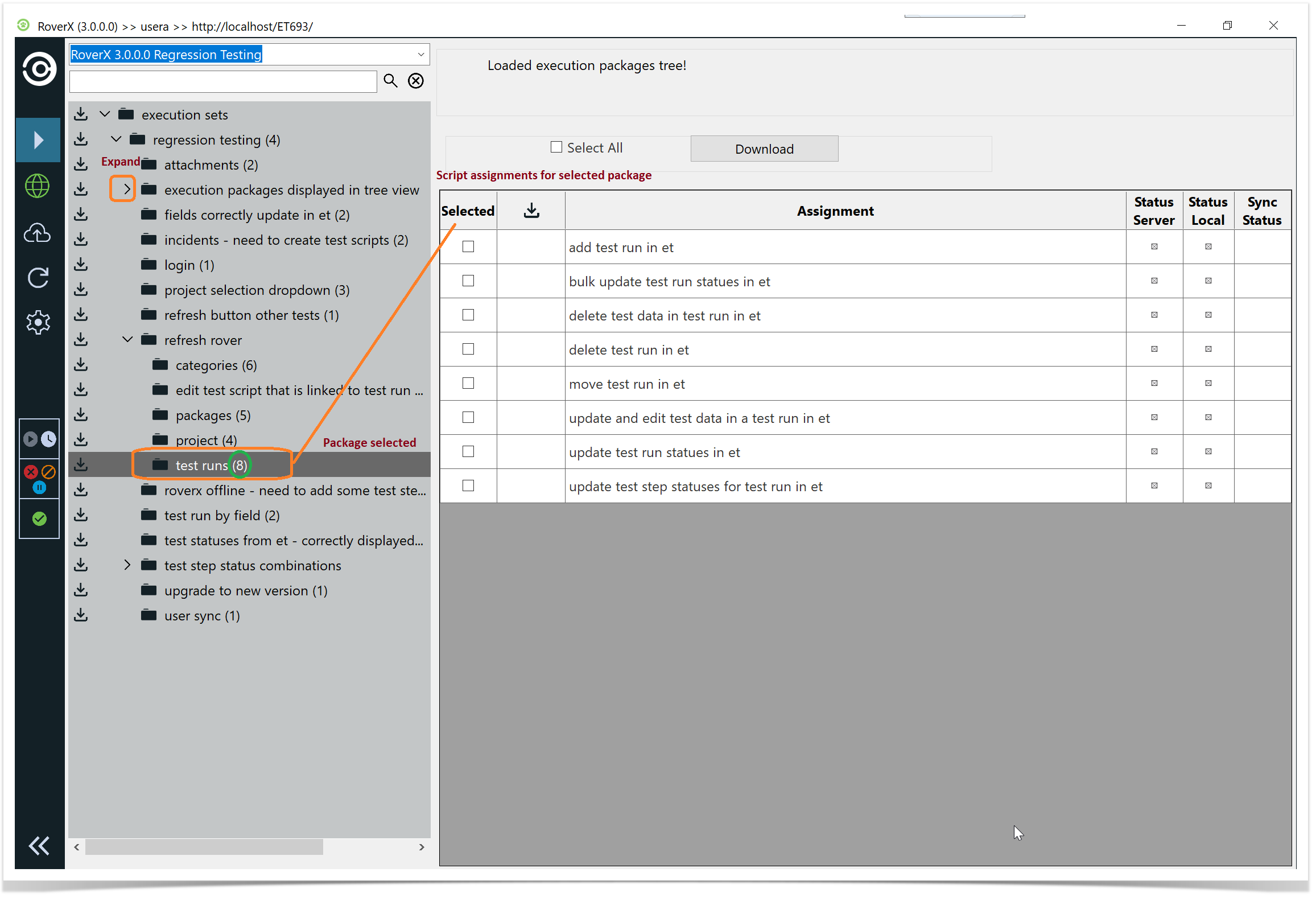
Execution sets and individual test runs that you have not yet downloaded to your device, or that have been changed since your last download, will display a download icon  . This helps you identify which items need to be downloaded or updated.
Download execution sets
Locate the Download Icon:
- Find the download icon next to the folder or the individual script assignment you wish to download.
Download Specific Items:
- Click on the download icon for the specific folder or individual script assignment to initiate the download.
Download All Items:
- To download all execution sets and test runs, click on the download icon for the main Execution Sets folder.
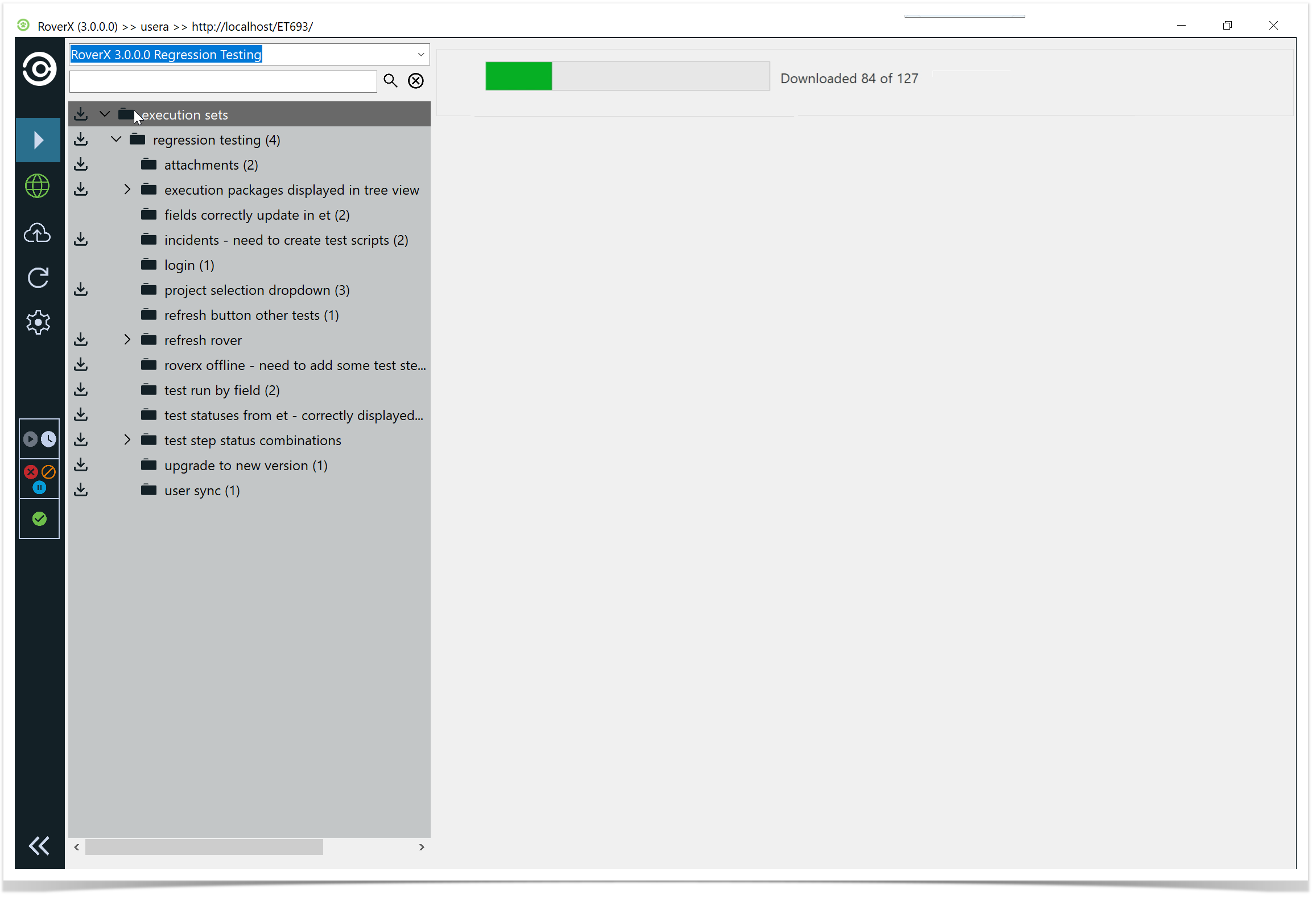
While downloading, a progress bar will be displayed to show the download status.
Once you have downloaded the execution set or the test runs the download icon will disappear.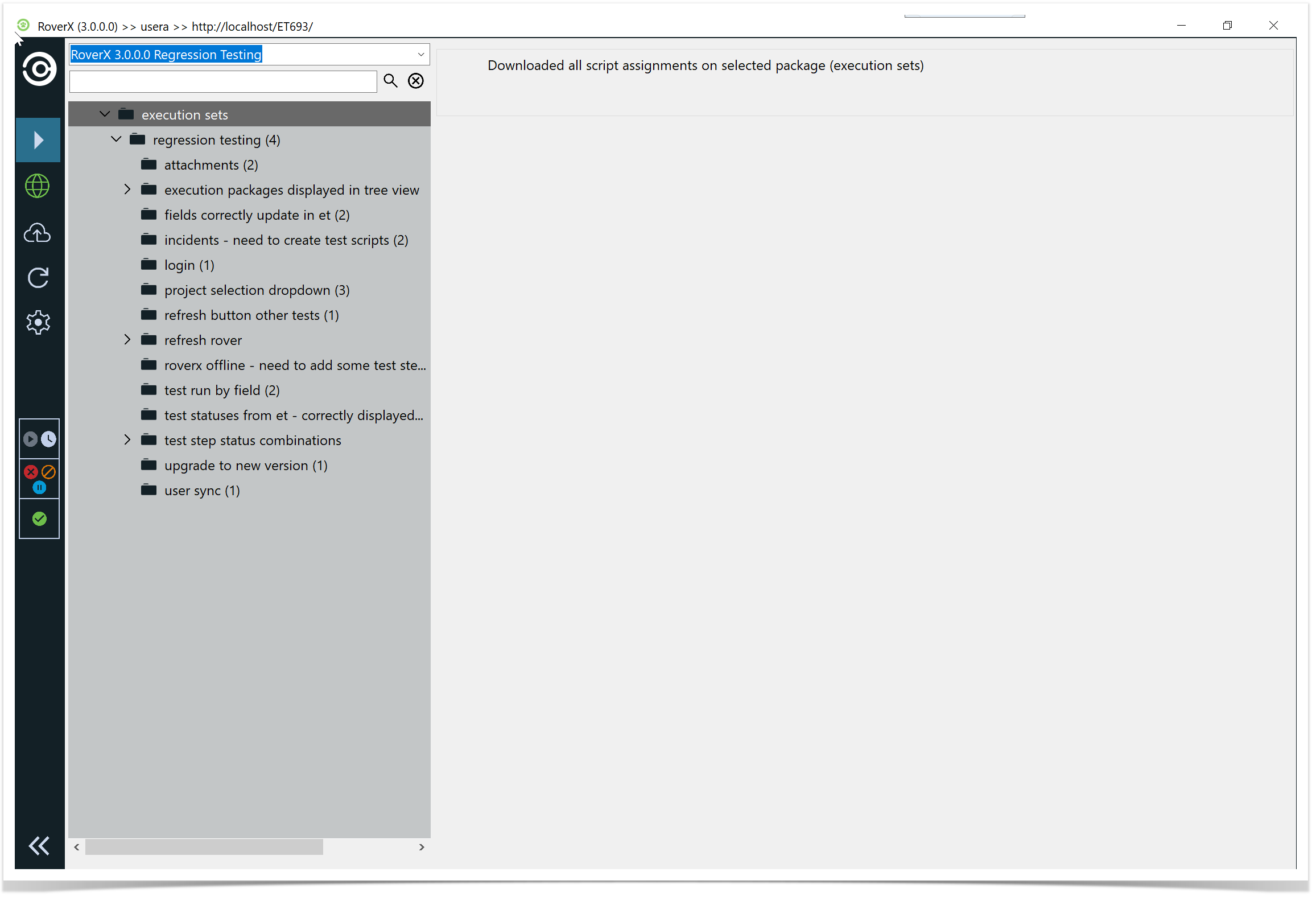
To download one or more test runs, select the folder where the test runs are located.
Select the test runs you want to download.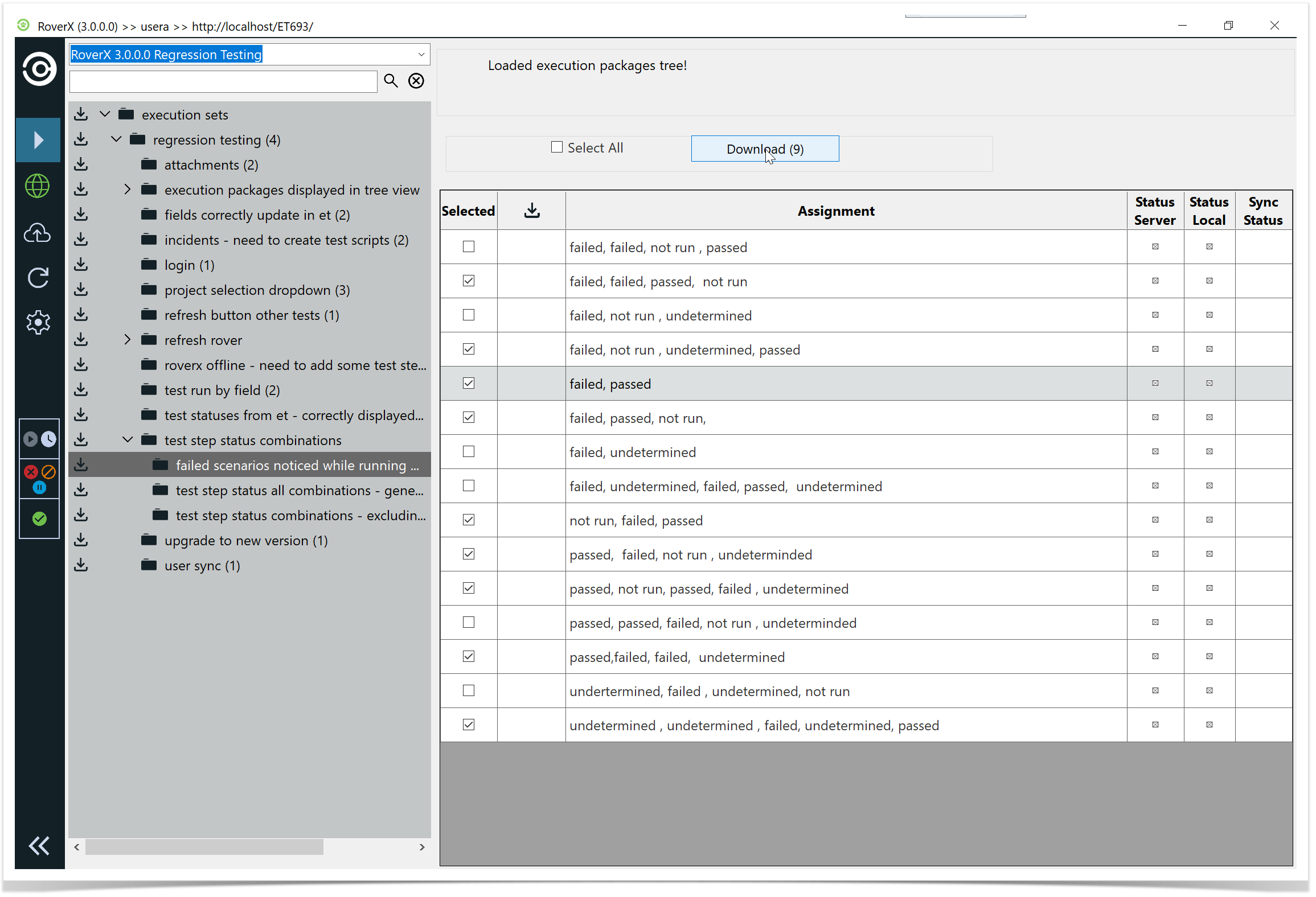
Select Download button. The selected test runs are downloaded.