User settings are accessible by selecting the Settings  button at the bottom left-hand side of the screen. You can manage various settings as follows:
Edit Enterprise Tester URL:
- Modify the URL for your Enterprise Tester server if needed.
Change Password:
- Update your password if it has changed on the Enterprise Tester server.
Delete All Data from Local Database:
- Remove all data stored locally in RoverX. This action clears the local database.
Access Log Files:
- Navigate to the directory containing the log files for RoverX for troubleshooting purposes.
- Navigate to the directory containing the log files for RoverX for troubleshooting purposes.
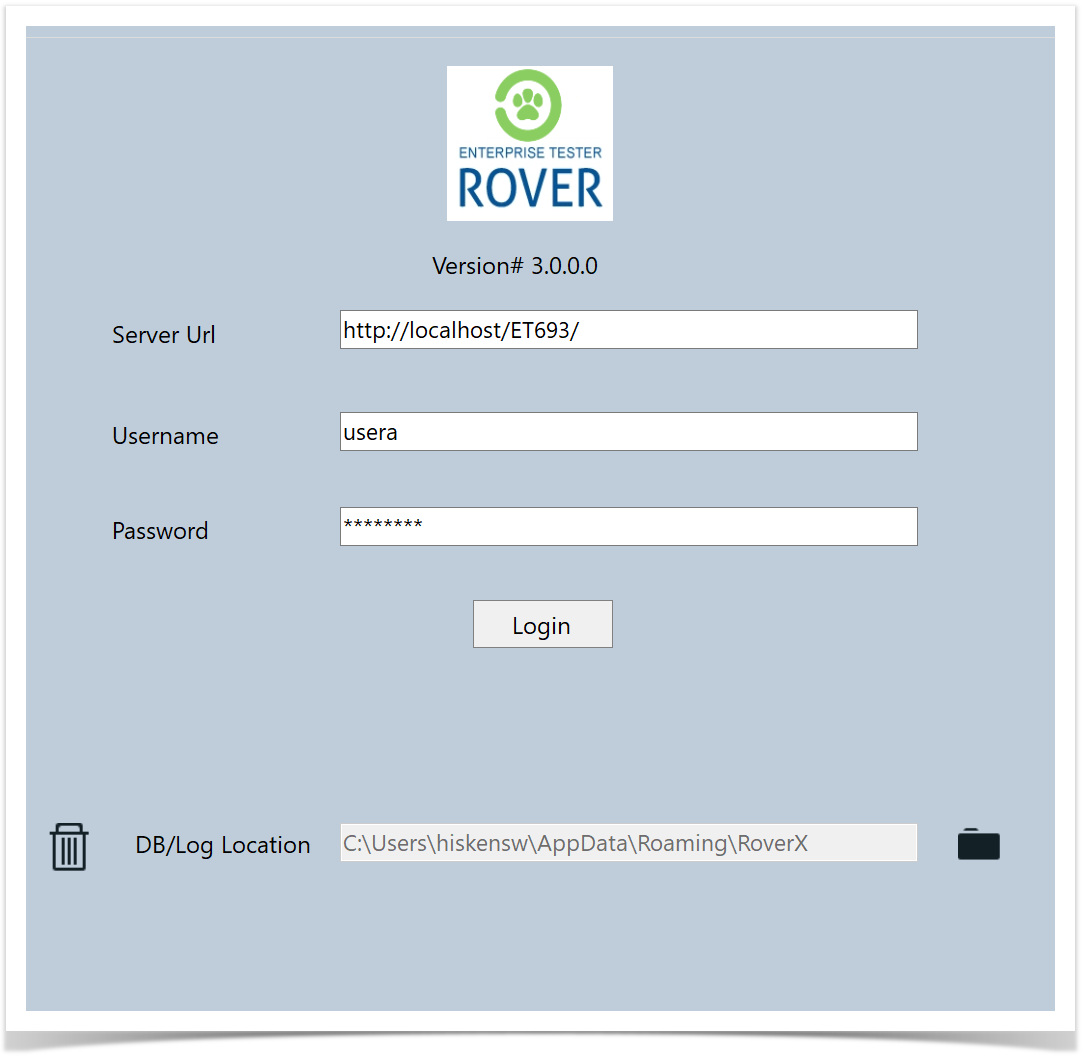
Deleting All Data from Local Database
To Delete All Data from the Local Database:
Initiate Deletion:
- On the Login page, select the Delete All Data
 button.
- On the Login page, select the Delete All Data
Confirmation Message:
- A confirmation message will be displayed:
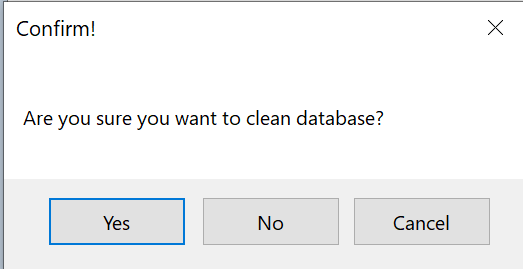
- Select Yes if you are sure you want to proceed.
- A confirmation message will be displayed:
Completion Message:
- Once the local database has been deleted, a message will be displayed:
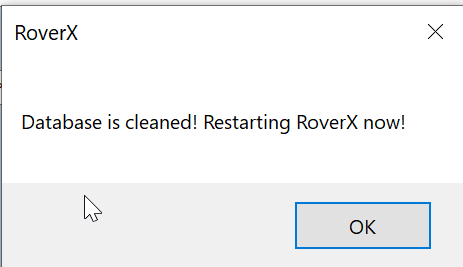
- Once the local database has been deleted, a message will be displayed:
Restart RoverX:
- Select the OK button. RoverX will restart automatically.
- Select the OK button. RoverX will restart automatically.
Reconnect and Download:
- Once RoverX has restarted, you will need to connect to the internet and go to Online mode to download Test Execution sets and associated incidents.
This process ensures that you start with a clean slate, but be mindful to upload any pending data to the Enterprise Tester server before proceeding.
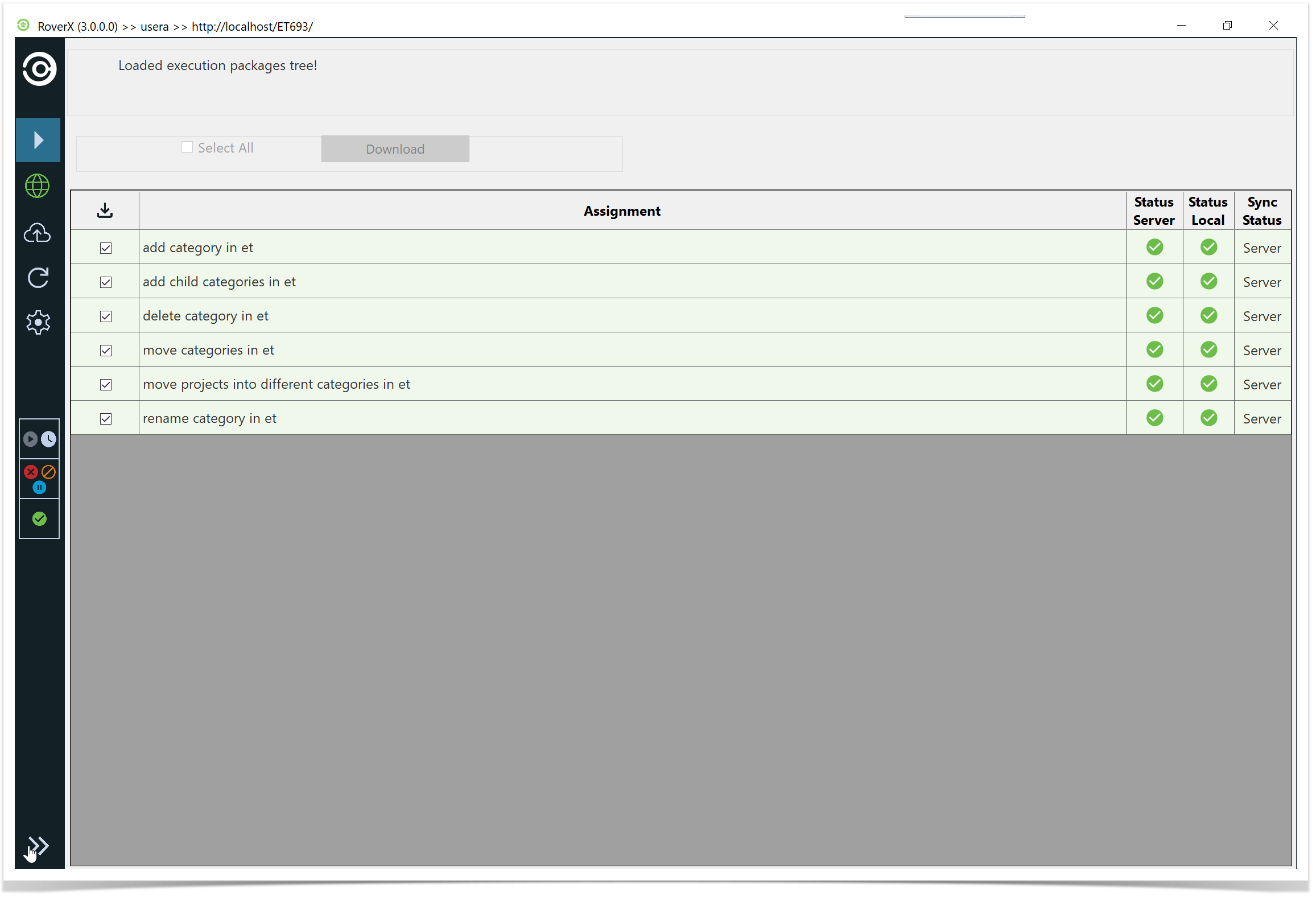
Expanding and Collapsing the Right-Hand Panel
The right-hand panel can be expanded or collapsed on any screen by clicking the expand  /collapse
  button located at the bottom of the left-hand panel. This lets you manage your workspace efficiently by showing or hiding additional information as needed.
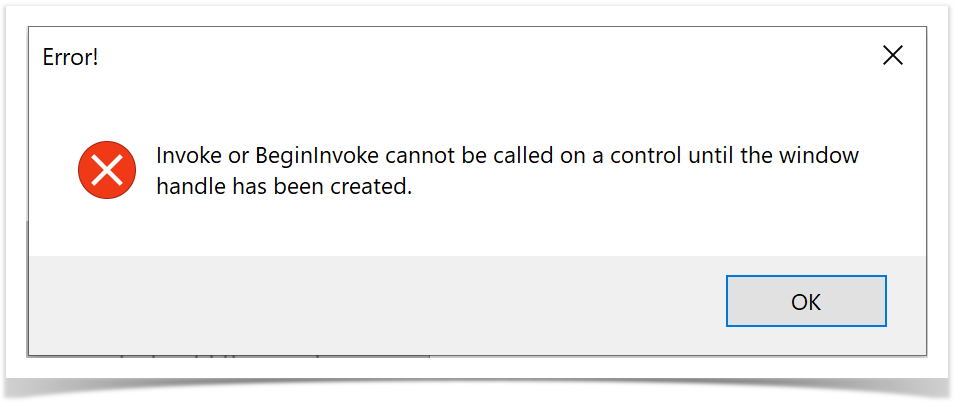
Invoke Error
This error message appears when an action is attempted while another process is still running in the background.
Please wait for the current process to complete before trying again.
For example, this can happen when toggling quickly between Online and Offline mode.
Click "OK" to close the error dialogue. This error does not impact the functionality of the RoverX application.
Additional Error Message:
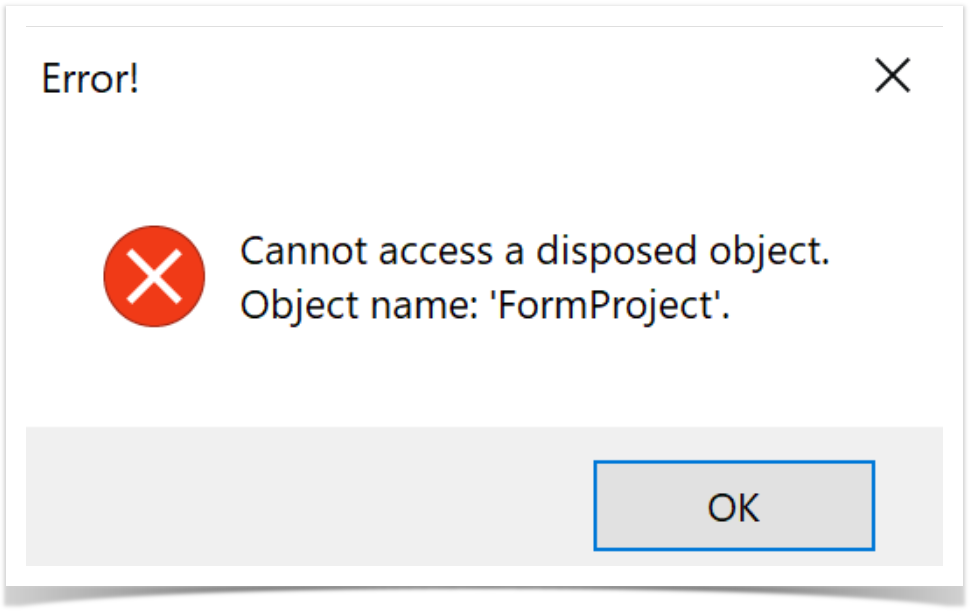
You may encounter another similar error message.
Click "OK" to close it. Like the Invoke Error, it does not affect the operation of the RoverX application.