In SmartPlanner, script runs can be copied from one test cycle to another. This feature allows you to efficiently duplicate your test cases within the application.
Steps to Copy Script Runs:
Select Script Runs:
- Navigate to your tablespace and select the script runs you want to move. The copy
 button will become enabled once script runs are selected.
- Navigate to your tablespace and select the script runs you want to move. The copy
Click Copy Script Runs button:
- Highlight the script runs that you want to copy and click on the copy
 button
- Highlight the script runs that you want to copy and click on the copy
Select Destination Test Cycle:
- A list of available test cycles to copy the script runs to will be displayed.
- Select the test cycle where you want to copy the script runs to.
Copy Script Runs:
- The script runs will be copied to the destination test cycle.
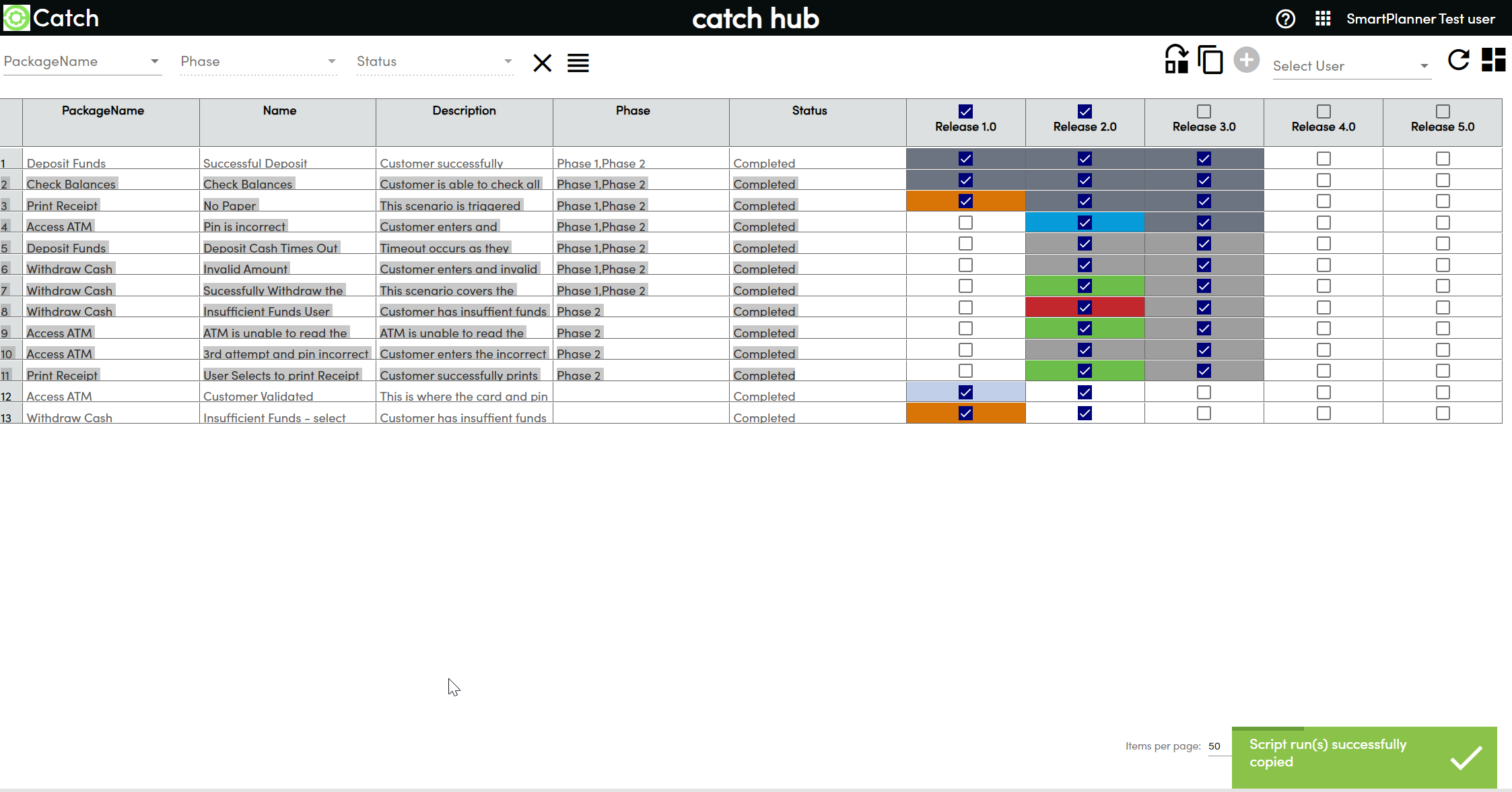
- A confirmation message will be displayed in the bottom right corner of the screen.
- The assignee will be retained, and the statuses of the test runs will be reset to "Not Run“
Error Handling:
There are two scenarios where script runs cannot be copied:
Source Test Cycle is Empty:
- If the source test cycle selected does not have any script runs created, you cannot copy script runs from it.
Duplicate in Destination Test Cycle:
- If the script runs selected already exist in the destination test cycle, they cannot be copied.
When these situations occur, an error pop-up screen will be displayed, showing which tests are affected.
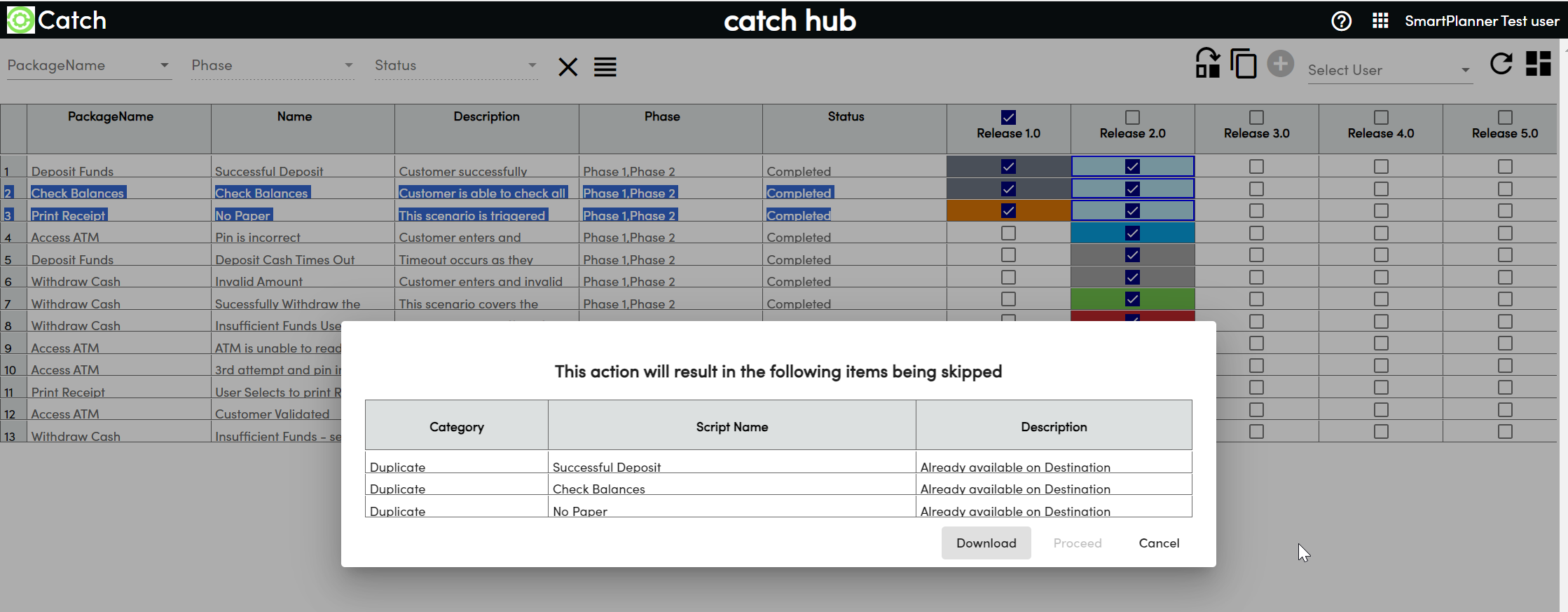
Error Pop-up Screen Options:
Download:
- Download the log to a text file.
Proceed:
- Skip the script runs shown in the error and proceed to copy the valid script runs that were selected.
Cancel:
- Do not copy any script runs.
Note: If all the script runs selected from the source test cycle cannot be moved, only the Download and Cancel buttons will be enabled.