You can then add test scripts to the packages that you have created directly in Enterprise Tester, or by importing existing use cases by creating them directly in ET, converting an ET requirement into a test script, by importing existing scripts from a CSV file for or directly from Enterprise Architect Use Cases.
To add a Test Scripttest script:
- Right click a package and select Add Test Script Script
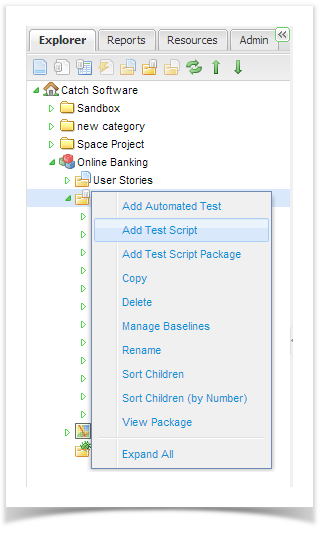
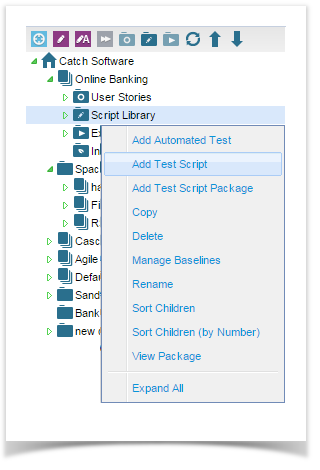
or select the Add Script icon at the top of the tree view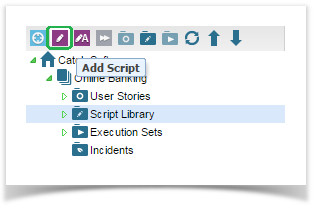

Or select Create Script from the grid tool bar
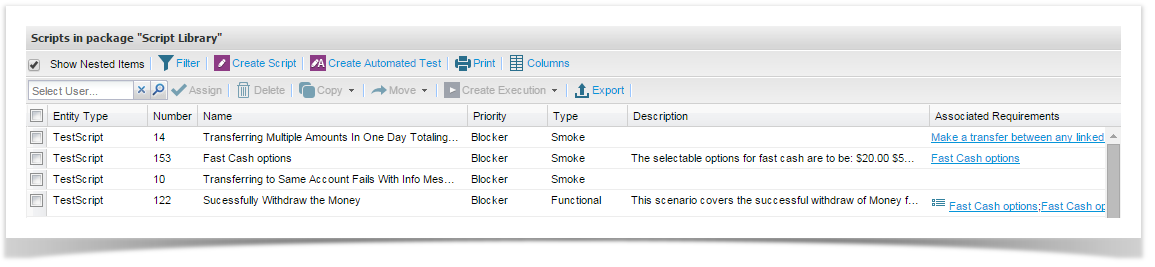
The Test Script details Details screen will appear.
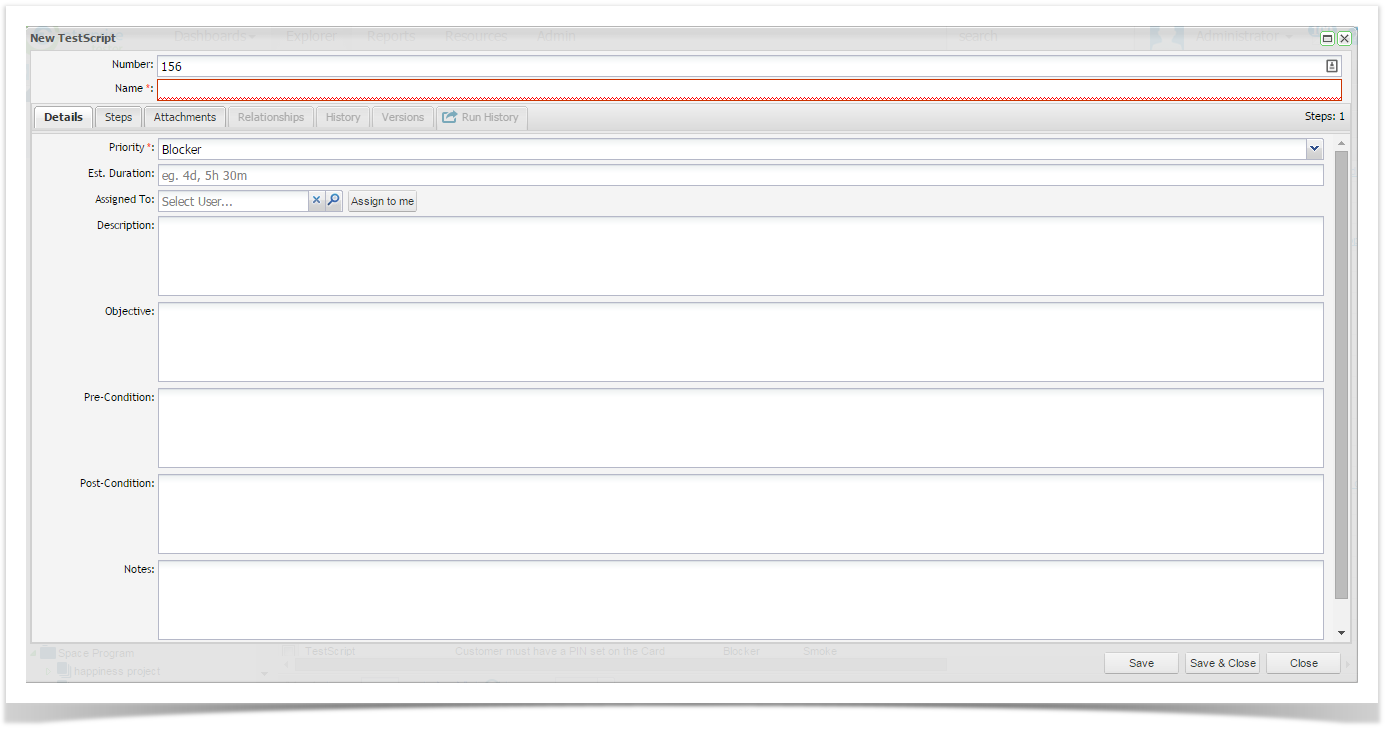
- Enter the following details if required:
- By default the following fields are available. This may differ from what you see on screen depending on whether your project administrator has added custom fields or configured some of these default fields to be hidden.
Number |
Script number (this may be automatically generated or your administrator may have set this field to read only) |
Name | A short name for the test script |
Priority | Select from the pick list |
Status | Select from the pick list |
Type | Select from the pick list |
Description | A description of the test script |
Objective | The objective of the test |
Pre-conditions | Any conditions that must exist before the test script can be run |
Post-conditions | Any conditions that should result once the test script has completed |
Notes | Notes related to the test script |
Est. Duration | An estimate of how long the script should take to run |
Click ‘Save’ Save to save changes.
This action effectively saves a high level test casescript, next you will need to add steps to the test casescript.