To create users within CatchHub, navigate to the CatchHub administration section:
Access Administration:
- Click the top-right menu bar and click on your logged in name. This will show a dropdown menu.
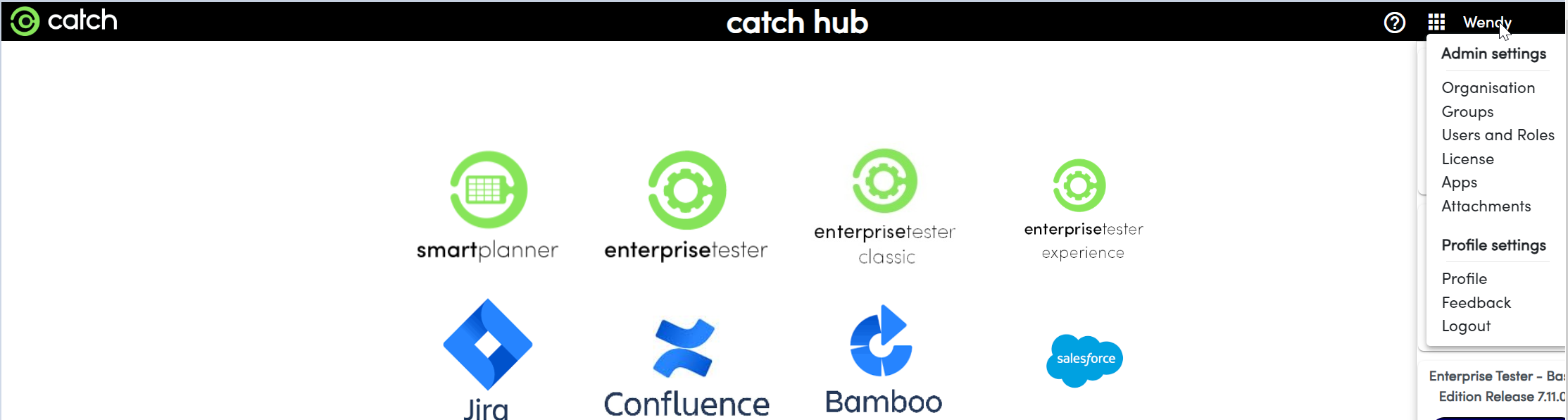
- Click the top-right menu bar and click on your logged in name. This will show a dropdown menu.
Navigate to Users and Roles:
- Click on the "Users and Roles". This will display the user management menu.
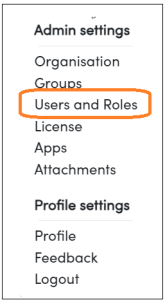
- Click “Add User” to open the user creation prompt.

- Click on the "Users and Roles". This will display the user management menu.
Fill in User Details:
- Group Membership Selection
- Email Address
- First Name
- Last Name
- Description
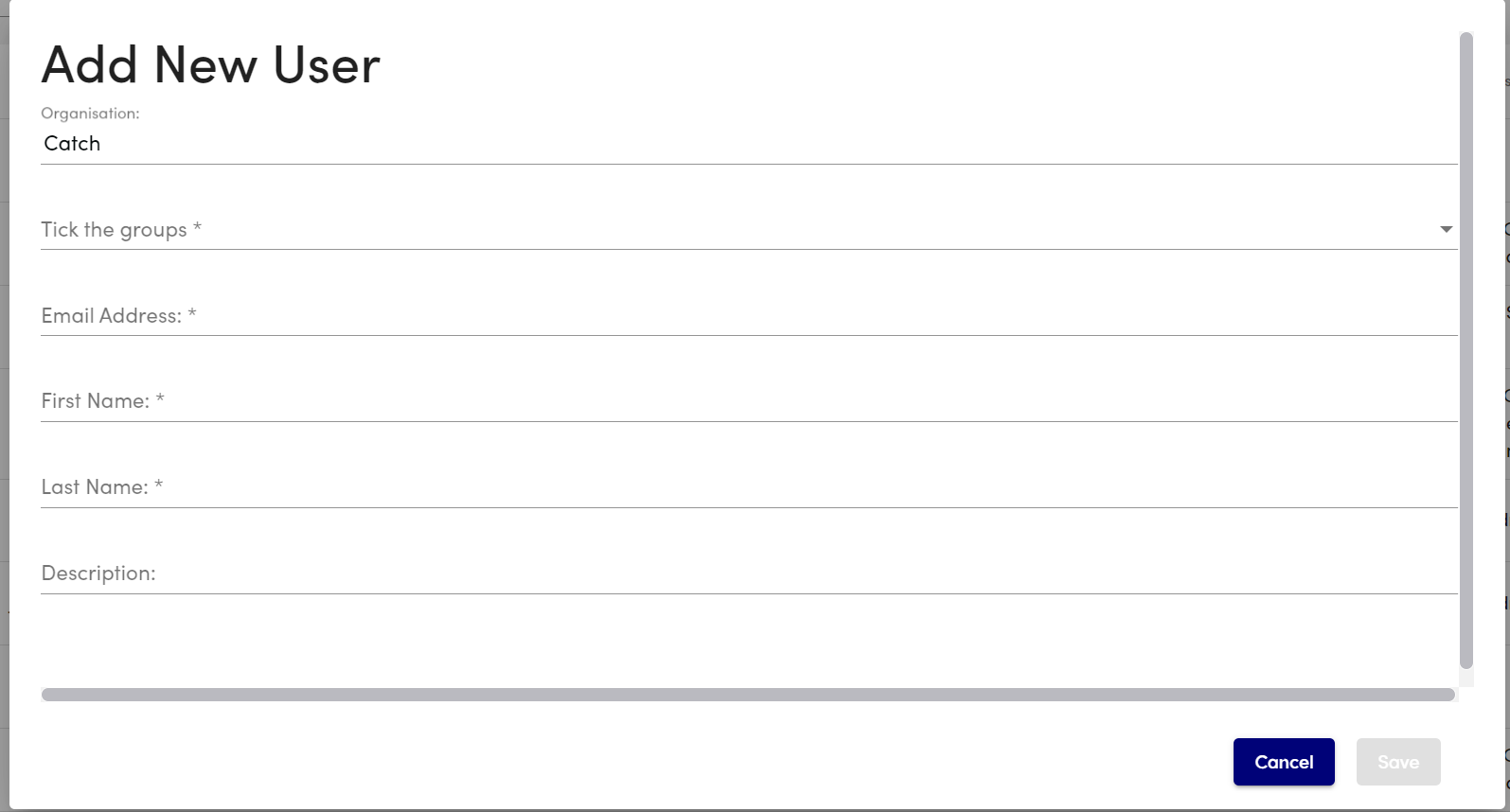
Finalize User Creation:
- After entering the details, click “Save” to add the user. The user will now appear in the user list with the specified information.
- An email will be sent to the user with a link to create a password. Once the password is set, the user will be able to log in.
Important Note: Users must be created in CatchHub, even if logging in with Okta. This step is essential for setting permissions specific to each user.