...
If you update a Test Script, those changes will automatically be reflected in the related Test Execution data — unless the test is currently being run.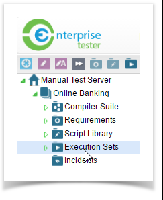

New! Start and End Dates for Test Execution Packages
...
- Go to the Execution Sets folder.
Find where you want to add the new package.
Right-click and select Add Child Package.

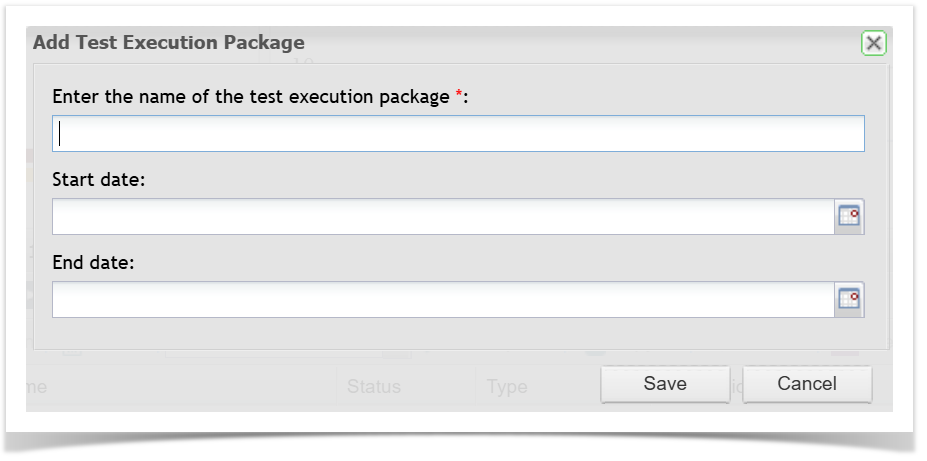
4. Enter a name for your Execution Package.
5. Fill in the Start Date and/or End Date (optional).
6. Click Save to finish.
To update an existing Execution Package:
Find the Execution Package you want to update.
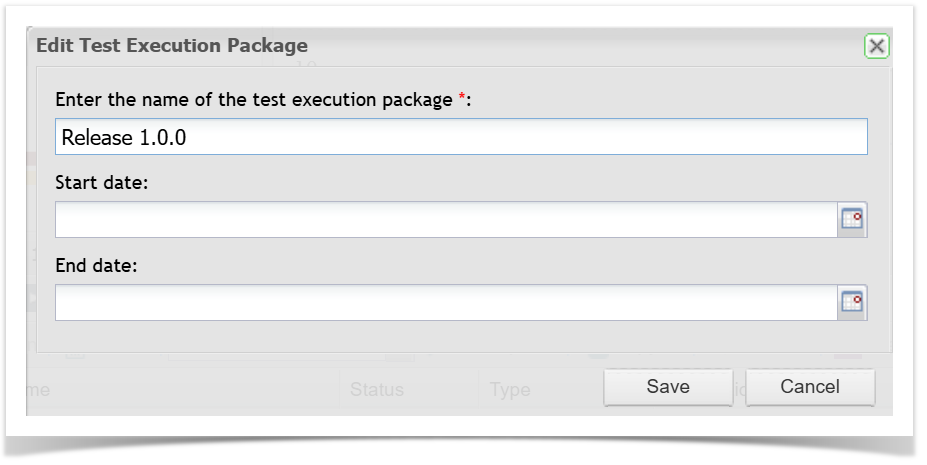
Right Click and select Edit Package.

Enter or update the Start Date and/or End Date.
Save your changes.
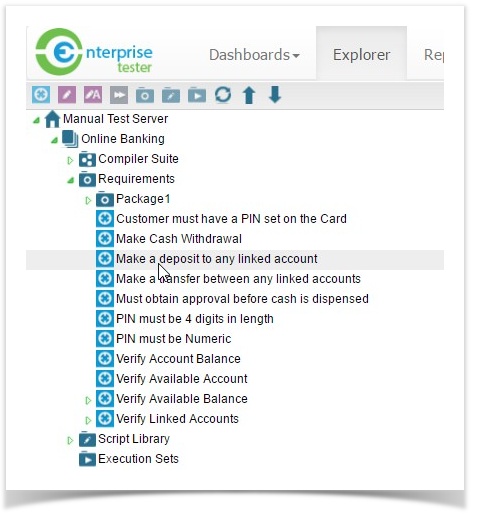
Create Execution Sets by dragging a Requirement into the Execution Sets area
Test Execution data can also be created by dragging a single Requirement (that has Test Scripts associated to the Requirement) and dropping it directly into the Execution Sets folder or a Package within the Execution Sets folder.
Note: This only works if there are Test Scripts associated with the Requirement.
- Ensure the Requirement has Test Scripts associated to the Requirement
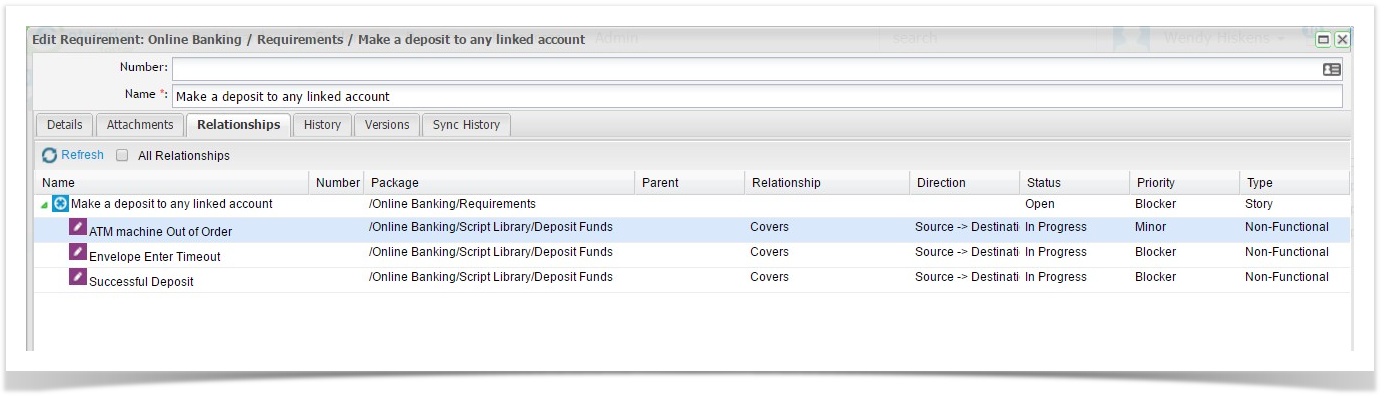
- Drag the Requirement (that has associated Test Scripts) into the Execution Sets folder or Package within Execution Sets folder.
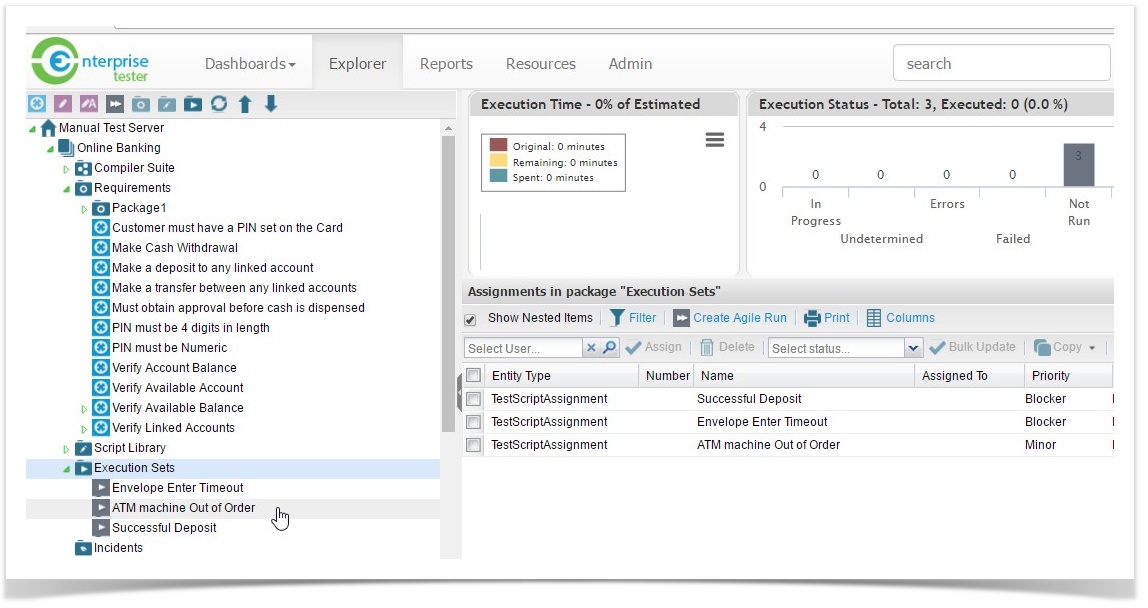
All Test Cases associated with that Requirement now have Test Executions visible under the Execution Sets folder or Package
...