...
Select Script Runs:
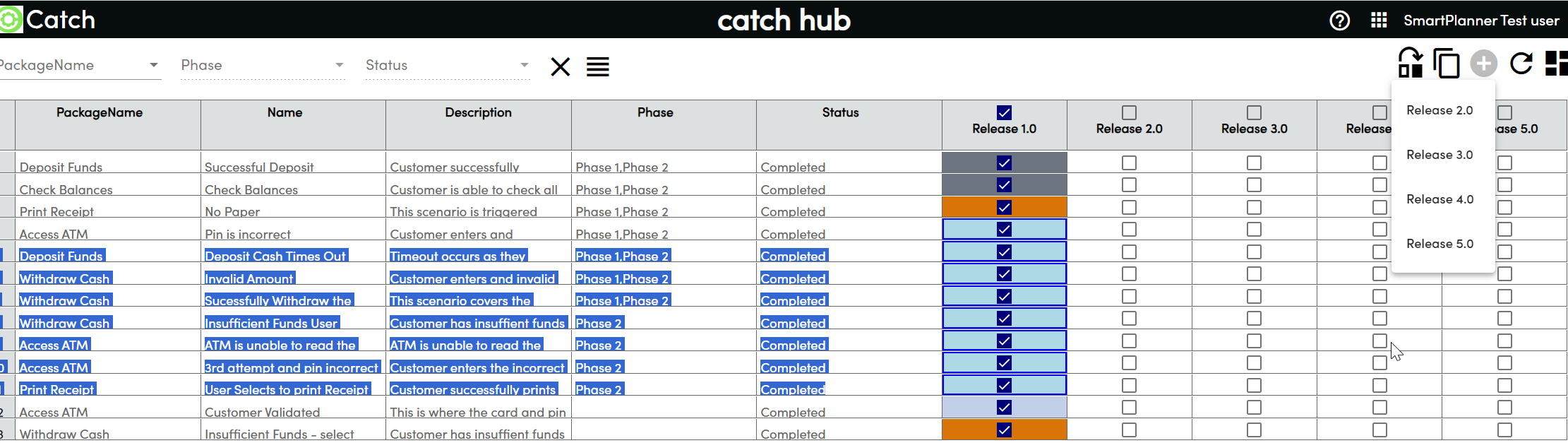
- Navigate to your tablespace and select the script runs you want to move. The
Move script runsicon move button will become enabled once script runs are selected.
- Navigate to your tablespace and select the script runs you want to move. The
Click Move Script Runs Icon:
- Highlight the script runs that you want to move and click on the
Move script runsicon.the move button
- Highlight the script runs that you want to move and click on the
Select Destination Test Cycle:
- A list of available test cycles to move the script runs to will be displayed.
- Select the test cycle where you want to move the script runs to.
Move Script Runs:
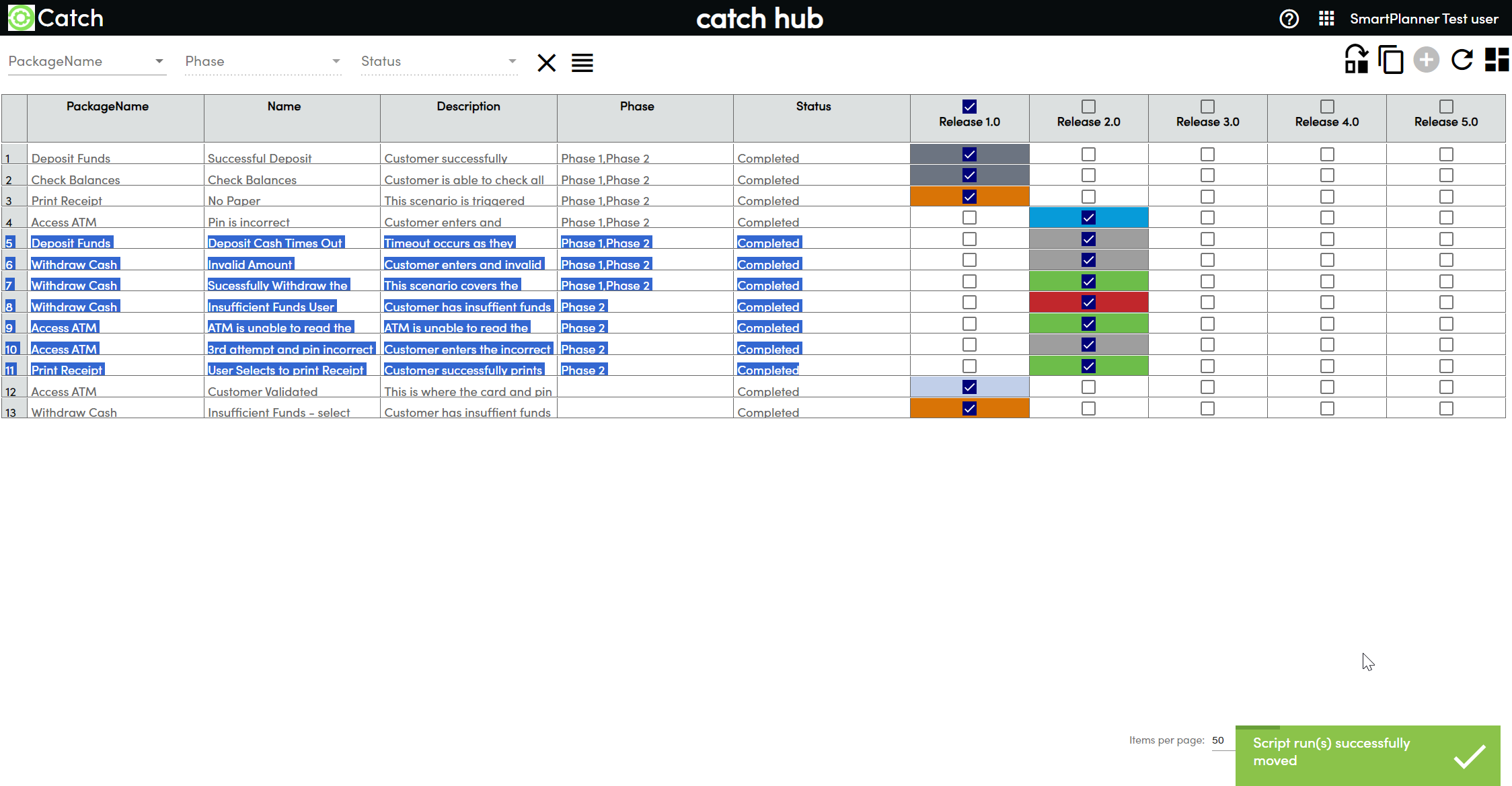
- The script runs will be moved to the destination test cycle.
- A confirmation message will be displayed in the bottom right corner of the screen.
- The assignee will be retained, and the statuses of the test runs will also be reset to “Not Run”retained.
Error Handling:
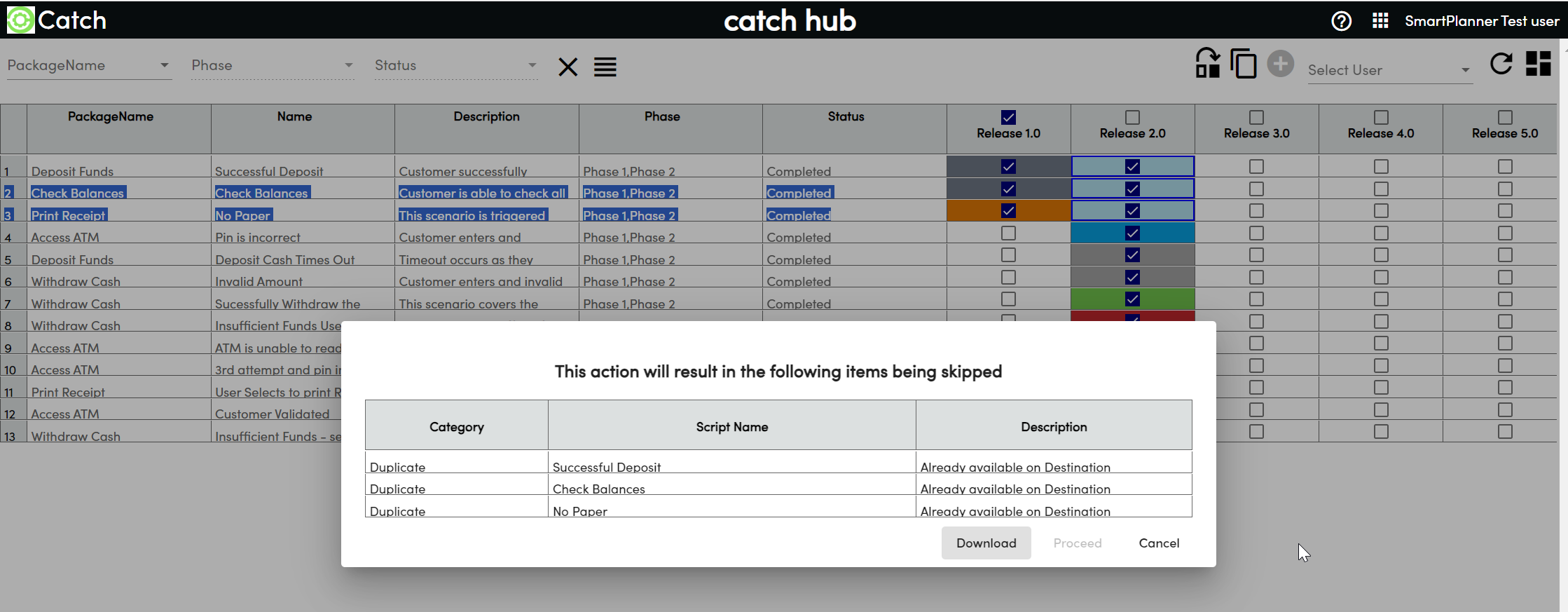
There are two scenarios where script runs cannot be moved:
...
When these situations occur, an error pop-up screen will be displayed, showing which tests are affected.
Error Pop-up Screen Options:
...
Note: If all the script runs selected from the source test cycle cannot be moved, only the Download and Cancel buttons will be enabled.