Creating user groups in CatchHub is simple. Follow these steps:
Access Administration:
- Click the top-right menu bar and click on your logged in name. This will show a dropdown menu.
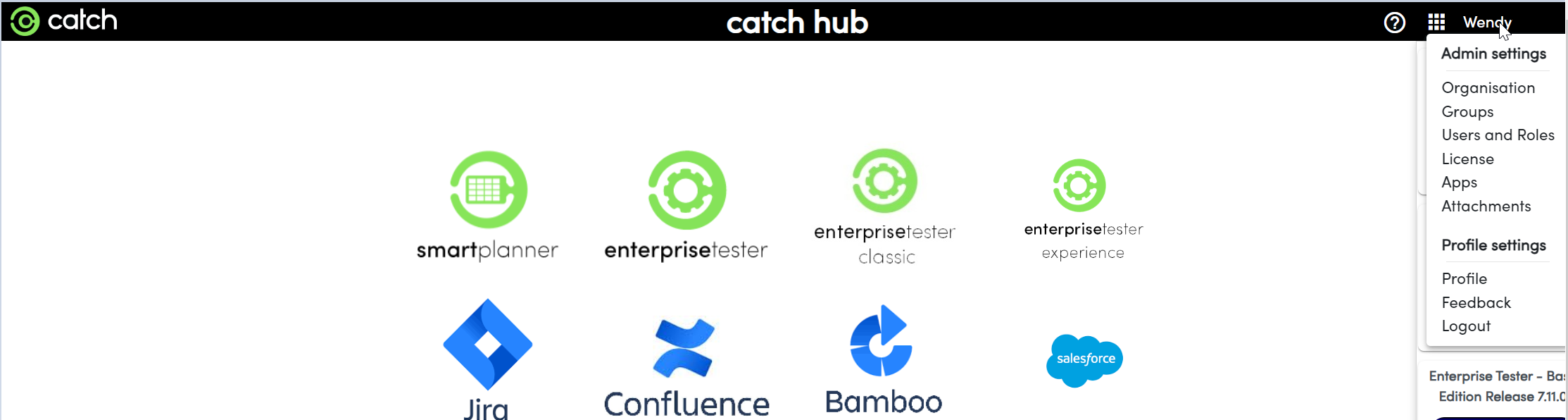
- Click the top-right menu bar and click on your logged in name. This will show a dropdown menu.
Navigate to Groups:
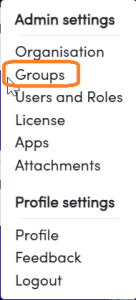
- Click on "Groups" .
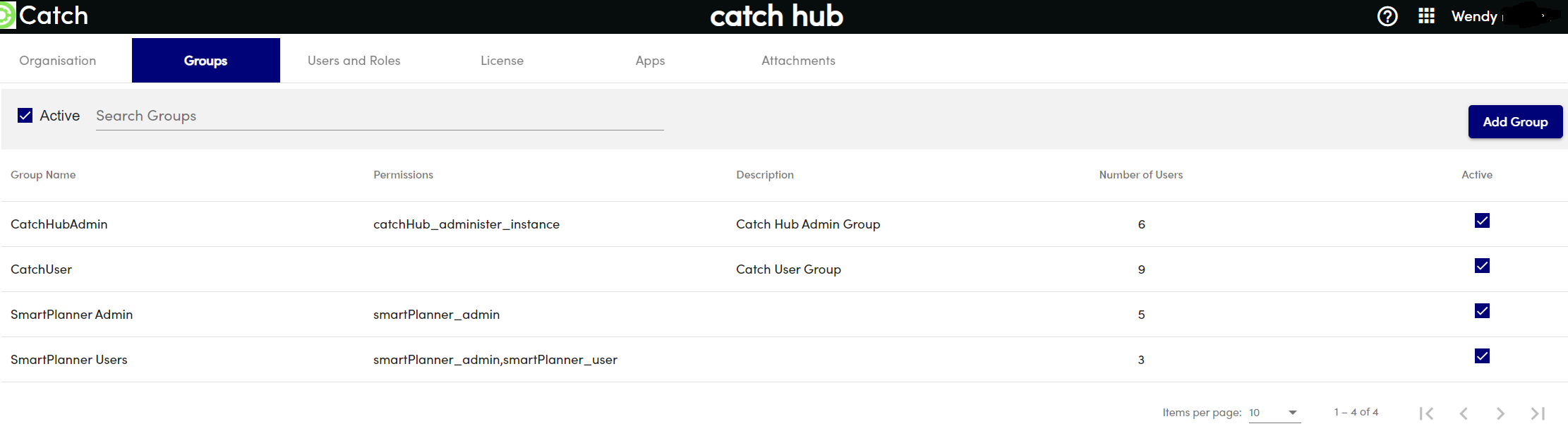
- Click on "Add Group" button.
- Click on "Groups" .
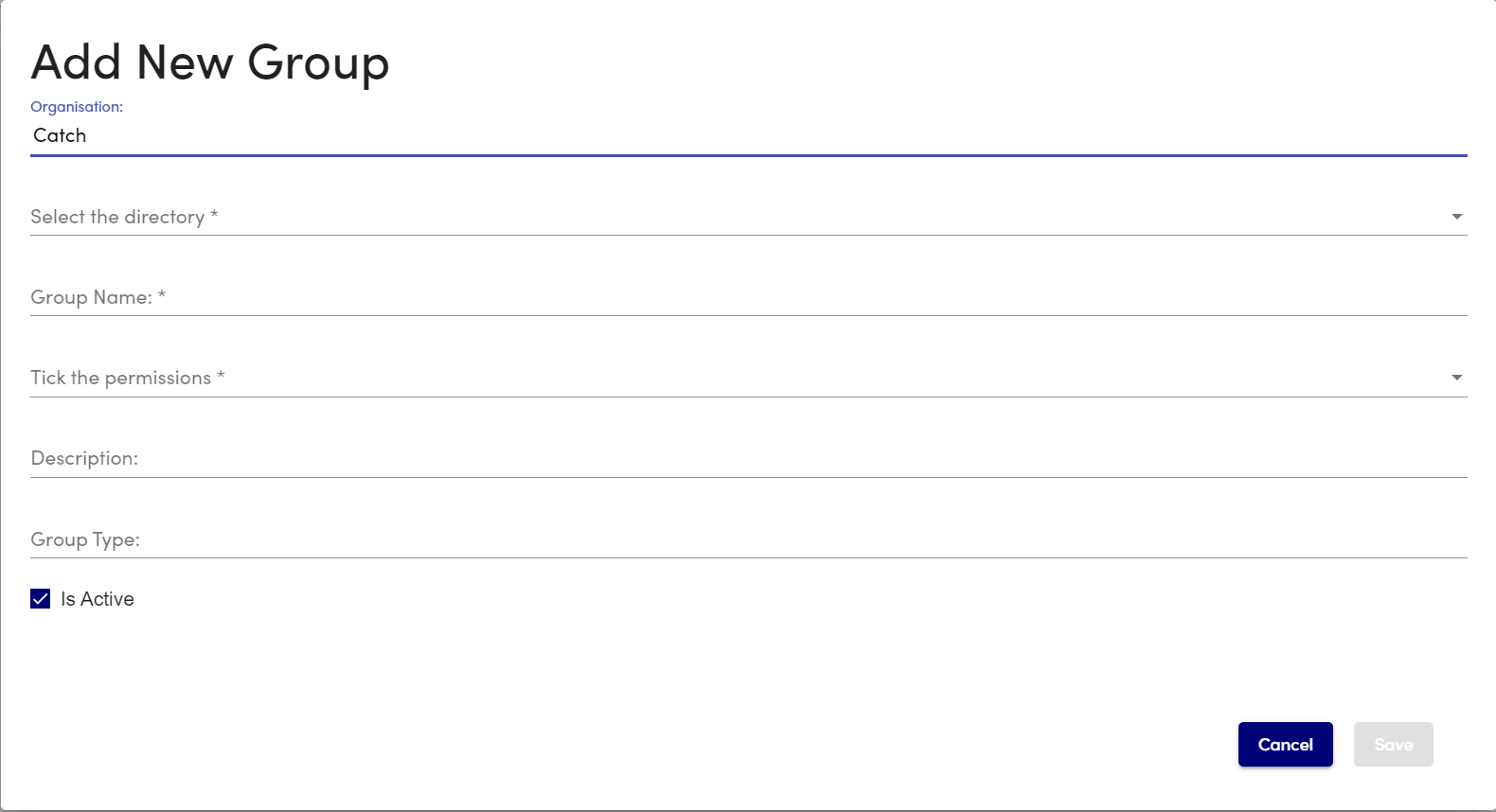
Fill Out Group Details:
- Group Name: Enter a name for the group.
- Permissions: Select the appropriate permissions (see below).
- Description: Add a description for the group.
- Ensure the group is Active.
- Click Save.
Group Configuration:
- Once saved, the new group will appear in the group configuration screen. Groups will show the number of users they contain.
Add Users to Groups:
- After creating the group, you can now add users to it.