Execution Summary tool provides a quick overview of test execution statuses within a tablespace. This feature helps you track the progress and status of your test executions efficiently.
How to Access the Execution Summary
SmartPlanner Dashboard:
Navigate to SmartPlanner Dashboard:
- Go to the SmartPlanner dashboard.
- Go to the SmartPlanner dashboard.
Summary Graph Display:
- A summary graph is displayed for each tablespace that has test cycles configured.
- Note: If the tablespace does not yet have any test cycles configured, no summary graph will be displayed.
- There is also a Completion % column that shows the completion rate of the test runs.
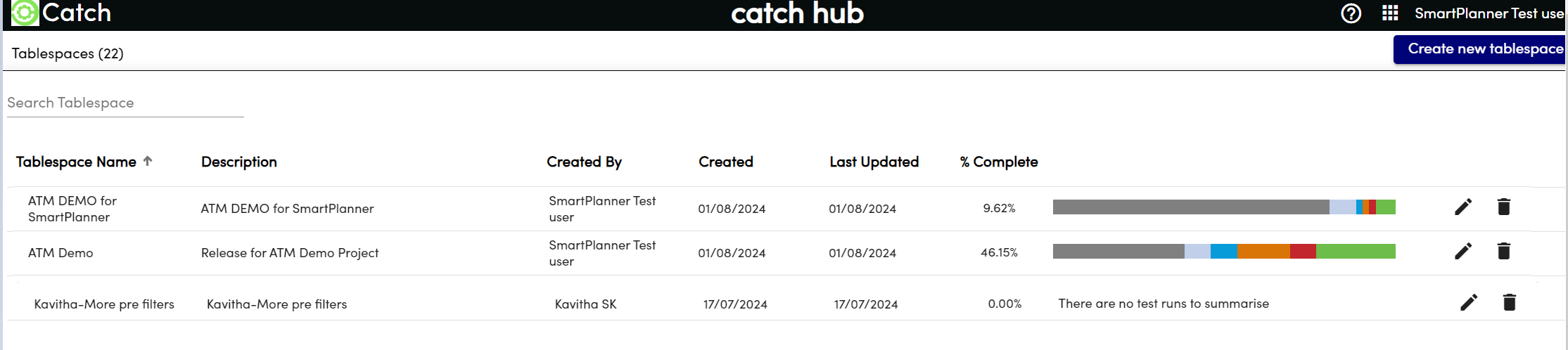
View Execution Summary:
- Open Execution Summary:
- Double-click on the graph of the desired tablespace to open the Execution Summary screen.
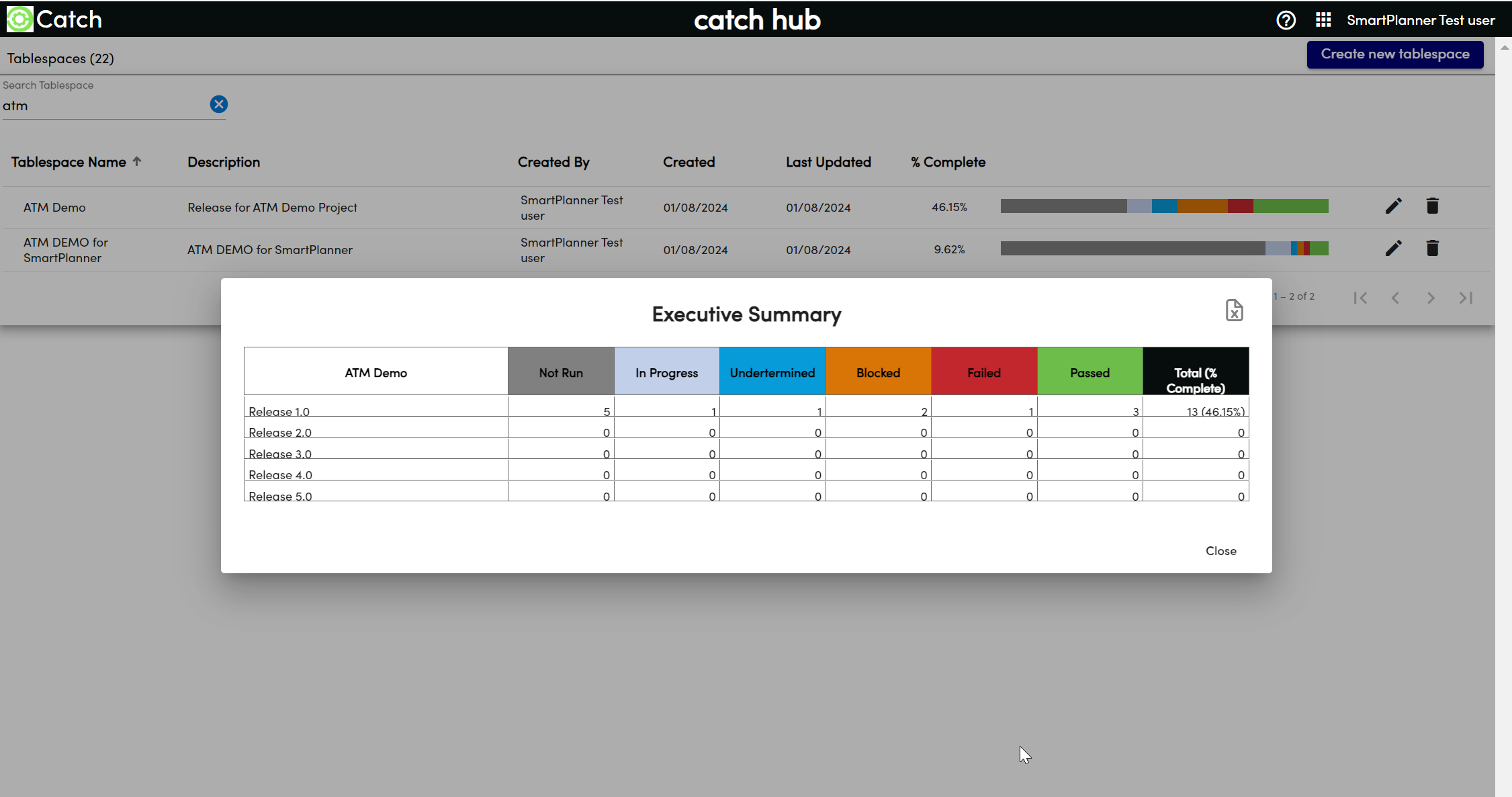
Download Execution Summary:
- Download to CSV:
- Click on the download icon located within the Execution Summary screen to download the data to a CSV file.
Execution Summary Details
- Status Breakdown: Displays the number of tests for each execution cycle, color-coded for easy reading.
- Total Counts:
- Assigned Scripts: Total count of scripts assigned to the cycle.
- Library Scripts: Total count of all scripts in your library.