Assigning test cases to a specific project or product allows you to filter down further during regression testing or when testing a large scope of test cases. Once filtered, you can create additional tables to refine your view based on the product, project, or even specific versions.
To assign test cases to a specific project or product, you must first create a tablespace with Value Checkboxes
This is how the table configuration looks for this guide
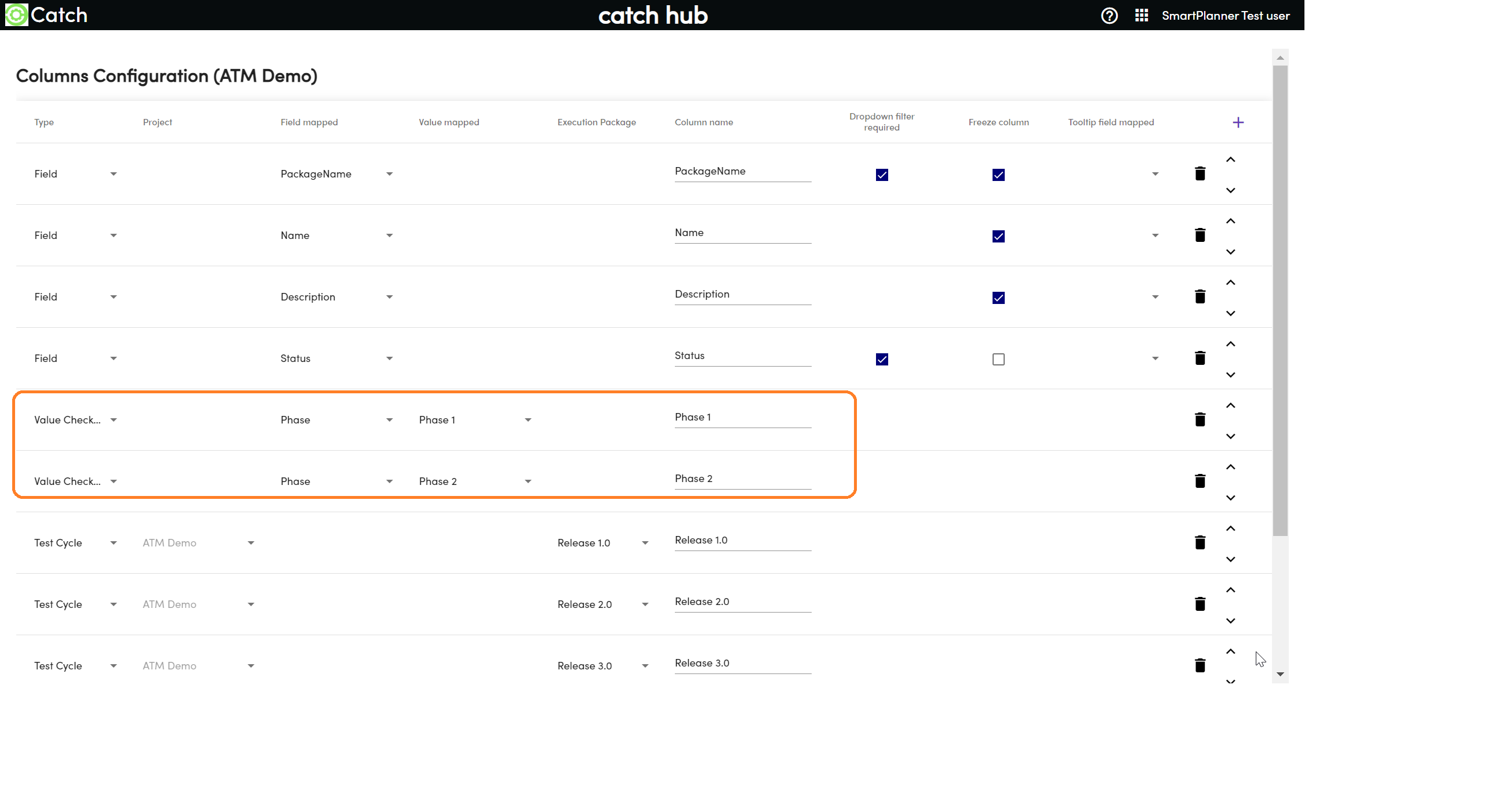
From the table configuration, you can see that some test cases are assigned to the Phase 1 package and others to the Phase 2 package across two projects. Now is the opportunity to assign test cases across both packages, allowing for further filtering when assigning test executions.
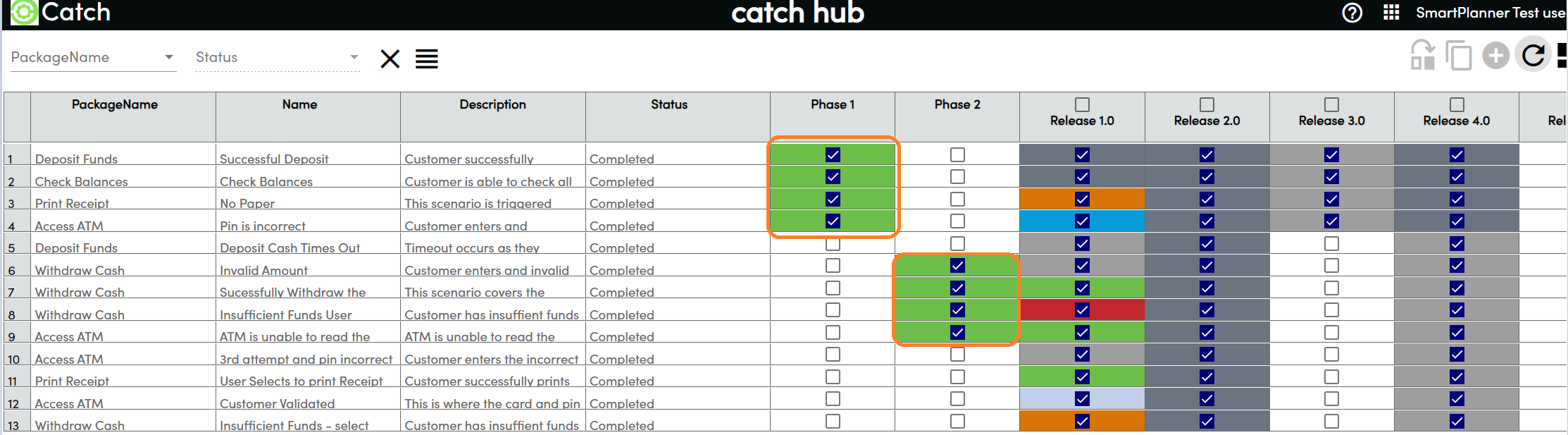
Steps to Assign Test Cases to Phases:
Review Current Assignments:
- Observe the current assignments in the table, noting which test cases are assigned to the Phase 1 and Phase 2 packages.
Assign Test Cases to Phases:
- Click in the column for Phase 1 or Phase 2 to assign test cases to these phases. This will add the selected options to the test runs in Enterprise Tester.
Example Table Configuration:
Below is an example of how the table configuration might look:
By clicking on the appropriate phase columns, you assign the test cases to the respective phases, making it easier to manage and filter test executions.
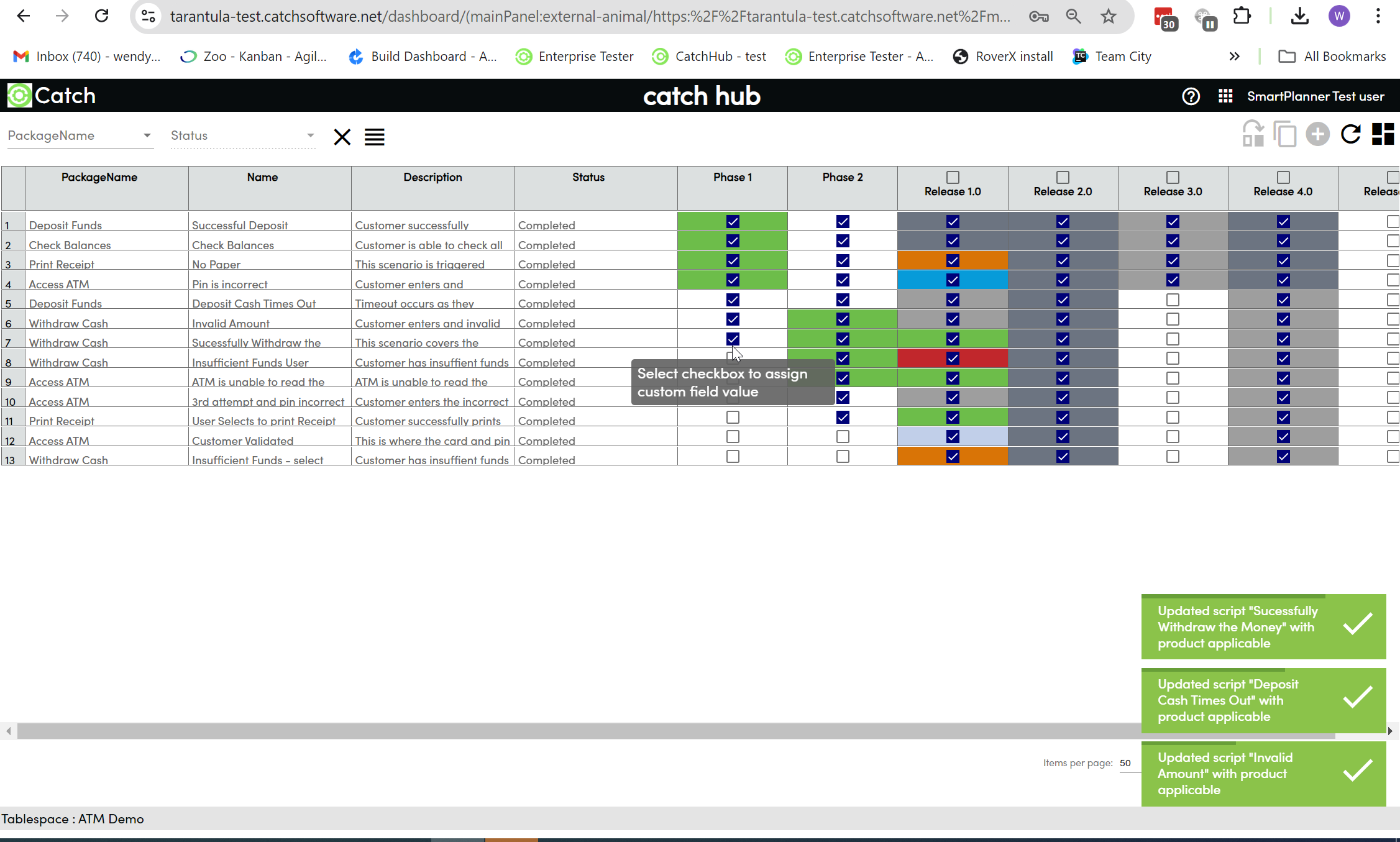
Filtering and Assigning Test Executions:
Filter by Phase:
- Once the test cases are assigned to Phase 1 or Phase 2, use the filters to narrow down the test cases by phase. The below example is filtered for only displaying Phase 1 a those with no phase assignment.
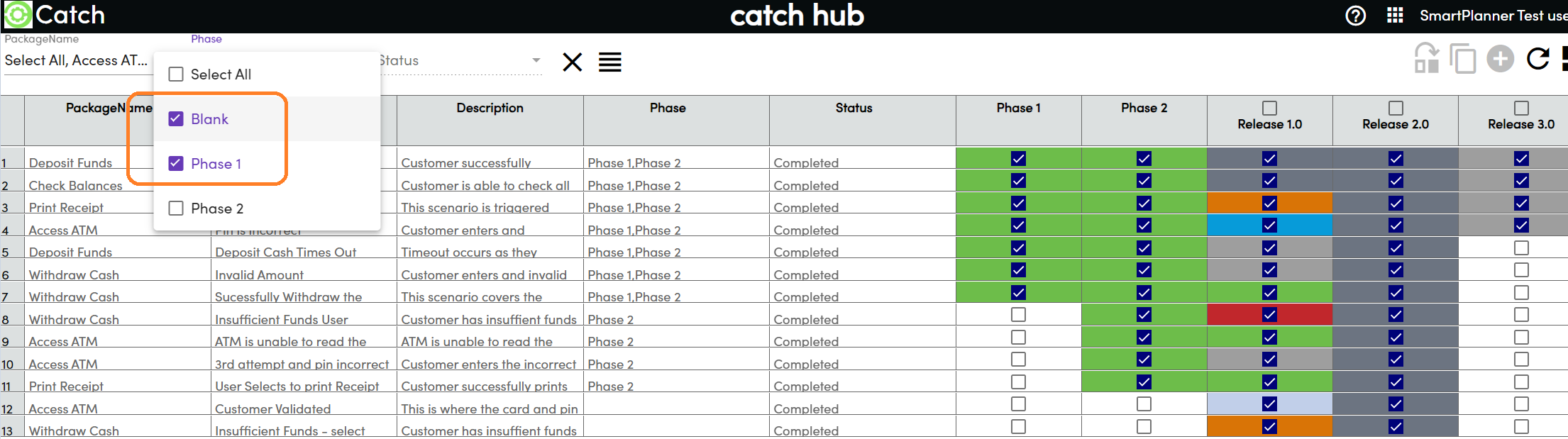
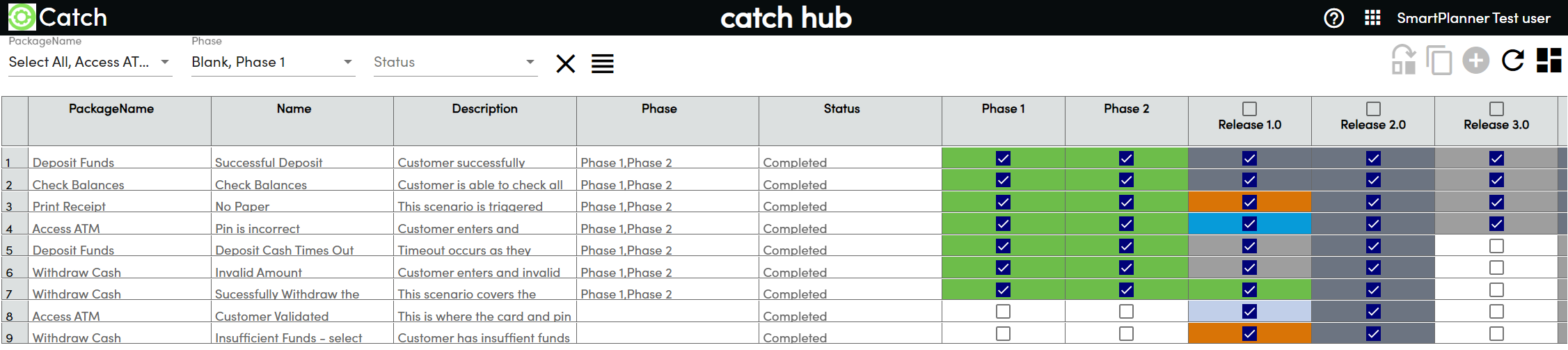
- Once the test cases are assigned to Phase 1 or Phase 2, use the filters to narrow down the test cases by phase. The below example is filtered for only displaying Phase 1 a those with no phase assignment.
Create Test Executions:
- With the filtered view, create and assign test executions based on the phases.
- With the filtered view, create and assign test executions based on the phases.